


Over 380 million people log into Roblox every month, and a significant portion of them are under 13.1 Roblox offers younger users incredible creative opportunities, but the platform also comes with risks like inappropriate content, online predators, and unauthorized purchases. As parents, it’s our responsibility to make sure our kids stay safe.
The good news? Roblox’s parental controls are actually pretty robust once you know how to use them. So in this guide, allow our digital safety experts walk you through everything you need to set up a safer Roblox gaming environment for your kids.
>> For Parents: Is Roblox Safe for Children?
Why Parental Controls Matter on Roblox
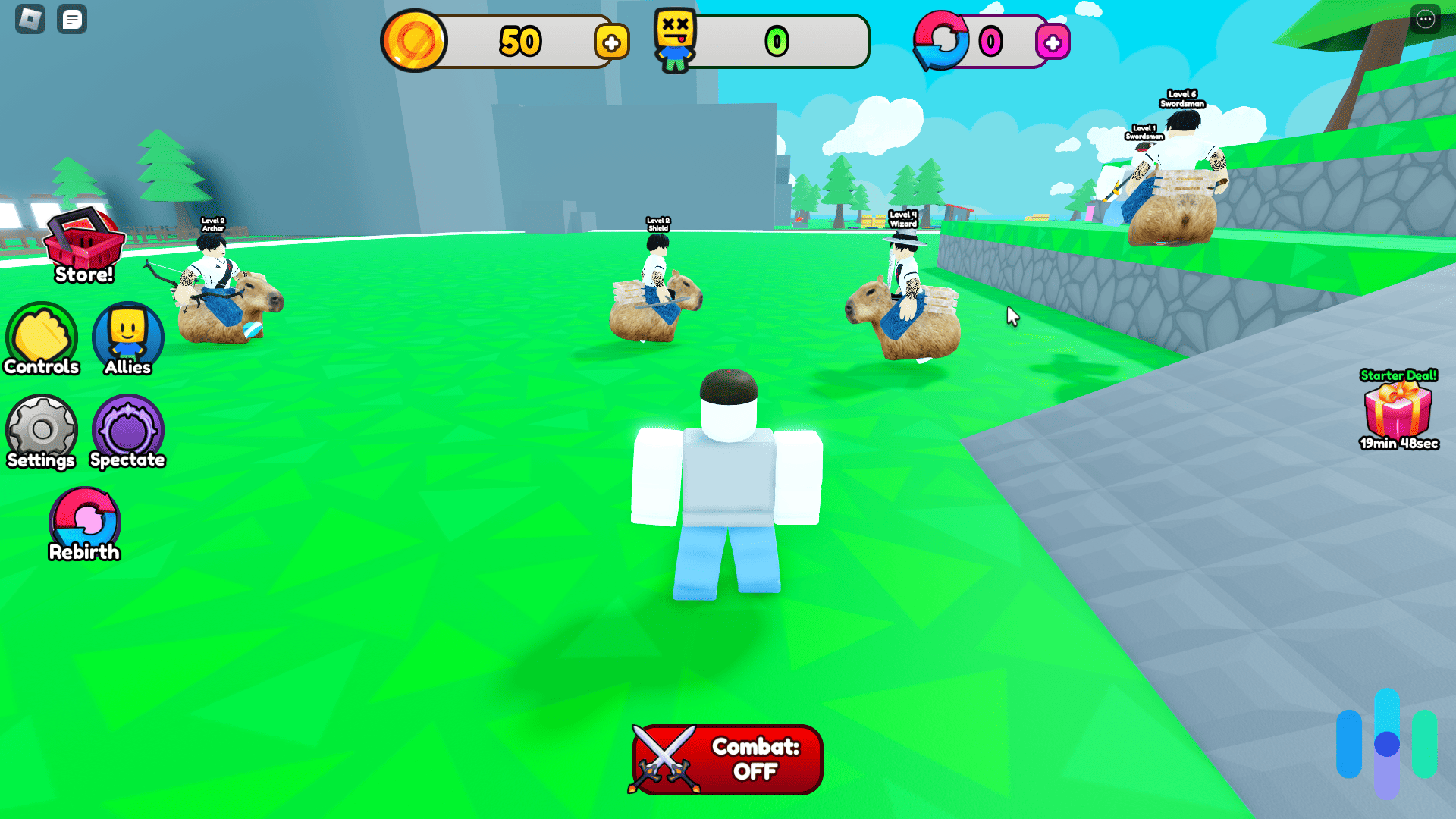
Roblox is more than just a game. It’s a massive social platform where users create, share, and interact. According to the Family Online Safety Institute’s 2025 Online Safety Survey, parents express significant concern about their children’s online experiences and interactions.2 These concerns aren’t unfounded. The open nature of Roblox means kids can potentially encounter strangers, view user-generated content, and rack up real-world charges.
Think of Roblox like a digital playground. You wouldn’t drop your child off at a physical park without some ground rules and supervision. The same principle applies here. Parental controls give you the ability to create boundaries around who your child talks to, what content they access, and how much money they can spend. The beauty of it is that you won’t have to hover over their shoulder every second to keep your child safe online.
Pro Tip: Parental controls can be platform-specific, but there are also parental control apps that offer device-wide protection. Check out our list of the best parental control apps of 2026.
Creating a Parent-Controlled Roblox Account
The foundation of effective Roblox parental controls starts with how you set up your child’s account. When creating a Roblox account for a child under 13, the platform automatically applies stricter default settings based on the Child Online Privacy Protection Act (COPPA) requirements.3
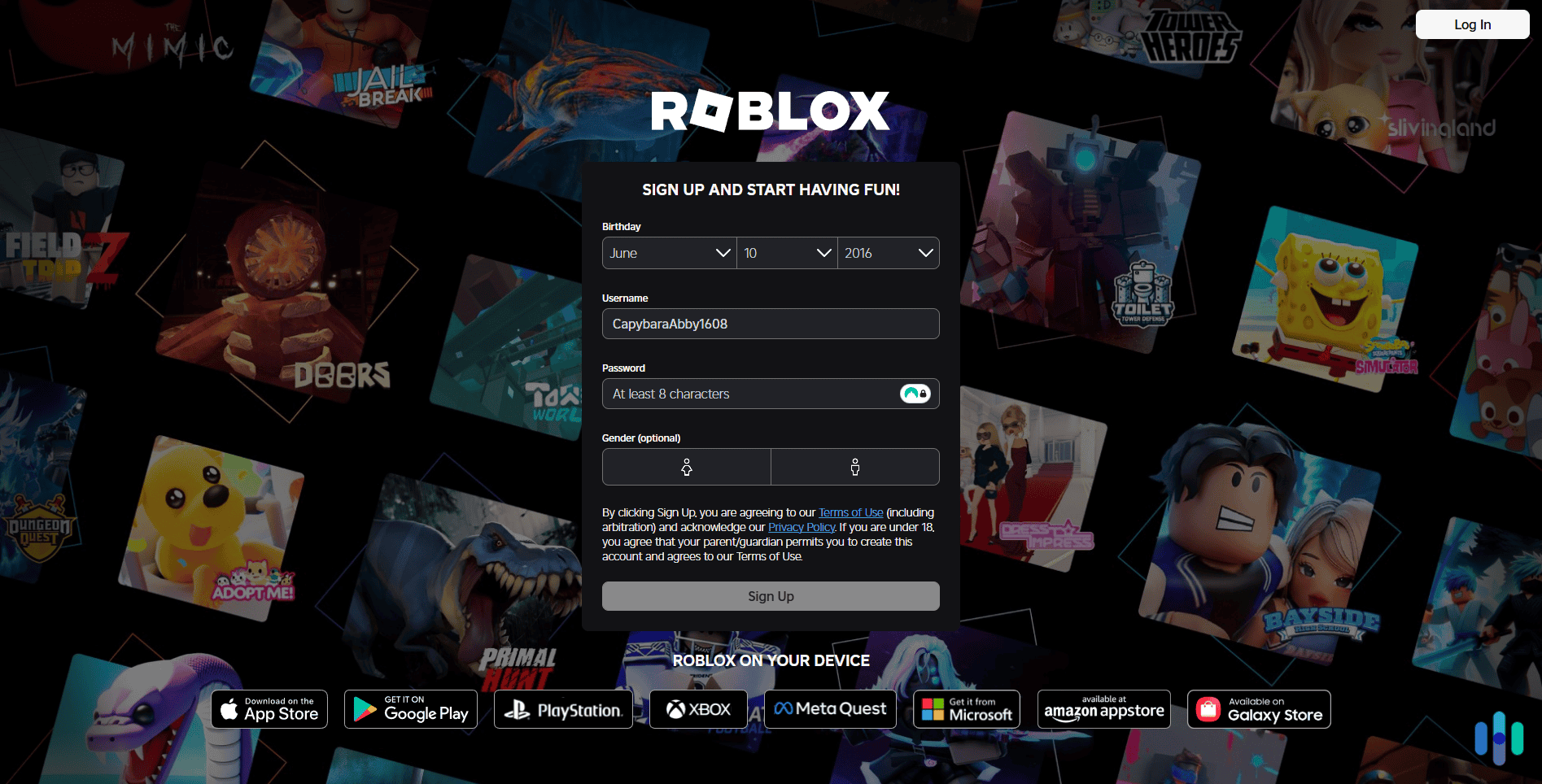
Here’s how to create a parent-controlled Roblox account:
- Go to Roblox.com and click “Sign Up”
- Enter your child’s correct birthdate. This matters because accounts for users under 13 get automatic restrictions.
- Create a unique username that doesn’t reveal personal information
- Use a parent-controlled email address instead of your child’s email
- Set a strong password and keep it private from your child initially
Using your own email is crucial because it ensures all password reset requests and security notifications come directly to you. This single step gives you control over account access and prevents your child from changing settings without your knowledge.
Safety Tip: Don’t let your child use their real name or birthdate in their username. Information like “Sarah2014” tells strangers both their name and age, which could lead to child identity theft.
Adjusting Privacy and Security Settings
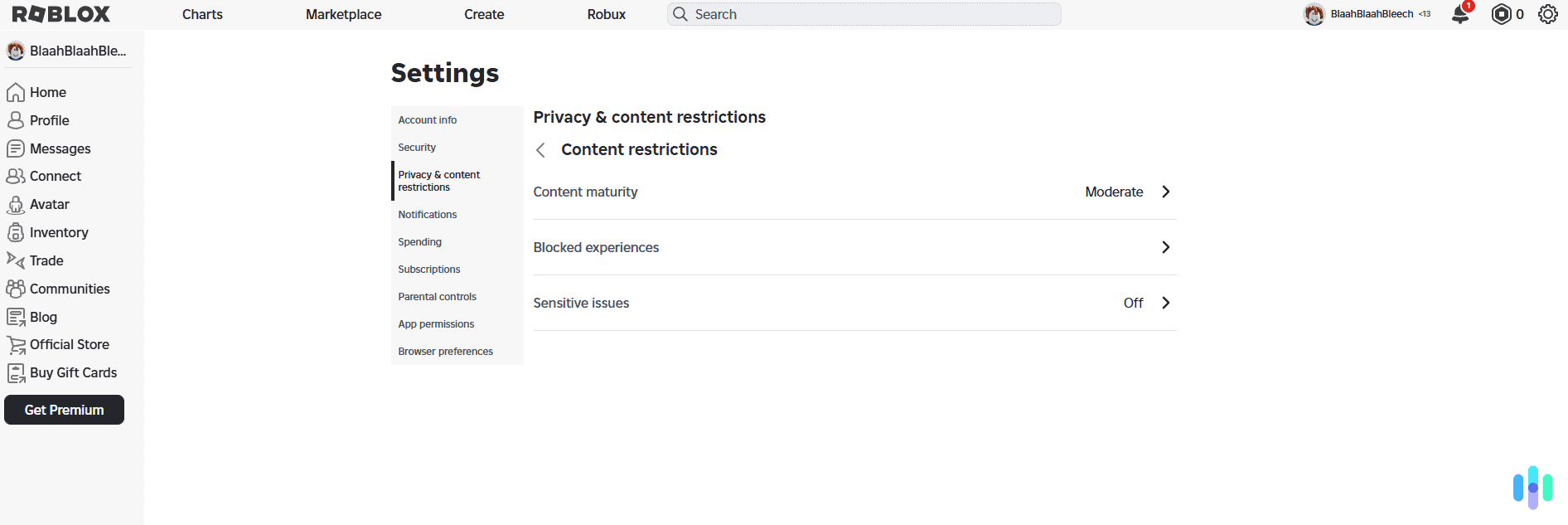
Now let’s dive into the settings that actually protect your child while they play. Log into your child’s account and click the gear icon in the upper right corner, then select “Settings.”
Account Restrictions
Under the “Privacy” tab, you’ll find “Account Restrictions.” Toggle this on for children under 13 or younger teens. This feature limits the account to a curated list of Roblox-verified games and automatically blocks games with mature themes. According to Roblox’s own guidelines, restricted accounts cannot access games rated beyond “All Ages” or “9+” content.
The caveat is that your child might complain that some popular games aren’t available. That’s the point. Many of the most popular games contain violence, scary themes, or unmoderated chat that isn’t appropriate for younger users.
Contact Settings
This section controls who can message, chat with, or invite your child to private servers. For younger children (under 10), we recommend setting everything to “No one.” For older kids who want to play with school friends, select “Friends” only. However, you should review their friend list regularly.
Experience Controls
Roblox now offers age-appropriate content ratings: All Ages, 9+, 13+, and 17+. You can restrict which content ratings your child can access through the parental controls section. This feature rolled out in 2024 as part of Roblox’s enhanced safety measures.
Pro Tip: Enable two-step verification in the security settings to prevent unauthorized access to the account, even if someone gets the password.
Setting Up Spending Controls
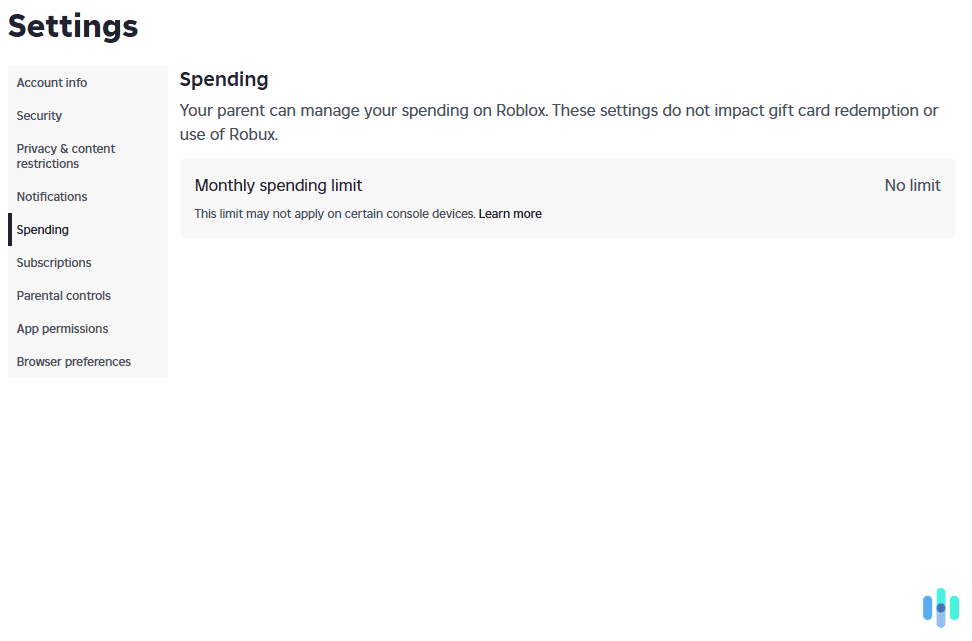
Roblox uses a virtual currency called Robux, and kids can easily spend real money if you’re not careful. That’s why, in addition to adjusting privacy and security settings, you should also set up spending controls. Here are a few tips:
- Never save payment information to your child’s account
- Require a parent-controlled PIN for all purchases by enabling “Account PIN” under Settings > Security
- Use Roblox gift cards instead of credit cards for allowable purchases
- Turn off in-game purchases entirely if your child doesn’t need premium items
The Account PIN is particularly powerful. Once enabled, it’s required to change settings or make purchases. Your child can still enjoy free games and content, but they’ll need you to enter the PIN for anything requiring Robux.
>> Similar: How to Set Up Minecraft Parental Controls
Managing Communication Features
Communication is where many parents feel most concerned, and rightfully so. Roblox offers chat features that, while monitored by filters, aren’t foolproof. This means that online predators and scammers could slip through the cracks. Here’s how you can take full control of Roblox’s social and messaging features.
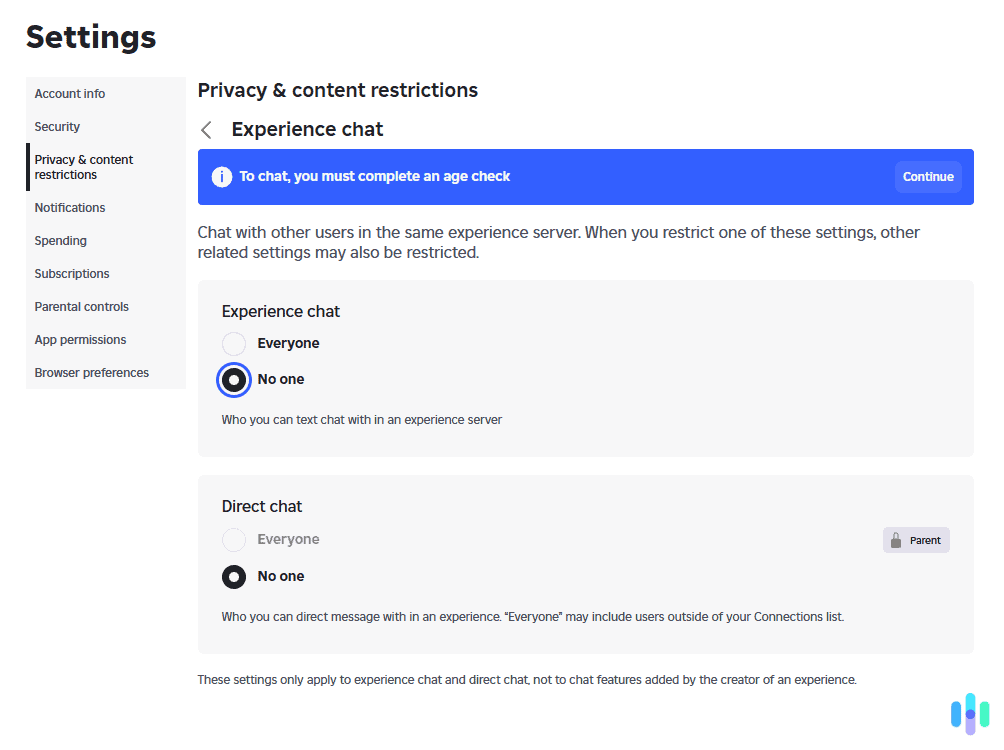
Chat Restrictions
Accounts under 13 automatically get filtered chat that blocks personal information, profanity, and inappropriate content. However, determined users find workarounds. You can disable chat entirely or limit it to friends only through the Privacy settings.
What to do exactly depends on your child. For example, if your 9-year-old plays Roblox primarily to build and explore, they likely don’t need to chat at all. You can disable it completely. If your 12-year-old wants to coordinate with school friends during gameplay, enable “Friends” only and periodically review who those friends are.
Who Can Message Me
Separate from in-game chat, Roblox has a private messaging system. Once again, you can set this to “No one” or “Friends,” depending on your child’s age and maturity. Remember that “Friends” means anyone your child has accepted a friend request from, so teach them to only accept requests from people they know in real life.
Pro Tip: Have a conversation with your child about never sharing personal information—full name, school, address, phone number—even with online “friends” they’ve played with for months.
Monitoring Your Child’s Activity
Setting controls is step one; monitoring is the ongoing process. Roblox doesn’t offer built-in parent dashboards yet, but you can still stay informed on your child’s activity. Here are a few tips.
- Check the account’s “History” section. Do this regularly to see which games your child has played recently. If you notice unfamiliar games, play them yourself to assess appropriateness.
- Look at their friend list under the “Friends” tab. Do you recognize these usernames? If not, ask your child who they are.
- Expand your parental control coverage. Consider using third-party parental control apps that monitor gaming time and activity. Tools like Bark or Qustodio can track Roblox usage and alert you to concerning patterns.
The most important monitoring tool, though, is conversation. Keep your child’s playing device in common areas where you can occasionally glance at what’s happening. Ask open-ended questions like “What game did you play today?” or “Who did you play with?”. Your goal isn’t surveillance; it’s building trust while maintaining awareness.
Bonus Advice: Schedule a monthly “account review” where you and your child go through settings together. This teaches them digital literacy while keeping you informed.
Conclusion
Setting up Roblox parental controls is an ongoing commitment to your child’s digital safety. Start with age-appropriate account settings, lock down privacy and spending controls, manage communication features carefully, and maintain open dialogue with your child about their online experiences.
Roblox continues evolving its safety features, so revisit settings every few months as the platform updates its tools and as your child matures. Remember that parental controls work best when combined with education. Teach your kids why these boundaries exist, help them develop good online habits, and create an environment where they feel comfortable coming to you if something feels wrong.
With the right setup and ongoing involvement, Roblox can be exactly what it’s meant to be—a creative, social, and entertaining experience that’s actually safe for kids.
Frequently Asked Questions
-
Can my child bypass Roblox parental controls?
If you use your own email and enable an Account PIN, it becomes extremely difficult for children to change settings. Always keep login credentials and the PIN private.
-
What age is appropriate for Roblox?
Roblox is rated for users 7 and up, but with proper parental controls, children as young as 6 can use it safely. Maturity level matters more than age.
-
How do I report inappropriate behavior on Roblox?
Click the “Report Abuse” button visible in-game or on user profiles, or email Roblox support at info@roblox.com with specific details. The platform investigates all reports.
-
Can I set time limits on Roblox?
Roblox doesn’t have built-in time limits, but you can use device-level parental controls (Screen Time on iOS, Family Link on Android) to restrict gaming hours. Many routers also offer scheduling features.
-
Are Roblox's chat filters enough to keep my child safe?
While Roblox uses sophisticated filtering, no automated system is perfect. Combining chat filters with restricted contact settings and regular monitoring provides the best protection.
-
What should I do if my child encounters something inappropriate?
Report it immediately using Roblox’s reporting tools, screenshot the content if possible, and have a calm conversation with your child about what happened. Use it as a teaching moment about online safety.