
The Best VPNs for Android in 2026
Stacked with a highly-rated app, double-hop capability, and malware protection, we easily recommend NordVPN to protect Android devices.
 &
&
 Last Updated on Mar 11, 2026

- Highly-rated Google Play app
- Double-hop available for Android devices
- Android version comes with malware protection
- Fast speeds, especially on Android devices
- Specially designed app for Android TV
- Android version comes with a choice of protocols
- The free plan offers unlimited bandwidth and fast speeds
- Has a very intuitive Android app that’s also lightweight
- Offers access to high-end privacy features
It’s no secret that most people spend the majority of their online time using their smartphones. And if you’ve got an Android phone, Google might be using it as a rich source of data. In a controversial study, researchers found that Google might be collecting 1.3 TB of data from Android users every 12 hours.1 That’s in the U.S. alone. And it’s not just Google that’s doing that. The website you visit, the developers of apps use, and even your internet provider are interested in your data – sometimes for nefarious reasons.
So if you value your privacy – and you should – connecting your Android to a VPN is a must. A virtual private network is software that uses encryption to protect your online data. It also keeps you anonymous by hiding your IP address. After weeks of testing and researching Android VPNs, we’ve come to the conclusion that these six are the best to use.
The Best VPNs for Android: Our Top Picks
- NordVPN - Best Privacy Features
- Surfshark - Best App Performance
- Proton VPN - Best Free VPN for Android
- IPVanish - Fastest VPN for Android
- Private Internet Access - Best Value Android VPN
- ExpressVPN - Best Encryption
The Best Android VPNs In A Nutshell
| System |
NordVPN
|
Surfshark
|
Proton VPN
|
IPVanish

|
Private Internet Access
|
ExpressVPN

|
|---|---|---|---|---|---|---|
| Ranking | 1st | 2nd | 3rd | 4th | 5th | 6th |
| Ratings | 9.7/10 | 9.5/10 | 9.3/10 | 9.3/10 | 9.4/10 | 9.1/10 |
| Minimum Monthly Cost | $3.19 | $2.30 | $4.49 | $2.99 | $2.03 | $8.32 |
| VPN protocol |
|
|
|
|
|
|
| Android app rating | 4.5 | 4.6 | 4.5 | 4.4 | 4.5 | 4.4 |
| Download speed (average)* | 219 Mbps | 216 Mbps | 213 Mbps | 229 Mbps | 223 Mbps | 214 Mbps |
| Upload speed (average)* | 201 Mbps | 187 Mbps | 204 Mbps | 213 Mbps | 193 Mbps | 207 Mbps |
| Read Review | NordVPN Review | Surfshark Review | Proton VPN Review | IPVanish Review | Private Internet Access Review | ExpressVPN Review |
*Average readings (rounded to the closest whole number) between five speed tests performed on an Android 11 phone connected to a 250 Mbps fiber-optic network.
A Detailed List of the Best VPNs for Android
-
1. NordVPN - Best Privacy Features
 Get NordVPN Links to NordVPN
Product Specs
Server locations 130 countries Average Speed Loss 6% download & 4% upload Apps Windows, MacOS, Linux, Android, iOS, Chrome, Firefox, Edge, Android TV, tvOS Best Monthly Rate $3.39/mo with a 2-year plan Money-Back Guarantee 30 days full refund
Privacy
NordVPN comes from Nord Security, a company that builds digital tools centered around online privacy, so we expected nothing less than complete privacy from this VPN. It didn’t disappoint. Its privacy policy was clear about its practices. Although it collects some aggregate data, such as device information and identifiers, it’s a true “no-logs” VPN that doesn’t record users’ IP addresses, browsing activity, and other sensitive information. It’s unlike CyberGhost, a VPN we recently reviewed, that collects location information, although in an anonymous format.
App performance
NordVPN’s Android app was a little on the heavy side, weighing in at over 150 MB, but it ran fast and smoothly. It launched quickly and connected to a VPN tunnel even more so, which made it easy for us to use the VPN while on the subway or standing in line to get coffee.

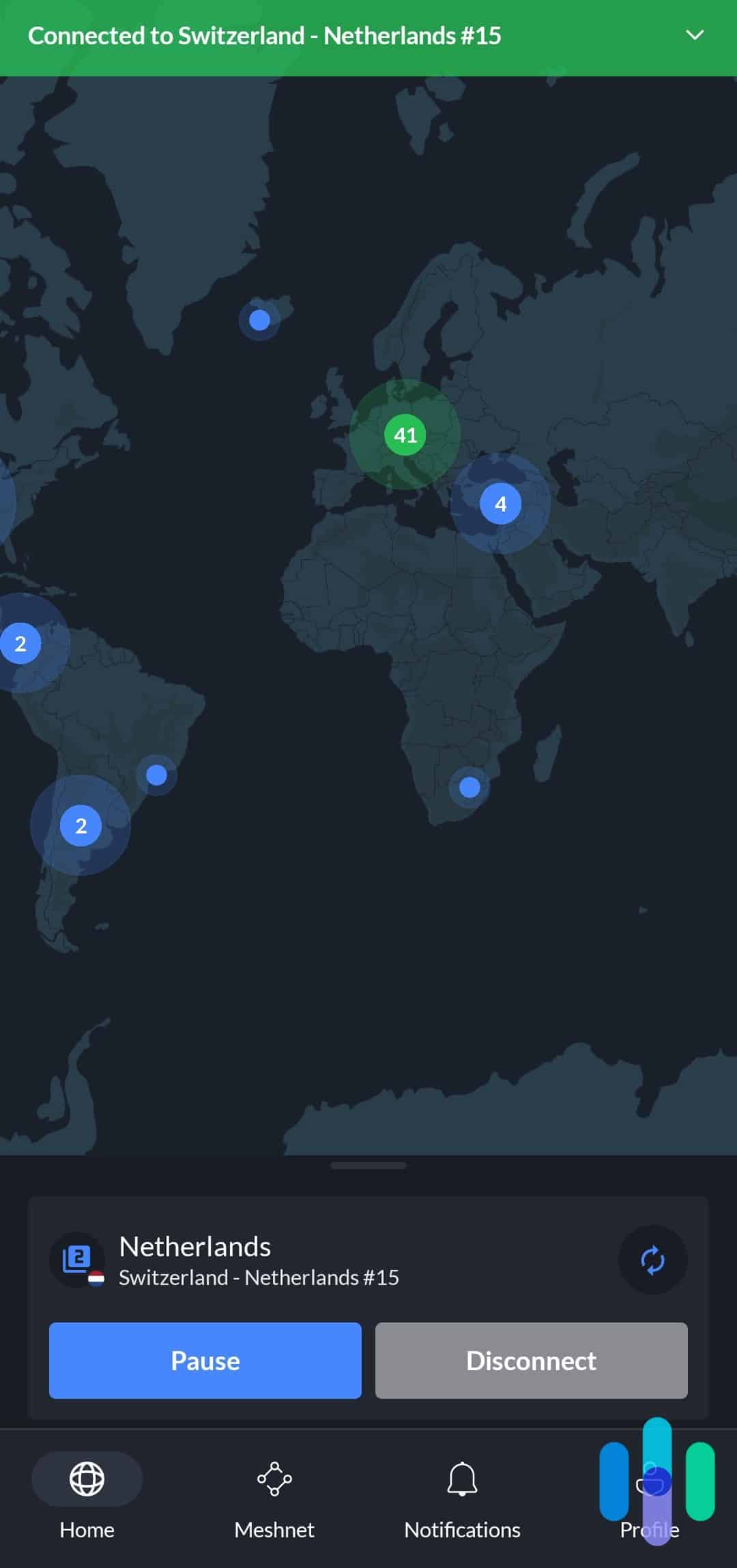
NordVPN Home Screen on Android App » Further Reading: The Overall Best VPN
NordVPN also had no noticeable impact on our device’s performance and battery level. We once left it running for eight hours straight and still went home with a 30-percent charge, nothing different from our normal battery consumption.
Speed
When it comes to speed, NordVPN’s Android version performed a bit slower than its Windows and Mac counterparts, but it was still above average overall. Both the download speed and upload speed remained at over 200 Mbps on our 250 Mbps network, so that’s a speed decrease of less than 20-percent. That’s better than (ironically) FastVPN. In our FastVPN review, we recorded a 40-percent speed loss even when connected to a nearby VPN server.
What We Like
- Good Android app ratings and reviews
- Minimal data logging
- Strong encryption (256-bit AES) with reliable VPN protocols
- Double VPN feature
What We Don’t Like
- Default map-based server selection interface (hard to pinpoint location)
- No built-in Android app kill switch; must use Android’s settings
- Split tunneling for apps only, no website split tunneling
- No in-app subscription purchase option
We selected NordVPN as the best Android VPN for privacy for numerous reasons, one of which is its features. For folks who want absolute privacy, NordVPN has an option to double the encryption and tunneling of its VPN, called Double VPN. Otherwise known as multi-hop, this feature encrypted our traffic twice and routed it through two VPN servers in different locations, making it all that much harder to invade our privacy. We used this feature mostly when corresponding with anonymous sources for our journalistic endeavors, but we see this feature being useful for activists, whistleblowers, and anyone who might need extra secrecy and anonymity on their phones.

NordVPN settings on the Android App Even NordVPN’s normal connections provide top-notch privacy. It uses 256-bit AES encryption, the same encryption the U.S. government has been using since 2001.2 It’s also what we consider the gold standard since some VPNs offer the less secure and private 128-bit AES. We strongly recommend going with a VPN that uses 256-bit AES.
FYI: NordVPN also currently holds the record for the most number of countries with a VPN server. With recent additions to its network, NordVPN now offers IP addresses in 118 countries, narrowly beating Proton VPN with 117 countries.
-
2. Surfshark - Best App Performance
 Get Surfshark VPN Links to Surfshark.com
Product Specs
Server locations 100 countries Average Speed Loss 8% download & 50% upload Apps Windows, MacOS, Linux, Android, iOS, Chrome, Firefox, Edge, tvOS, Android TV, Fire TV Best Monthly Rate $1.99/mo with a 2-year plan Money-Back Guarantee 30 days full refund
Privacy
Surfshark is another VPN that claims not to log user data, but we found in its privacy policy3 that it logs VPN users’ IP addresses. However, Surfshark assures that the information is wiped automatically 15 minutes after disconnecting.

Surfshark server menu with Fastest and Nearest server options We don’t just take a VPN company’s word as truth. For example, PureVPN claims to keep no logs, but helped the FBI track a cyberstalker in 2017, allegedly using logged data. The company has since addressed the issue4, but incidents like that make it hard to trust. Surfshark distinguishes itself by submitting its practices to independent third-party audits. The most recent one, performed by the German firm Cure53, confirmed that Surfshark’s server infrastructure aligns with its privacy policy, including the collection and subsequent deletion of users’ IP addresses.
App performance
Surfshark’s clean interface and lightweight app made it easy to use the service anytime and anywhere. Notably, to quickly connect, it offers the option to connect you to the nearest or fastest server without trial-and-error. We used the “fastest server” option if we wanted to stream or download or the “nearest server” if we wanted to protect our privacy without changing our Android’s location. These quick connect options contribute to Surfshark’s user-friendliness.
Speed
Surfshark’s download speed, averaging at 216 Mbps in our tests, was able to go toe-to-toe with the rest of our top VPN picks, but its 187 Mbps average upload speed left much to be desired. It provided enough speed to support our daily browsing and streaming, but just know that we found uploading stories to Instagram (and other social media, for that matter) much slower with Surfshark.
What We Like
- Clean and intuitive Android interface
- Referral program for users who want to earn free months
- Quick-connect options and 100 server locations
- Frequent Android app updates
What We Don’t Like
- Records IP address (but deletes 15 minutes after session ends)
- No over-the-phone customer support
- Doesn’t show server load/speed/ping in the server menu
- Expensive monthly plan ($12.95)
Surfshark puts a premium on user-experience, as made evident by its frequent updates and improvements to its apps. During our testing period alone, Surfshark pushed updates that enhanced the stability of the connections, gave the app’s interface a facelift, and added new connection protocols for faster establishing of VPN tunnels.
Surfshark was super easy to use, but it’s also secure. For example, by default, it automatically selected the fastest and most reliable VPN protocol available to the server we selected. It even showed us which protocol we were currently using so we can change it if it doesn’t suit us. For example, while on our mobile carrier’s network, we saw that it was using OpenVPN. Now, OpenVPN is secure, but we know that it doesn’t do as well as WireGuard when on mobile data, so we were able to change the protocol on the fly and enjoy better speeds (and less data consumption).
» Learn more: VPN Cellular Usage and Data Consumption
-
3. Proton VPN - Best Free VPN for Android
 View Plans Links to Proton VPN
Product Specs
Server locations 129 countries Average Speed Loss 8% download & 4% upload Apps Windows, MacOS, Linux, Android, iOS, Chrome, Firefox, Android TV, tvOS, Firestick Best Monthly Rate $2.99/mo with a 2-year plan Money-Back Guarantee 30 days
Privacy

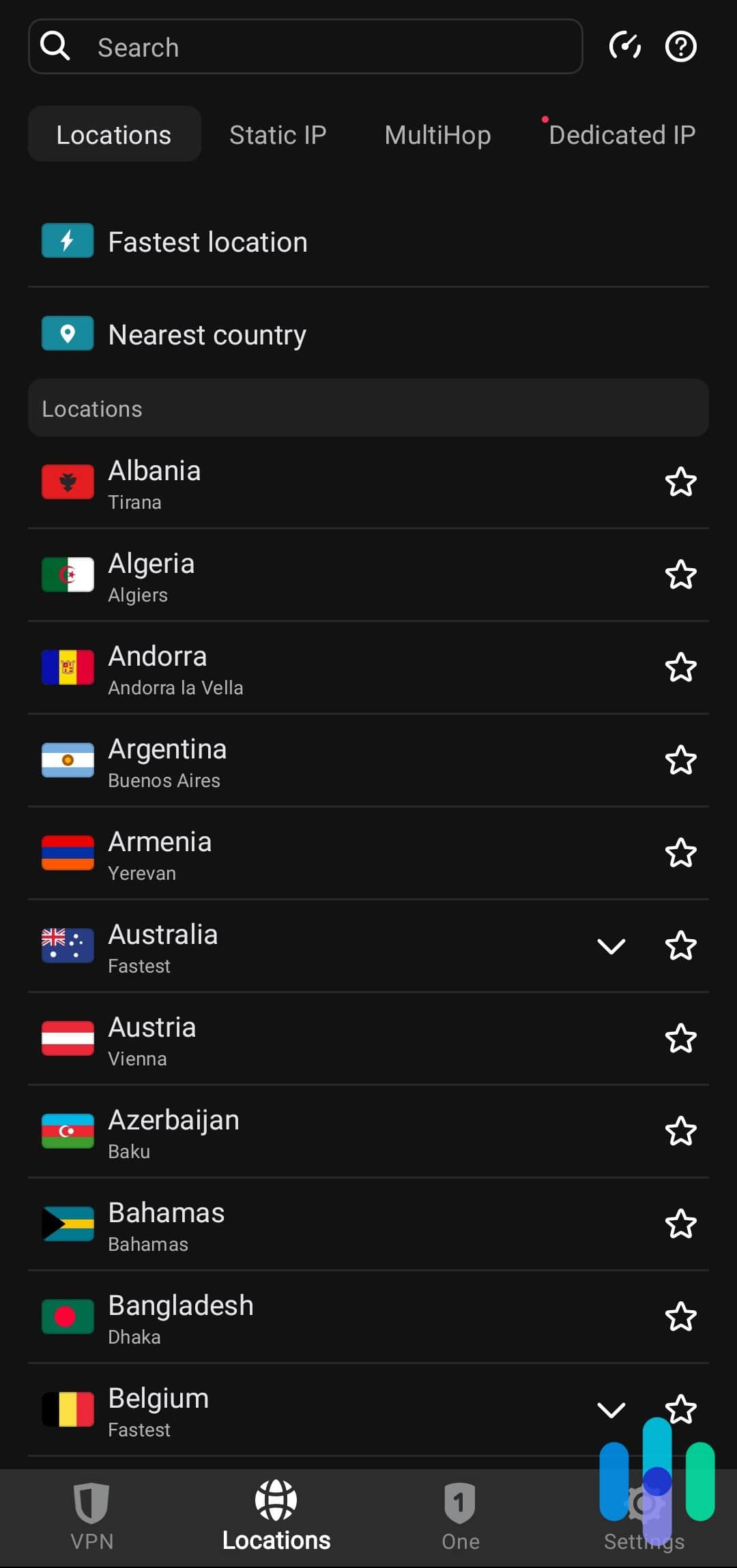
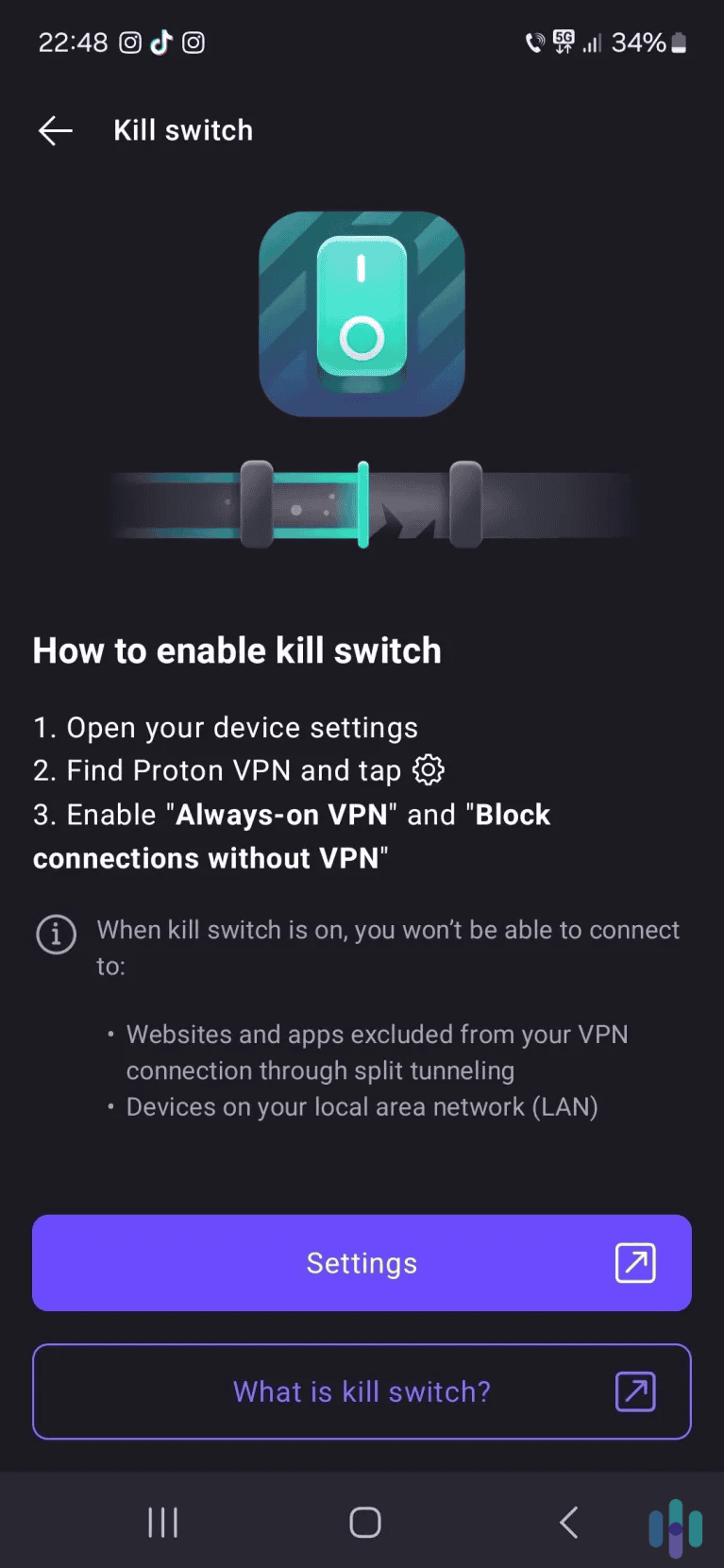
Free users get access to excellent privacy features, including a kill switch. Proton VPN offers high-end privacy, even via its free plan. The VPN has a strict no-logs policy, which has been proven true in an independent security audit. The free version also provides access to a kill switch. Plus, the VPN’s Android app is open-source, which means anyone can check the code to make sure the app is safe to use.
As a paid user, you get access to even more features that protect your privacy. For example, you get NetShield, which blocks ads, ad trackers, and shady sites. You also get access to Secure Core servers. These servers send your data through two VPN servers, one of which is located in a privacy-friendly country.
App performance

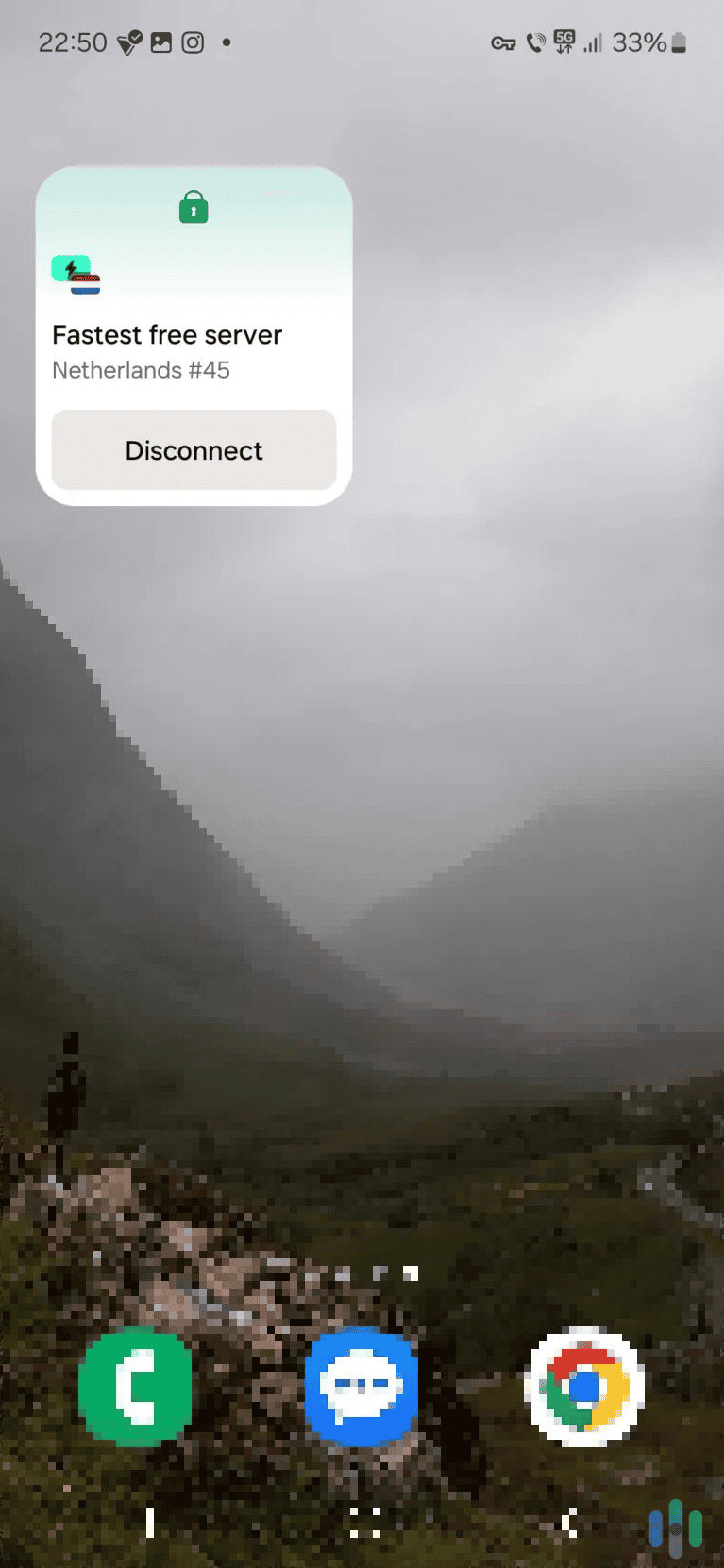
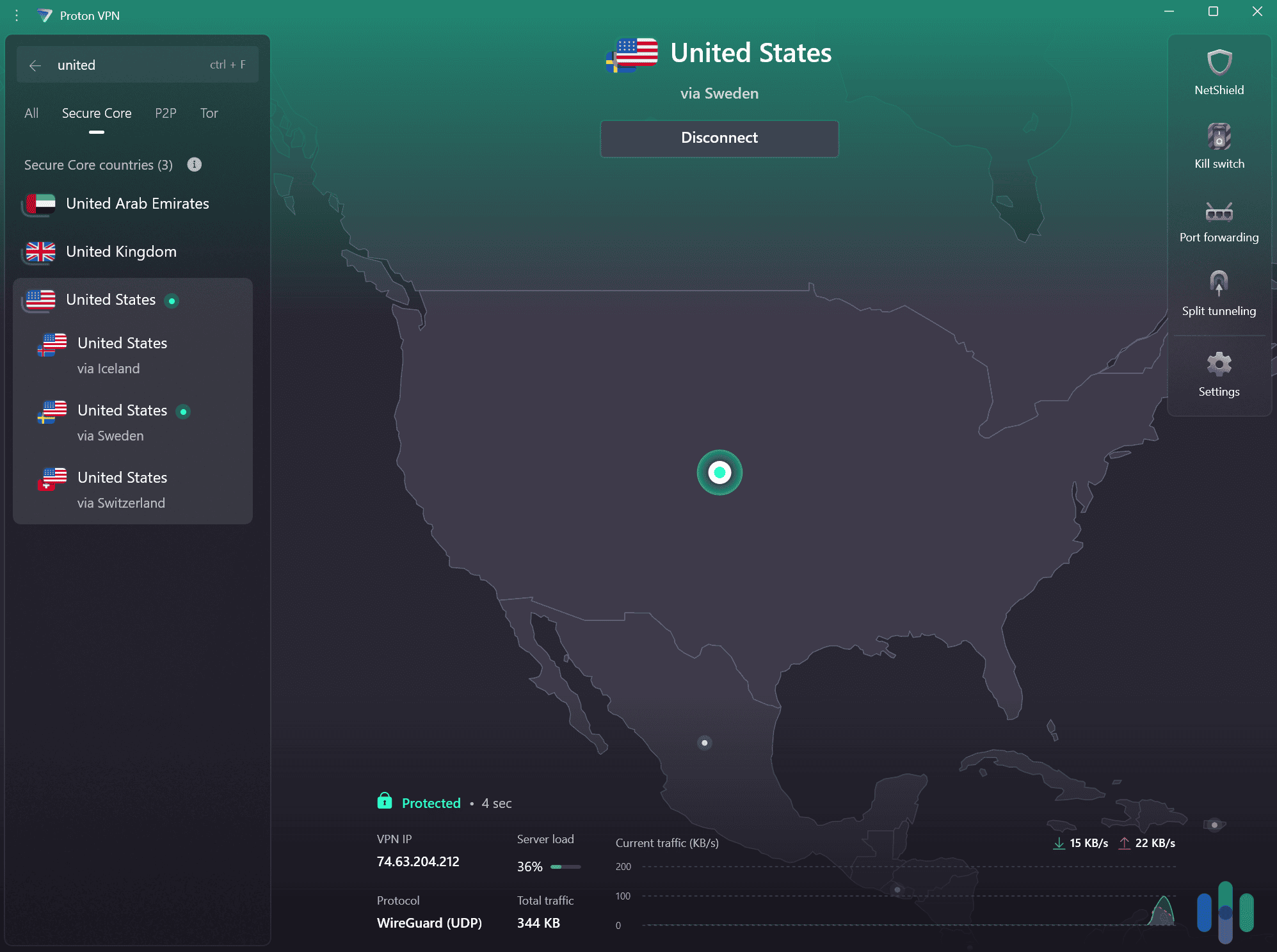
We were able to add a Proton VPN widget to our home screen, so that we could instantly connect to the VPN without having to open the app. We found Proton VPN’s Android app very simple to navigate and use. Free users can’t choose which servers they connect to – Proton VPN automatically picks the fastest server for them. If you upgrade to the paid version, you get access to a digital map that you can use to quickly connect to different server locations (similar to NordVPN’s interface).
It’s also great that all features and settings come with quick explanations. Our tests also show that Proton VPN’s app is very lightweight. We connected to a server and left the app running for a few hours, and it barely increased our battery usage.
Feature Highlight: Proton VPN’s Android app also offers widget support. This lets you add a widget to your home screen that lets you quickly connect and disconnect to a server. We suggest using it for a server you frequently use.
Speed
Proton VPN is really fast. Our most recent speed tests show that it’s almost as fast as NordVPN. For example, Proton VPN slowed down our download speeds by around eight percent, while NordVPN slowed them down by almost six percent.
We also like how Proton VPN lets you use WireGuard, which is a very fast protocol. Paid users also get access to VPN Accelerator, which boosts VPN speeds on distant servers. We tried out VPN Accelerator, and it generally increased our speeds by around 40 to 50 percent, which is very impressive.
>> Related Reading: Proton VPN vs. NordVPN
What We Like
- Free version provides unlimited bandwidth and fast speeds
- Free users get great security and privacy
- The Android app is very lightweight and simple to use
What We Don’t Like
- The free version doesn’t let you choose which server you connect to
- Pricier than most of its competitors
- There’s a 30-day refund, but its prorated
Proton VPN is one of the best free VPNs in 2026, and it’s definitely the best free service for Android users. The main highlight is that it provides unlimited bandwidth. That means you can use the VPN to securely browse the web, watch videos, and download files as much as you want. Many free VPNs limit you to around 10 GB of data per month.
We also like how the free version provides excellent privacy, and also maintains really fast speeds. Plus, we found the VPN’s Android app very user-friendly.
However, the free plan limits you to servers in five countries, and you can’t choose which server you connect to. You also don’t get streaming and torrenting support, or access to other security features (like an ad blocker). We definitely recommend getting a paid Proton VPN plan if you’re happy with the free version.
>> Find Out More: Proton VPN 2026 Review
-
4. IPVanish - Fastest VPN for Android
 View Plans Links to IPVanish
Product Specs
Multihop Yes Obfuscated Servers Yes Kill Switch Yes Split Tunneling Yes Netflix Yes Torrenting Yes
Privacy
We found IPVanish’s privacy policy concise and clear. Upfront, it communicated the company’s goal to collect as little data as possible. While it logs aggregated data about VPN performance, it also promises not to collect IP addresses, DNS queries, and connection time stamps. In that way, it’s similar to our privacy favorite, NordVPN.
Within the VPN, IPVanish uses 256-bit AES encryption, also similar to NordVPN. It also has a built-in kill switch. This feature is crucial to privacy, as it stops your device from connecting to the internet when your VPN connection suddenly drops. It activated one time we switched from Wi-Fi to mobile data, reminding us to reconnect IPVanish before using our Android to browse.
App performance
When we started up the IPVanish’s Android app the first time, it took us through a quick tour of its features. We’re familiar with VPN features, of course, but if you’re new to VPNs, you’ll surely appreciate the tutorial.

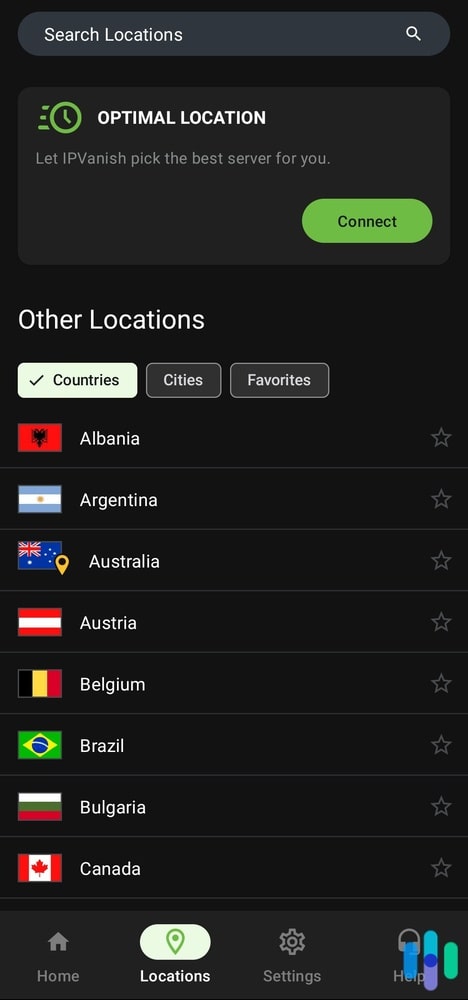
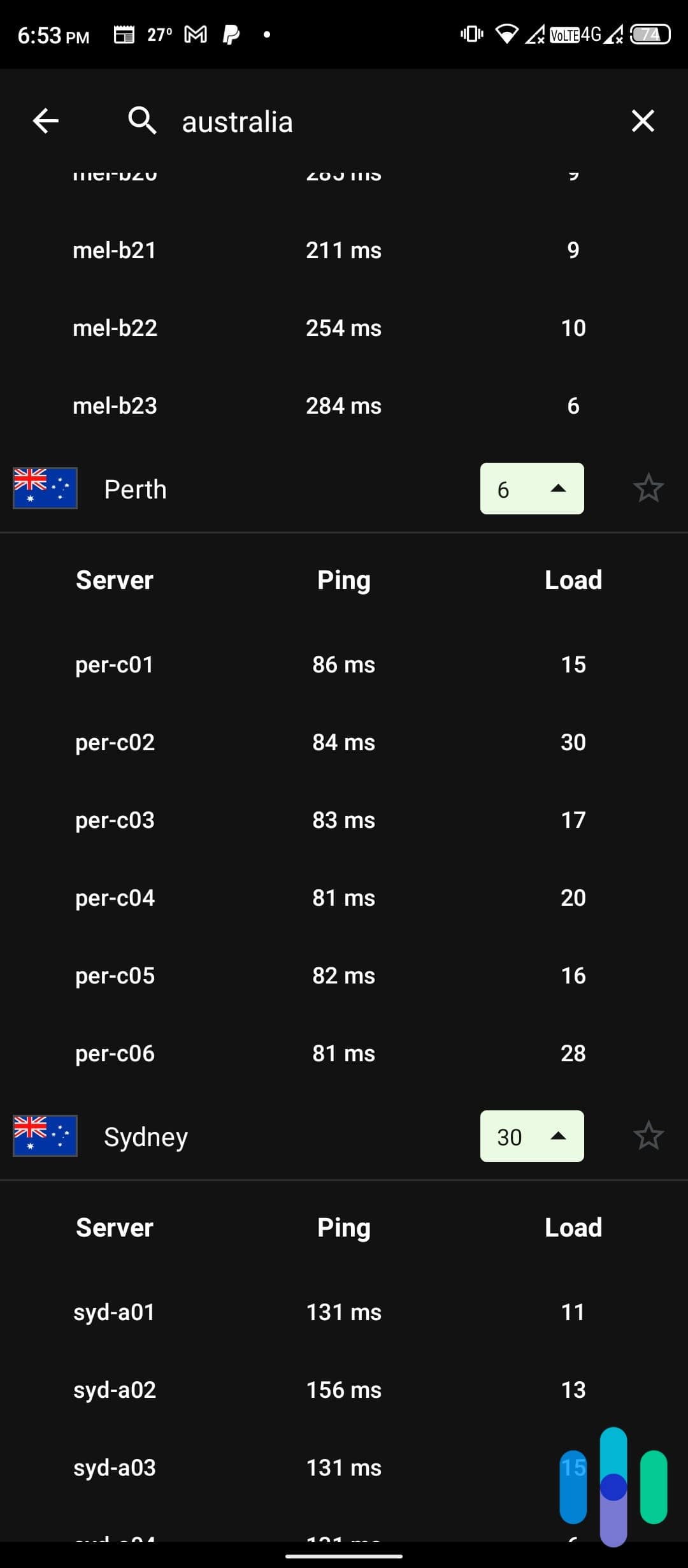
IPVanish Android app listing optimal servers We also appreciated that IPVanish’s server selection menu includes useful details like the latency and load of each server, which helped us avoid servers that were overcrowded or slow. When we searched for Australia servers, for example, we saw that server number #1 in Perth had the lowest load at the time and a decent ping or latency, so that’s what we connected to.
Speed
Speaking of load and latency, our experience with IPVanish’s servers was excellent overall. Most of the servers we connected to didn’t cause noticeable network slowdowns, and our average speed with IPVanish was 229 Mbps (download) and 213 Mbps (upload). Those are excellent speeds – and again, it’s partly thanks to the fact that we had some help from the app in picking the best servers to connect to.
What We Like
- Detailed server list that includes load and ping of each server
- Best upload and download speeds
- App tutorial at first launch
- Built-in kill switch
What We Don’t Like
- Headquarters in the United States (Five Eyes member)
- Infrequent app updates
- App tends to run slow (but connections are fast)
- History of dodgy privacy practices
Its speed may be the main reason we picked IPVanish as one of the best Android VPNs, but it still offers more than adequate privacy and security.
Usually, a VPN slows down your internet connection because of the added encryption and tunneling, so we’re always wary when we see a fast VPN because it might mean that it doesn’t provide enough security. With IPVanish, though, we confirmed that its encryption works and that it’s good at hiding your IP address by doing DNS and WebRTC leak tests, standard VPN tests we use to confirm if a VPN is working.

IPVanish Android app showing server menu DNS and WebRTC leaks are vulnerabilities found in browsers and networks that could allow a third party such as your ISP to see your real IP address even if you’re using a VPN. To test for these leaks, we connected to IPVanish and used tools that attempt to exploit those vulnerabilities. The results? Both detected our IPVanish IP address, proving that our real IP address was well-hidden.
» Read more: Fix Common VPN Issues
-
5. Private Internet Access - Best Value Android VPN
 View Plans Links to Private Internet Access
Product Specs
Server locations 91 countries Average Speed Loss 5% download & 84% download Apps Windows, MacOS, Linux, Android, iOS, Chrome, Firefox, Android TV, tvOS Best Monthly Rate $2.03/mo with a 3-year plan Money-Back Guarantee 30 days full refund
Privacy
There were a couple of noteworthy things we liked about Private Internet Access. For starters, while it does collect personal data (like email addresses and payment information) when you sign up for its service, it does not collect any identifiable information from your VPN usage, such as IP addresses and browsing history.

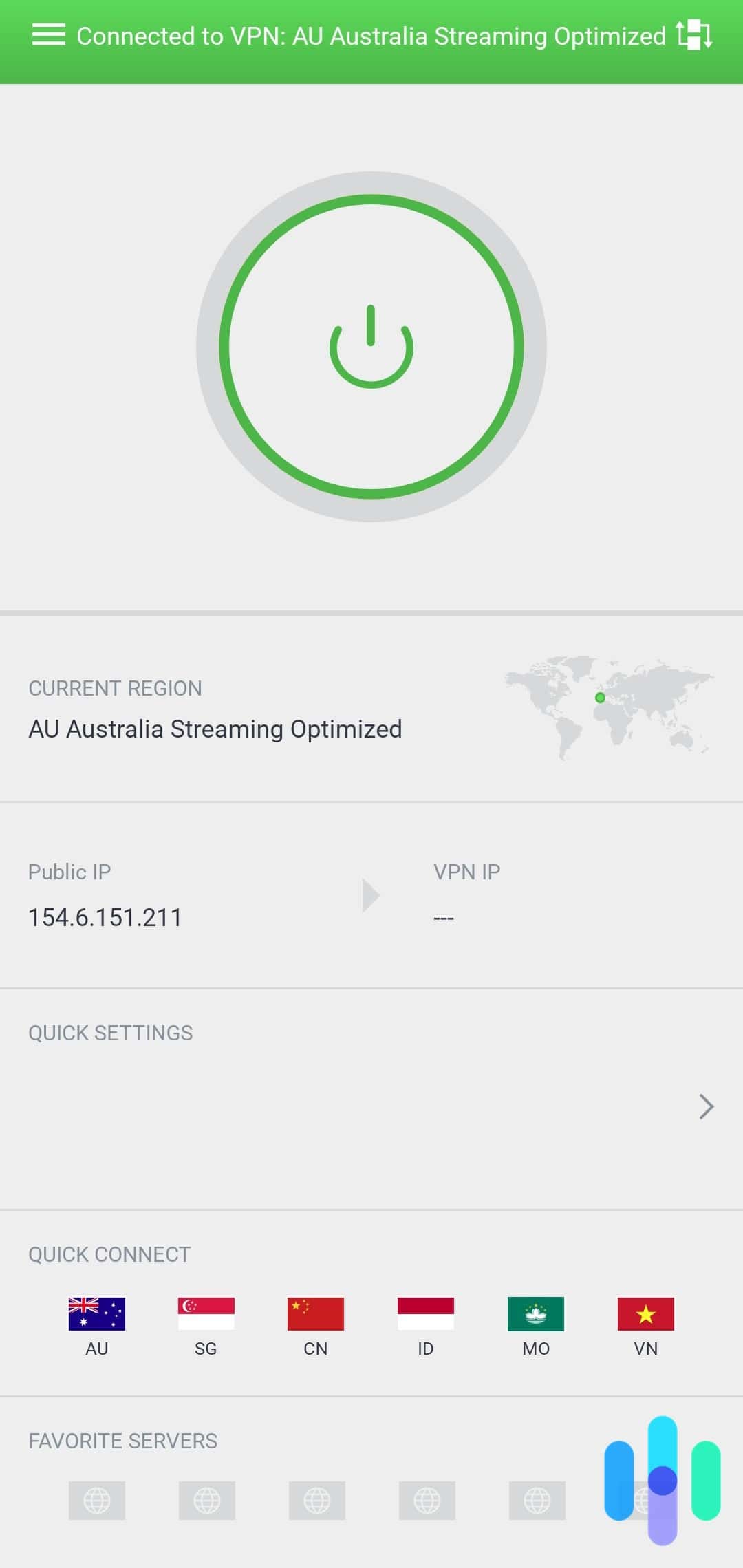
Connected to Australia with the Private Internet Access Android app And another thing: Most Android VPN apps we tested, even our top picks NordVPN and Surfshark, collected VPN connection statistics and metrics like operating system versions, connection events, and device identifiers. With PIA, it’s all optional. If you want to help Private Internet Access improve its services, you can opt in and allow the app to collect such metrics, but this setting is off by default.
App performance
Private Internet Access’ app is simple. Like IPVanish, its server menu lists the average latency of each location (but not its load). One thing we really liked, though, was the “Use Small Packets” option, which we found hidden deep into its settings. This feature was designed for mobile users specifically, as it slightly reduces the size of encrypted data packets to be easier for mobile data networks to process. We found that with this setting turned on, our download and upload speed slightly improved by about 5 Mbps.
Speed
With the help of the Use Small Packets feature, Private Internet Access propelled past our other top picks. It was second only to IPVanish in terms of speed, recording an average download speed of 223 Mbps. Although its upload speed wasn’t that great (193 Mbps), it was still plenty fast, allowing seamless downloads and streaming. That’s good, because PIA also has servers optimized specifically for streaming.
What We Like
- Seven-day free trial if purchased through Google Play
- Consistently high Android ratings
- Affordable subscriptions starting at $2.03 per month
- 30-day money-back guarantee
What We Don’t Like
- U.S. based company (Five Eyes member)
- Recent server outages
- Lower upload speed
- Requires a long-term (3 years) subscription to enjoy best prices
What really stood out about Private Internet Access was the price. VPNs typically cost over $10 per month, but you can buy PIA for as low as $2.03 per month on average if you buy a three-year subscription. Now, you’ll have to pay for the entire three years upfront, so that’s about $80, but it’s money well-spent if you’re looking for a VPN for the long haul. For comparison’s sake, our next entry to this list, ExpressVPN, costs $100 per year.
You’ll also like that there’s a seven-day free trial if you buy through the Android app, and this is a real VPN free trial. You will only be charged after the seven days are up. While the trial is on-going, you will also receive log-in details that you can use on other devices, so if you want to test out Private Internet Access on your computer as well, that’s possible. On that note, you can install PIA on as many devices as you want, as Private Internet Access subscription includes protection for unlimited devices. We have it on our two iPhones, three laptops, and a Chromecast.
-
6. ExpressVPN - Best Encryption
 Get ExpressVPN Links to ExpressVPN
Product Specs
Server locations 105 countries Average Speed Loss 7% download & 24% upload Apps Windows, MacOS, Linux, Android, iOS, Chrome, Firefox, Edge, Android TV, tvOS Best Monthly Rate $2.44/mo with a 2-year plan Money-Back Guarantee 30 days full refund
Privacy
ExpressVPN has a solid reputation when it comes to privacy, and it’s easy to see why. Like NordVPN, ExpressVPN collects only aggregate data from its VPN apps. It does not collect IP addresses, VPN traffic, and DNS queries.

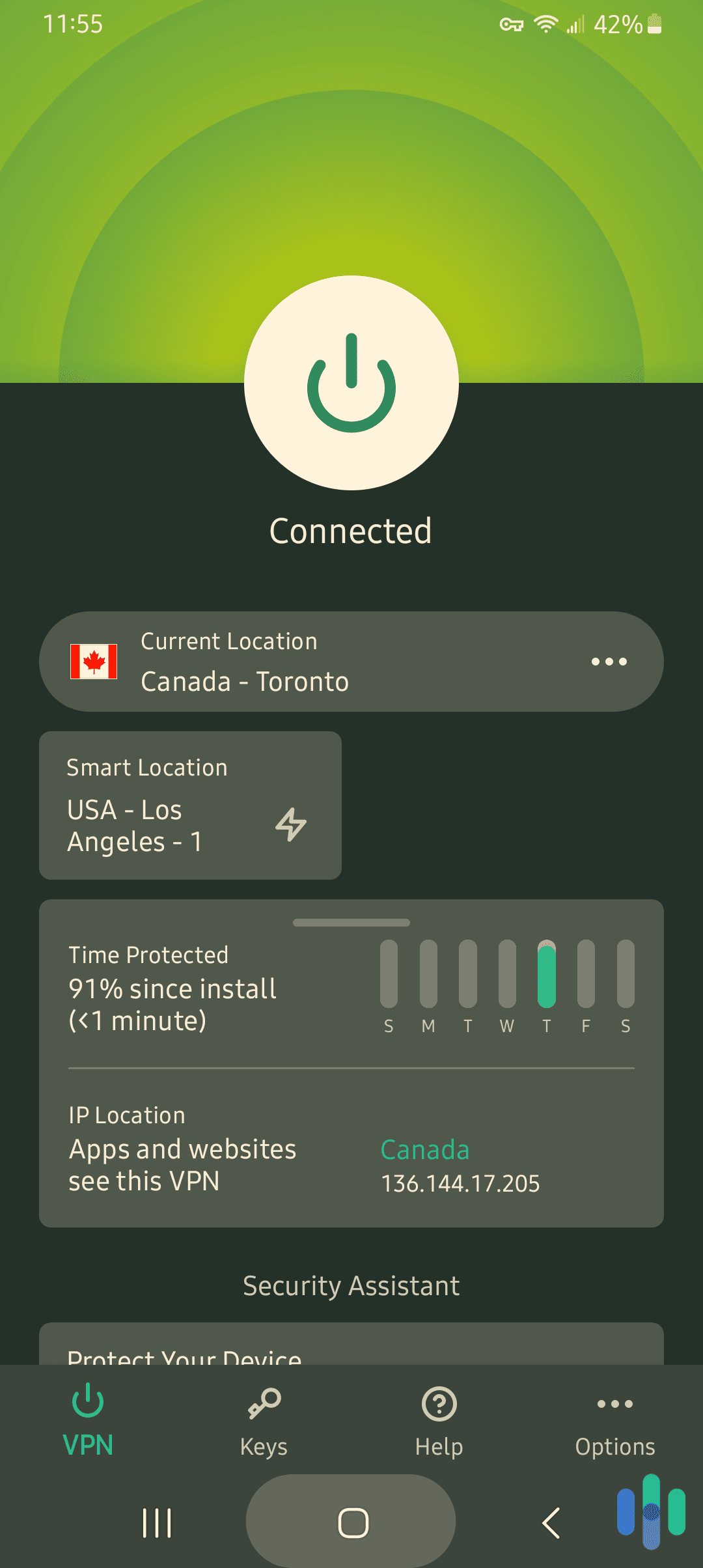
ExpressVPN Connected to Toronto, Canada on the Android App ExpressVPN’s privacy policy also mentions that if any of the data centers that house its VPN servers were to ask the company to log VPN traffic, it would immediately cease operations in the data center. This is interesting, because just recently, ExpressVPN pulled all its physical servers from India after the country passed a law requiring VPNs to log VPN traffic. It was one of the first companies to do so, which to us is strong proof of its commitment to privacy.
App performance
We found ExpressVPN’s Android app refreshingly simple and clean. Its interface is actually quite similar to that of the ExpressVPN iOS, Windows, and macOS apps, so if you’re planning to use the VPN across all your devices, you won’t have to learn to navigate different apps. Unfortunately, that’s not true for all multi-platform VPNs. While we loved Surfshark’s Android app, for example, we found its Windows app not very easy to navigate. With ExpressVPN, we got consistent app performance across all platforms.

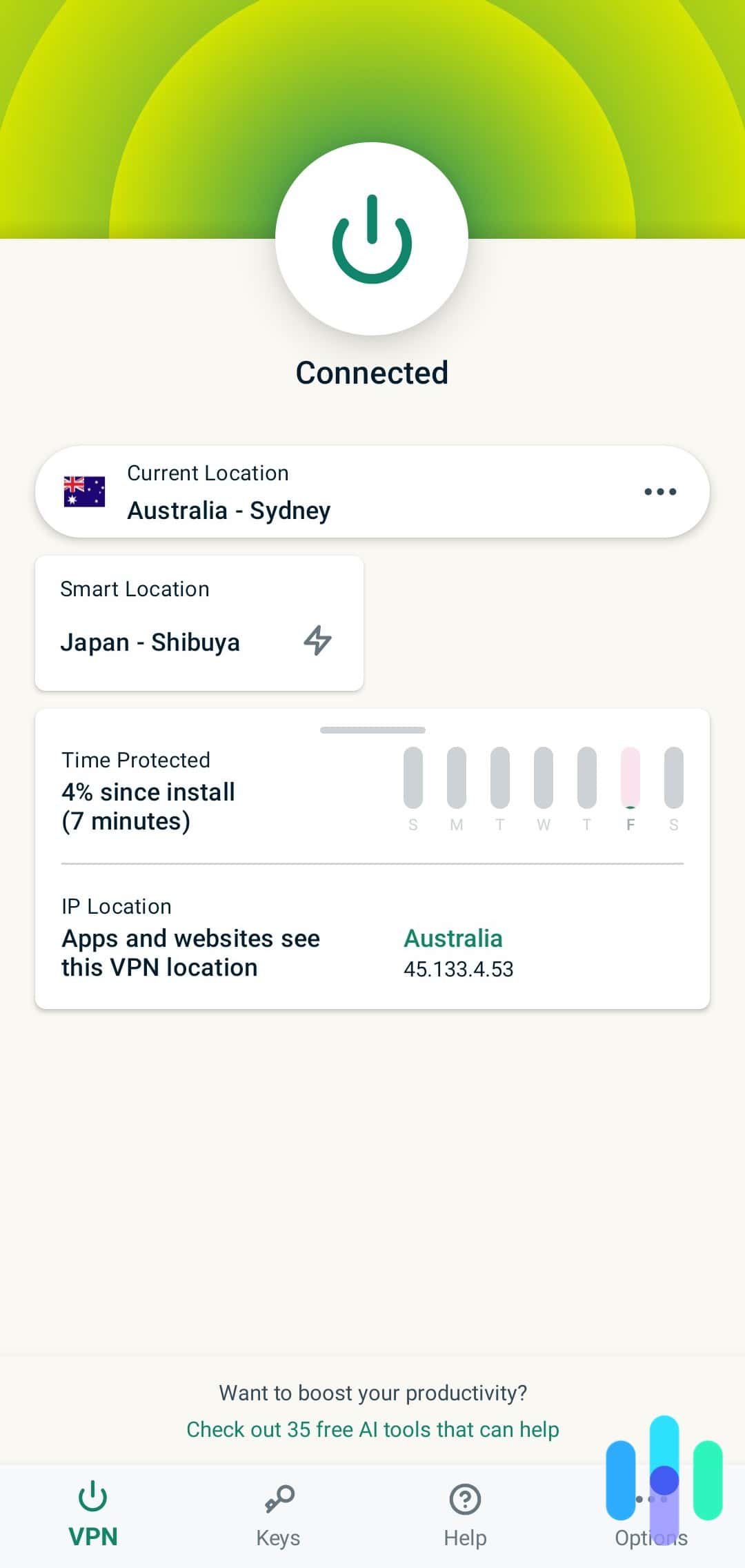
ExpressVPN Android app connected to Sydney, Australia Speed
ExpressVPN’s speed on Android was excellent, especially since we used Lightway. Lightway is a VPN protocol built from the ground up by the company itself, and it’s touted to be a fast and lightweight alternative to the likes of OpenVPN. Well, with Lightway, we got a 214 Mbps average download speed and 207 Mbps average download speed. When we tried ExpressVPN’s OpenVPN configuration, those numbers went down to 193 Mbps and 188 Mbps.
What We Like
- Vast number of VPN server locations (94 countries)
- Speedy Lightway protocol
- RAM-only servers
- Strong IP address leak protection
What We Don’t Like
- High subscription costs
- Limit of five simultaneous connections (eight for six- and 12-month plans)
- Occasionally drops after long hours of being connected
- No over-the-phone tech support for Android
ExpressVPN’s gold standard encryption, which makes use of the 256-bit AES standard, is backed by its TrustedServer network. TrustedServer is the name for ExpressVPN’s servers that run only on random access memory or RAM, otherwise known as RAM-only servers.
Let’s backtrack a little bit to understand the significance of that. VPN servers are physical servers housed in data centers or server banks, the same as the big metal boxes with blinking lights we see in movies. To run VPN operations, these servers need memory, and conventionally, they use hard disk drives. The problem with that is data remanence5 – even when data is erased from a hard disk, it can be recovered.
Now, RAM is another form of memory, but it’s volatile and temporary. After a system reboot, all data stored on RAM are erased and cannot be recovered. That’s why instead of using hard disks to make its servers run, ExpressVPN opted to use RAM. And for extra measure, it reboots its servers at least once a week. It’s like asking someone with short-term memory to keep a secret – it’s safe.
Choosing the Best Android VPNs: Our Methodology
We know you’re wondering how we came to that conclusion. There were three main factors we considered when choosing the best Android VPNs.
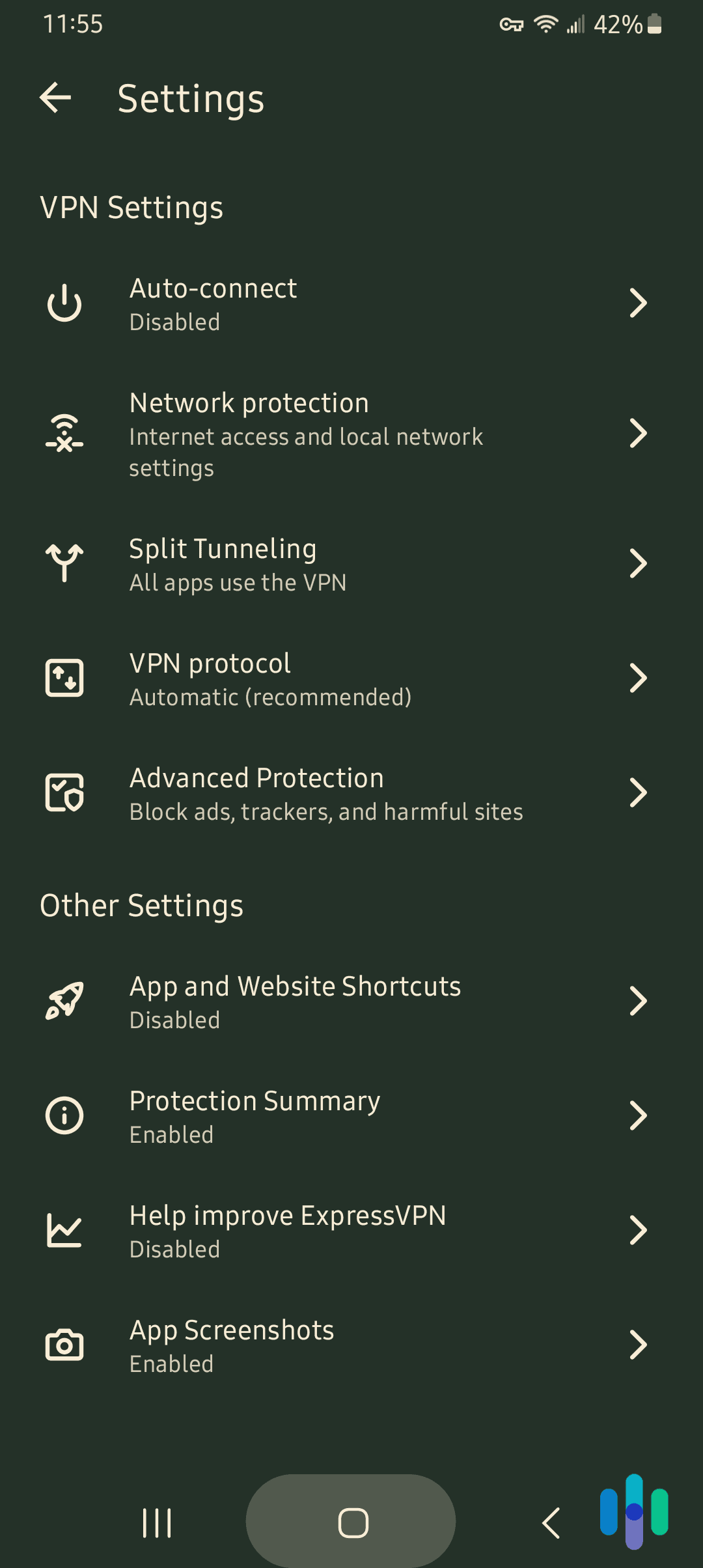
- Privacy: Not all of the 200+ VPN apps in the Google Play Store are worth the download. The best ones to use are the privacy-oriented “no-logs” VPNs. They collect as little data as possible and they don’t log IP addresses and websites visited. Additionally, the most private VPNs offer tested and industry-approved VPN encryption standards and VPN protocols.
- User experience: Ease of use is a priority. The best VPN apps don’t require an involved setup. They are the ones you can simply install, connect, and leave running in the background. Of course, they are still customizable, allowing users to control how their VPN behaves for specific uses.
- Speed: Lastly, we compared the speed of VPNs on Android. VPNs perform differently depending on the platform. One may be faster than another on Windows, but the reverse can be true on Android. As we go through each of our top picks, we’ll highlight our experience with them in terms of their speed on Android.
Keeping those in mind, let’s start with a table comparing the best Android VPNs in each of those categories.
Why Android Gives You More VPN Control Than iPhone
During our testing, we noticed Android gives VPN apps significantly more access to system-level settings than iOS does. That means you get access to features that are either unavailable or heavily restricted on iPhones.
A Real Kill Switch — Built Into Android Itself
On iPhone, a kill switch isn’t something VPN apps can implement independently. On Android, it’s built into the operating system. If you’re using a phone with Android 15 or 16, here’s how to set it up:
- Go to Settings
- Network & Internet
- Tap VPN
- Tap the gear icon next to your VPN
- Enable Always-on VPN and block connections without VPN.
If your VPN drops for any reason, Android cuts your internet connection entirely rather than letting traffic fall back to your unprotected connection. This even works if the VPN app itself crashes. iPhone users have no equivalent unless their device is used as a corporate device.
>> Check Out: VPNs for Businesses
Always-On VPN (With Per-App Exceptions)
Android’s Always-On VPN keeps your VPN active at all times, automatically reconnecting if the connection drops. You can even choose specific apps to bypass the VPN while everything else stays protected. We found it useful for banking apps that block VPN traffic or streaming services that don’t work on overseas servers.
Split Tunneling
Split tunneling lets you choose which apps route through the VPN and which ones connect directly. We sent our browser through the VPN while letting Spotify and Google Maps connect normally. Most Android VPN apps support this. On iOS, the feature is missing entirely thanks to Apple’s API restrictions.
Share Your VPN Through Your Hotspot
On Android, any device you connect to your hotspot can share your VPN connection. This means your laptop or tablet gets the same protection without you having to install a separate app on them. On iPhone, the VPN applies only to the iPhone itself.
Tasker Integration
Tasker is an Android automation app that works with VPNs. You can configure your phone to activate the VPN automatically on unfamiliar Wi-Fi, disable it on your home network, or toggle servers based on location or time of day. This level of automation isn’t available on iOS.
What Are the Benefits of Android VPNs
Beyond protecting your privacy when you’re browsing or using your favorite Android apps, can enhance your overall digital life. Here’s how:
- Accessing blocked websites: Using a VPN hides your IP address and gives you a new one, possibly from a different location. This can be helpful in accessing websites blocked in your region – for example, if you’re traveling to another country and you need access to a U.S. website that blocks traffic from other locations.
- More content options: Similarly, you can use a VPN to gain access to content from other regions. Netflix is a popular use case for this. Netflix libraries differ from one location to another, so if there’s a movie you want to watch that’s not available in your location, you can use a VPN to explore the content libraries of other countries. See our list of the best Netflix VPNs and also how to watch Netflix on a VPN.
- Avoid ISP throttling: If you’re noticing that your home Wi-Fi hasn’t been performing as advertised, you may be a victim of ISP throttling. This is when your internet provider lowers your internet speed on purpose for a number of different reasons. One way you can stop your ISP from throttling your speed is by using a VPN and hiding your real IP address.
- Get around censorship: The First Amendment of the U.S. The Constitution offers protection against internet censorship, but other countries are not as fortunate. If you live in a country where internet censorship is a problem, you may be able to use a VPN to get around it. Just choose a server location outside your country.
VPN Battery Drain on Android: What the Data Shows
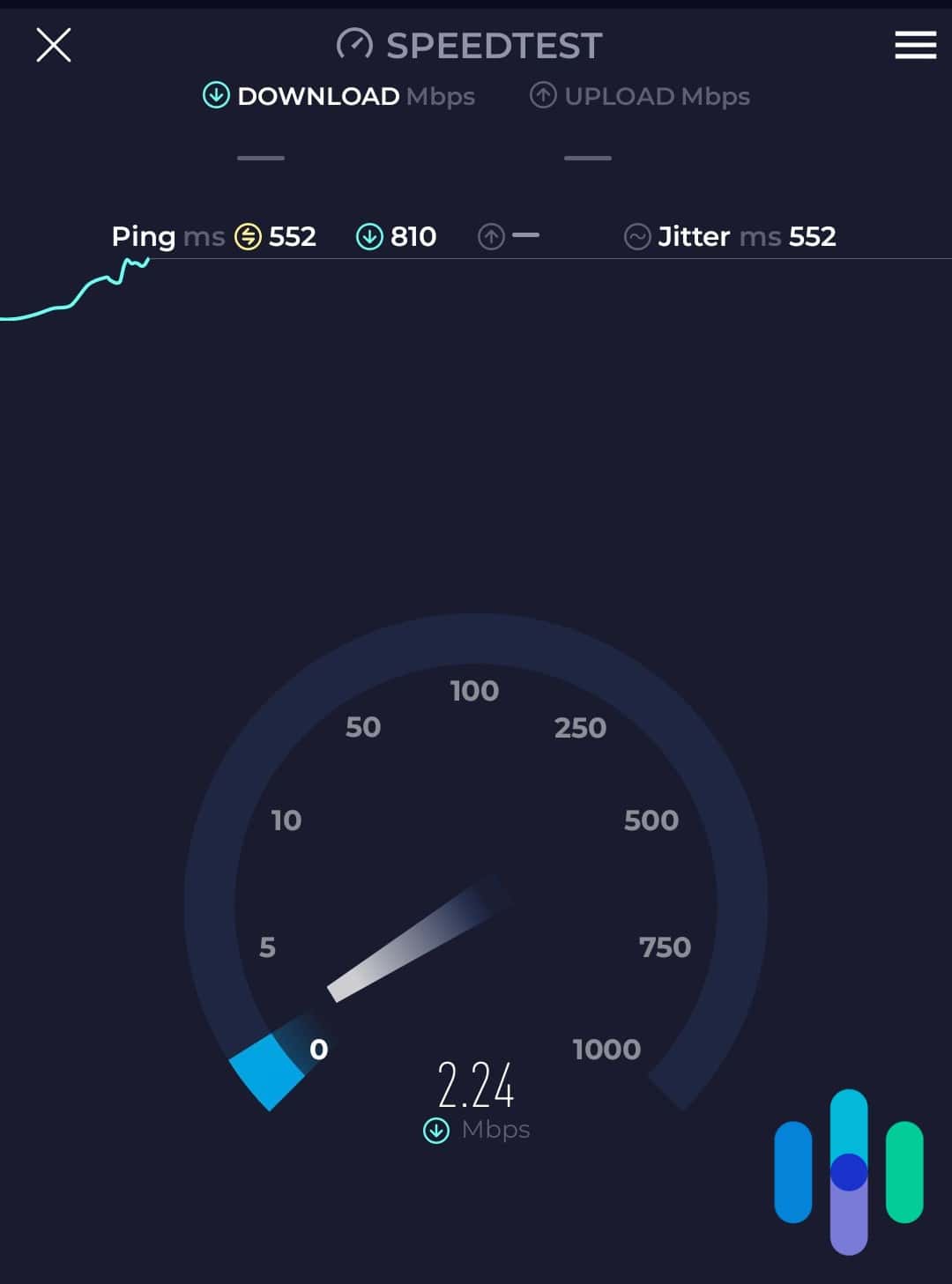
Battery drain is one of our complaints about some mobile VPNs. It takes a toll on your device when a VPN is running in the background, encrypting and decrypting every packet of data your phone sends and receives. Here’s what that costs you and how to minimize it.
What Our Testing Shows
During our tests, VPNs drained our batteries 10 to 15 percent faster than typical use. After adjusting some of the settings, we learned the variance depends on protocol and how actively you’re using your phone:
| Condition | Battery Drain Per Hour |
|---|---|
| No VPN (baseline) | ~4–5% |
| WireGuard (active use) | ~5.5–6.5% |
| IKEv2 (active use) | ~6–7% |
| OpenVPN UDP (active use) | ~7–9% |
| OpenVPN TCP (active use) | ~8–10% |
| Always-On VPN (idle) | ~1–2% additional |
Protocol Is the Biggest Variable
We found WireGuard to be the most battery-efficient protocol available. Its codebase is roughly 4,000 lines, compared to OpenVPN’s 70,000+, meaning less processing overhead per packet. On Android, WireGuard runs at the kernel level, which is faster and lighter than any alternative.
IKEv2 offers a reasonable middle ground. This protocol is more efficient than OpenVPN and handles network switching well, avoiding reconnection overhead when moving between Wi-Fi and mobile data.
OpenVPN is the most battery-intensive option. We found that OpenVPN TCP is harder on your battery than UDP because of the extra error-checking it performs. Unless your network blocks WireGuard, there’s little reason to use OpenVPN on mobile.
Always-On VPN: The Hidden Drain
When you leave the VPN running 24/7, it prevents your device from entering its deepest sleep states, even when idle. Our tests found the added overhead is roughly one to two percent per hour, which adds up to 25 percent of your daily battery just maintaining a connection you may not be actively using.
Pro Tip: We recommend adjusting the VPN On Demand settings to connect automatically on untrusted networks, like mobile hotspots, and disconnect on known Wi-Fi.
Mobile Data vs. Wi-Fi
We found that VPN encryption overhead is roughly the same on Wi-Fi or mobile data. The difference is that mobile radios draw more power than Wi-Fi radios. If battery life matters, connect to Wi-Fi before activating your VPN.
VPN App Tips
Here are the results from our battery tests for the best VPNs for Android. We’ve also included some hacks below, so you don’t need a recharge during the day.
| VPN | Protocol | Battery Drain/Hour | 8-Hour Drain | Optimization Available | Battery Score |
|---|---|---|---|---|---|
| NordVPN | NordLynx | 4.2% | 33.6% | Yes | 9/10 |
| Surfshark | WireGuard | 4.5% | 36% | Yes | 8.5/10 |
| Proton VPN | WireGuard | 4.0% | 32% | Yes (Accel) | 9.5/10 |
| IPVanish | WireGuard | 4.8% | 38.4% | Limited | 8/10 |
| PIA | WireGuard | 4.3% | 34.4% | Yes | 8.5/10 |
| ExpressVPN | Lightway | 5.2% | 41.6% | Limited | 7.5/10 |
For our top three VPNs, we recommend adjusting these settings to keep your phone battery lasting longer.
- NordVPN: Tap your Profile icon, hit the gear for Settings, and select NordLynx under “Protocol” for the best battery performance.
- Surfshark: Choose WireGuard in your VPN settings and use the Bypasser tool to let heavy apps like Maps or Spotify skip the VPN entirely.
- Proton VPN: WireGuard is available on the free tier. We recommend connecting to the nearest available server, as shorter routing distance means less processing overhead.
Android Version Compatibility: What Works on Your Phone
While we appreciate Android’s openness, it comes with fragmentation. A feature that runs perfectly on a Pixel 8 with Android 14 might not even exist on an old Samsung stuck on Android 9. Here’s what to expect based on your version.
| Feature | Android 5–7 | Android 8–9 | Android 10–11 | Android 12+ | Best VPN |
|---|---|---|---|---|---|
| Native Kill Switch | No | No | App-level | Yes | All VPNs |
| Always-On VPN | Basic | Yes | Yes | Yes | NordVPN |
| Split Tunneling | Via app | Via app | Via app | Via app | Surfshark |
| Dark Mode | No | No | Yes | Yes | All VPNs |
| Per-App Permissions | No | Limited | Yes | Yes | NordVPN |
| Privacy Dashboard | No | No | No | Yes | All VPNs |
Android 12+
Android 12 and newer versions include a native system-level kill switch that works even regardless of the VPN app. The Privacy Dashboard also gives you a centralized view of which apps have accessed your camera, microphone, and location.
Android 10–11
You still get modern essentials like one-time permissions, system-wide dark mode, and a reliable Always-On VPN. The biggest thing you’re missing out on is a native kill switch. You have to rely on the VPN app’s built-in kill switch, which isn’t quite as reliable as the one included in the newer Android versions.
Android 8–9
Always-On VPN and app-level kill switches work on most major VPNs. Per-app permissions are limited. For the most part, you’ll need to use the VPN app’s own settings rather than the system menu.
Android 5–7
On these older versions, you’re missing out on a native kill switch, Always-On VPN is often unreliable, and you’ll have very little control over app permissions. As these versions haven’t had a security patch in years, they’re open to vulnerabilities that modern VPNs can’t fix. We recommend upgrading your device instead of installing a VPN.
Installing Android VPNs
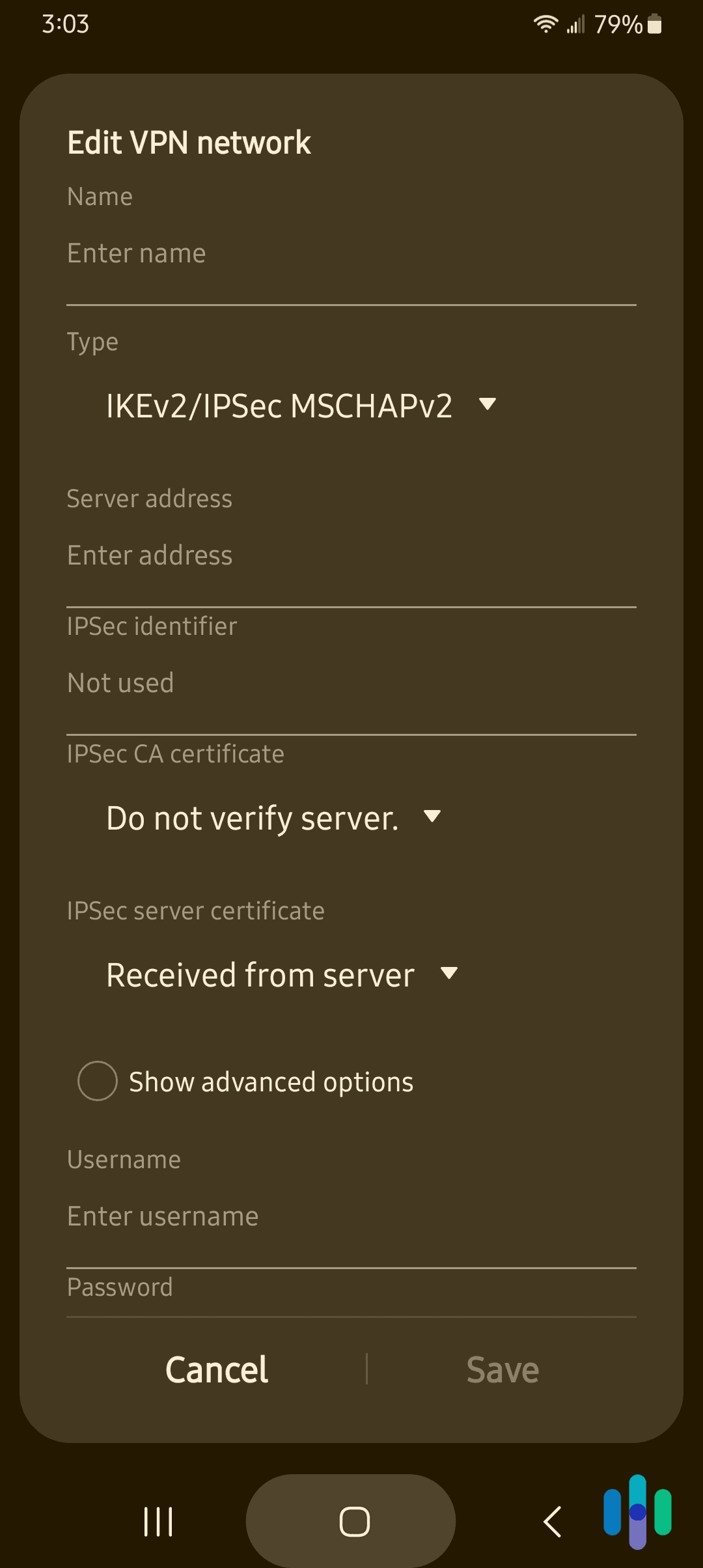
Fortunately for Android users, installing a VPN is super easy. There are no complex setups required; all you need is a VPN subscription and the VPN app itself. You don’t even have to follow the right order. You can either buy a subscription from the VPN’s website first, create an account, and then download the app, or get the app first, buy a subscription through Google Play, and then set up your account.
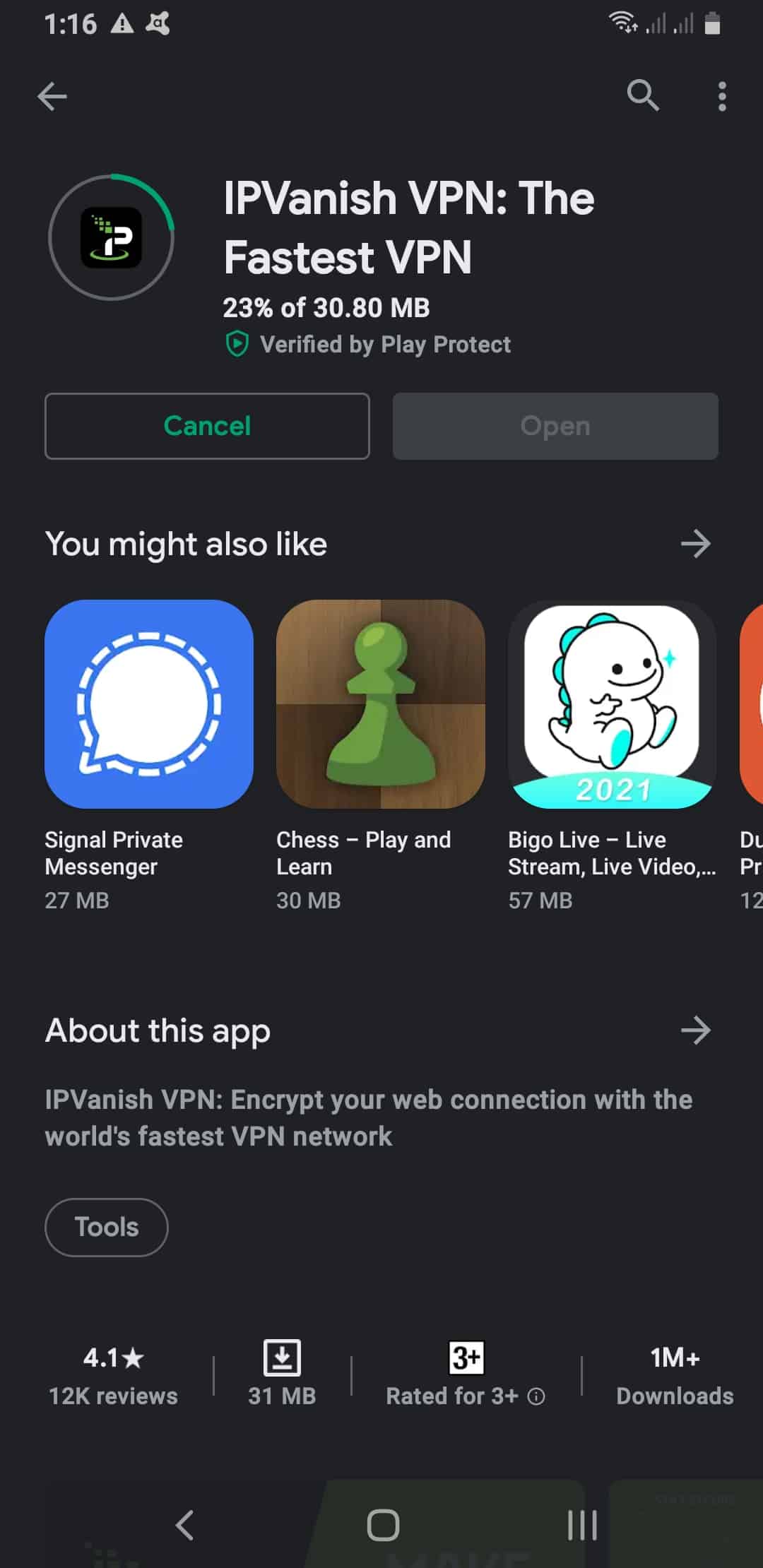
Note that for most VPNs we’ve tested, we prefer buying straight from the website. While purchasing through Google Play often includes a seven-day free trial, most VPNs have a rule that if you buy from third parties, you won’t enjoy the money-back guarantee that they offer. The money-back guarantee gives users a chance to cancel their subscription and request a refund within a set number of days.
It’s your call, though: Would you rather enjoy a seven-day free trial, or a 30-day (or more) money-back guarantee?
Do Android VPNs Work on Other Operating Systems?
Of course, your Android smartphone isn’t the only device that needs protection and privacy. We recommend using a VPN on all devices, from smartphones and tablets to laptops and desktops. We even have a list of the best VPNs for the Fire TV Stick, a streaming device for TVs, if you want to go the extra mile.
Chances are, you’re not going to need a separate VPN for those other devices. The best Android VPNs work across different platforms, and more importantly, a single subscription can provide VPN protection to numerous gadgets. Some don’t even count your devices, so you can use them on as many devices as you want.
Keep in mind though that the user-experience on Android may not be the same for other operating systems. Check out the best iPhone VPNs and best macOS VPNs.
How to Avoid Dangerous VPN Apps on Google Play
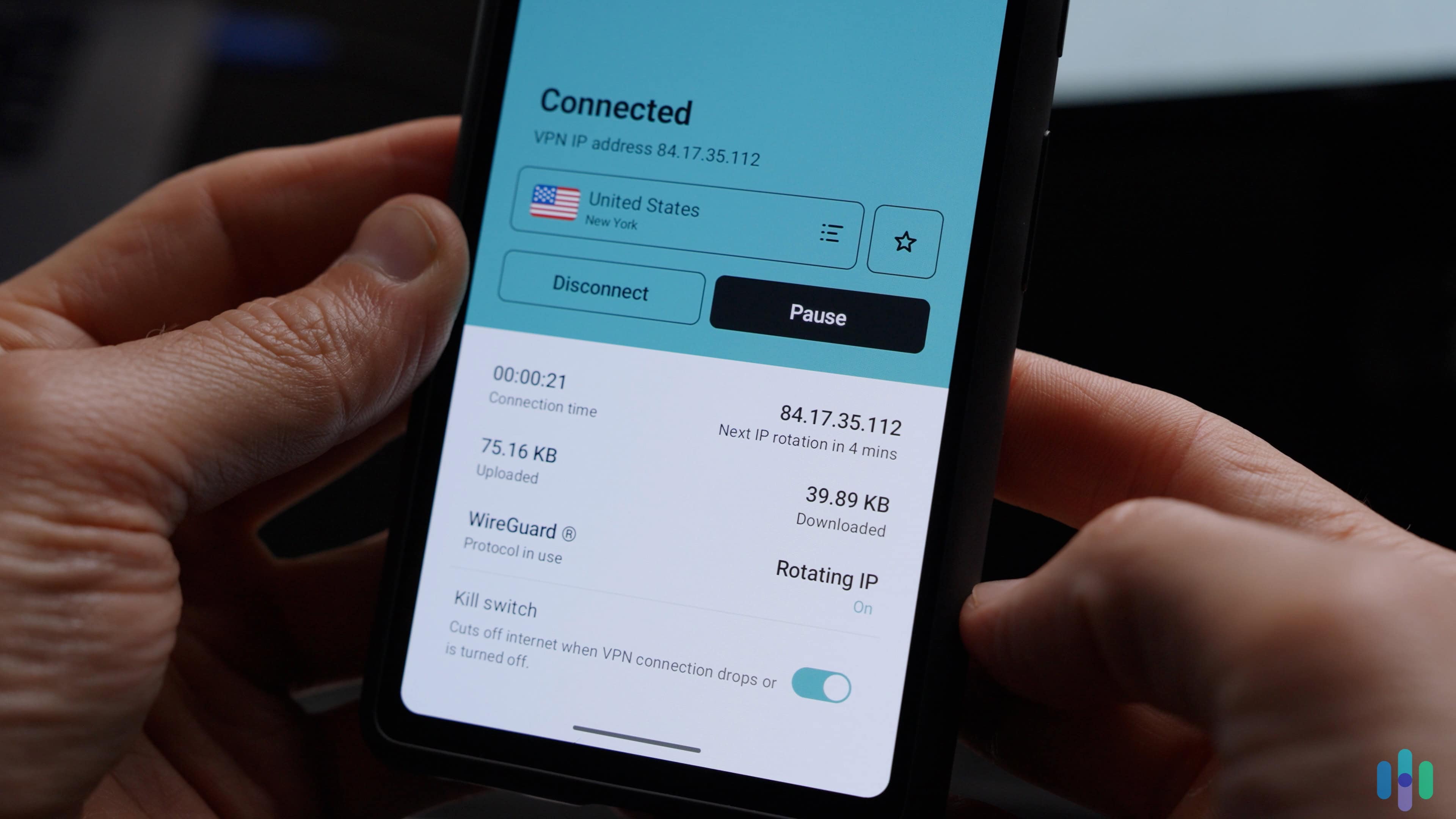
Thankfully, Google Play’s review process catches many bad actors. That doesn’t mean some don’t slip through from time to time. Here’s how to protect yourself before downloading anything.
- Suspicious permissions: A VPN needs network access. It does not need access to your contacts, SMS messages, call logs, or microphone. Any free VPN requesting these permissions is suspicious.
- No-name developers: Legitimate VPNs are published under recognizable company names. Vague developer names like “Mobile Apps Free” or “Super Tools Inc.” with no web presence are a red flag.
- China-based holding companies: Apps like SuperVPN and VPN Master have been linked to Chinese-registered entities with documented malware and data harvesting histories. Check the developer’s listed address in the Play Store listing.
- Inflated download counts with thin reviews: Fake popularity is a known tactic. If an app has 10 million downloads but reviews are generic, posted in clusters, and lack any specific detail, they’re likely fake.
- Brand impersonation: Fake versions of NordVPN, ExpressVPN, and Surfshark appear on Google Play periodically. Always verify the exact developer name matches the official publisher before downloading.
>> Keep Reading: How to Protect Yourself From Identity Theft
Conclusion
Online privacy is not a new concept. Even in the early days of the internet, users have used passwords to ensure that the data that must be kept private, remained private.
However, in a world as connected as ours, even secure passwords are not enough to protect our privacy. We have to add specialized tools like VPNs to our lifestyles to make sure that we remain protected from anyone – whether a person, organization, or government body – who might try to invade our privacy.
FAQs About Android VPNs
-
How do I enable Always-On VPN on Android?
Open Settings, tap Security and privacy, then VPN. Hit the gear icon next to your provider and toggle Always-on VPN to on. While you’re there, enable Block connections without VPN to activate the native kill switch. Keep in mind that Always-On VPN requires the VPN profile to already be installed. On Samsung devices, the path may be slightly different. Head to Settings, Connections, More Connection Settings, VPN to activate it.
-
Do Android VPNs work on tablets?
Yes, the same Android VPN apps that work on phones install and run identically on Android tablets. The biggest difference is the layout, as some VPN apps aren’t optimized for larger screens and may appear stretched.
-
How do I set up split tunneling on Android?
The process differs by VPN but follows the same general pattern. For most apps, you’ll find it in the settings under Split Tunneling or Bypasser. You can choose which apps to exclude while everything else routes through the VPN.
-
Which VPN works best on Samsung phones?
We found NordVPN works best with Samsung devices. It supports Secure Folder, allowing a separate VPN configuration for sensitive apps while the rest of your phone runs normally or on a different server. NordVPN also plugs into Samsung’s Modes and Routines, so you can set your VPN to turn on automatically the second you leave the house or connect to office Wi-Fi.
-
How do I test if my Android VPN is working?
We suggest starting with a visit to whatismyip.com while connected. The IP address and location shown should match your VPN server, not your home city. Second, run a DNS leak test at dnsleaktest.com. Every server on that list should belong to your VPN. If you see your internet provider’s name, your VPN is leaking and your browsing history isn’t actually private. If either test fails, disconnect, switch to a different server, and retest.
-
Leith, Douglas. (2021, Mar 25). Mobile Handset Privacy: Measuring The Data iOS
and Android Send to Apple And Google. Trinity College Dublin, Ireland.
scss.tcd.ie/doug.leith/apple_google.pdf -
IT World Canada. (2001, Dec 3).U.S. government picks next-generation encryption standard.
itworldcanada.com/article/u-s-government-picks-next-generation-encryption-standard/33551 -
Surfshark. (2023). Surfshark Privacy Policy.
surfshark.com/privacy -
PureVPN. (2018, May 25). Setting the Record Straight: Addressing VPN Privacy and VPN Logs.
purevpn.com/blog/vpn-logs-explained/ -
NordVPN. Data remanence.
nordvpn.com/cybersecurity/glossary/data-remanence/ -
McAfee. (2021, Mar 5). Attention Android Users: This Free VPN App Leaked the Data of 21 Million Users.
mcafee.com/blogs/privacy-identity-protection/attention-android-users-this-free-vpn-app-leaked-the-data-of-21-million-users/ -
CSIROscope. (2017, Jan 25). Tinker, Torrentor, Streamer, Spy: VPN privacy alert.
blog.csiro.au/tinker-torrentor-streamer-spy-vpn-privacy-alert/