
The Best VPNs for Apple TV in 2026
Featuring a native app, speedy connections, and virtual router options, NordVPN is our #1 VPN pick for Apple TV.
 &
&
 Last Updated on Mar 03, 2026

- Native Apple TV app for quick location changes with 60 countries to choose from
- NordLynx protocol provides secure tunneling and speedy connections
- Smart DNS and virtual router setup options of tvOS 16 and older

- User-friendly Apple TV app interface that anyone can operate
- Access to 105 locations, with multiple servers optimized for streaming
- Router support to protect all devices in your home without having to use the Apple TV app
- Works with over 90 streaming services, including Netflix, Disney+, Max, and BBC iPlayer
- Maintains extremely fast speeds for streaming 4K content
- Has an Apple TV app that’s very easy to navigate with your TV remote
These days, streaming any movies and series you like has become so easy to do, especially if you have a streaming device like Chromecast, Apple TV, or Fire TV. Just turn on your TV, choose your favorite streaming platform, and start movie night!
We’ll let you in on a little secret though. Did you know that you can unlock even more entertainment options (and protect your privacy in the process) by connecting your internet-connected streaming device to a VPN? That’s right! VPNs can unblock geo-restricted content and protect your browsing data in real time. In this guide, we’ll help you find the best streaming VPN for your Apple TV and help you set it up.
Which Set Up Method Is Right For Your Apple TV?
Before we get to our top picks, know that not all Apple TVs support VPN apps — and even those that do may require different setup methods depending on your tvOS version. Use this quick reference to find your path before diving into the step-by-step guides below.
Which setup method do you need?
| Your Apple TV Model | tvOS Version | Best Method |
|---|---|---|
| Apple TV 4K (1st gen or later) or Apple TV HD | tvOS 17 or later | Native App |
| Apple TV 4K (1st gen or later) or Apple TV HD | tvOS 16 or older | Smart DNS or Virtual Router |
| Apple TV HD (3rd gen) or older | Any version | Smart DNS or Virtual Router only |
Not sure which tvOS you have? Go to Settings > System > Software Updates to check your current version.
The Best VPNs to Use With Apple TV
- NordVPN - Best VPN for Quick Location Changes
- ExpressVPN - Best Apple TV App
- Proton VPN - Best Apple TV VPN for Streaming
- Surfshark - Best for Virtual Router Setup
- Private Internet Access - Best for Accessing U.S. Streaming Content
What The Best Apple TV VPNs Offer
| System |
NordVPN
|
ExpressVPN
|
Proton VPN
|
Surfshark
|
Private Internet Access

|
|---|---|---|---|---|---|
| Ranking | 1st | 2nd | 3rd | 4th | 5th |
| Ratings | 9.7/10 | 9.1/10 | 9.3/10 | 9.5/10 | 9.4/10 |
| Monthly Price Range | $2.99 - $12.99 | $3.49 - $12.99 | $0-$12.99 | $1.99 - $15.45 | $2.03 - $11.95 |
| App for Apple TV (tvOS 17 and later only) | Yes | Yes | Yes | Yes | Yes |
| Smart DNS setup | Yes | Yes | No | Yes | Yes |
| Virtual router setup | Yes | Yes | Yes | Yes | Yes |
| VPN router setup | Yes | Yes | Yes | Yes | Yes |
| VPN server locations | 129 countries | 105 countries | 117 countries | 100 countries | 84 countries (incl. in each of the 50 U.S. states) |
| Encryption standard | 256-bit AES | 256-bit AES | 256-bit AES | 256-bit AES | 128-bit or 256-bit AES |
| Read Review | NordVPN Review | ExpressVPN Review | Proton VPN Review | Surfshark Review | Private Internet Access Review |
Breakdown of the Best VPNs for Apple TV
-
1. NordVPN - Best VPN for Smart DNS Setup
 Get NordVPN Links to NordVPN
Product Specs
Server locations 130 countries Average Speed Loss 6% download & 4% upload Apps Windows, MacOS, Linux, Android, iOS, Chrome, Firefox, Edge, Android TV, tvOS Best Monthly Rate $3.39/mo with a 2-year plan Money-Back Guarantee 30 days full refund
Apple TV Setup
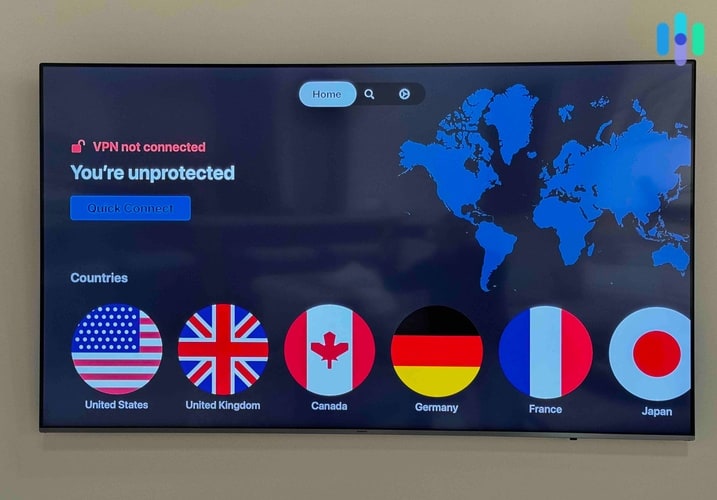
NordVPN’s Apple TV app is hot off the press. It’s very simple and straightforward. We got it from our Apple TV App Store, and after a quick sign-in, we were ready to go. The Apple TV app is unlike the elaborate NordVPN apps for PCs and smartphones we’ve tested before. It’s barebones and it doesn’t allow for a lot of customizations, but if all you want is an Apple TV VPN that can change your location so you can stream from a different Netflix or Disney+ region, it’s perfect.

NordVPN Apple TV app main location screen Streaming Experience
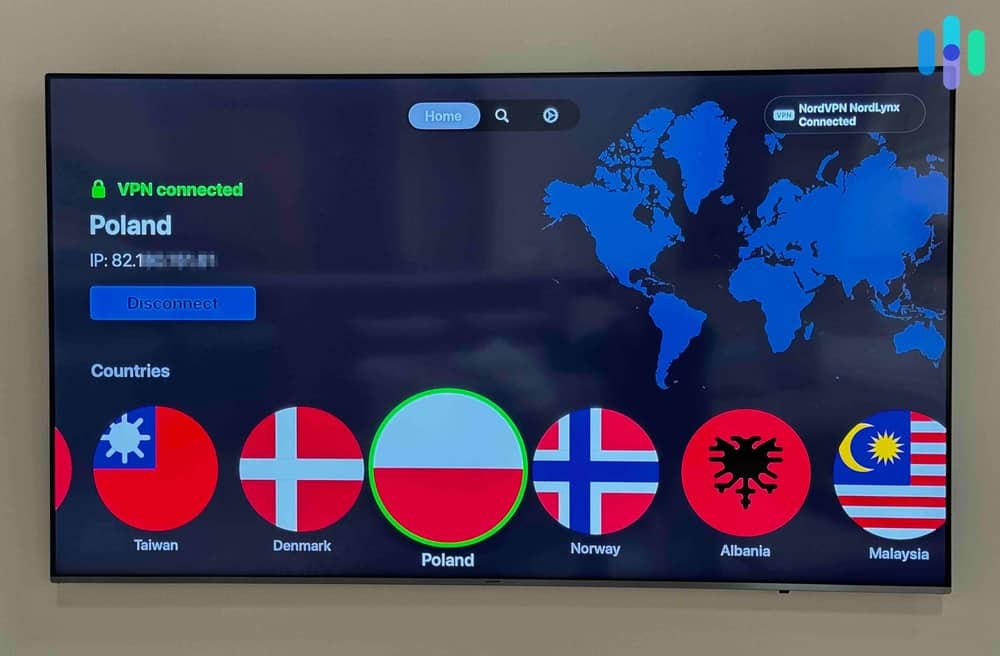
The Apple TV app for NordVPN gave us access to 129 countries. It takes a while to scroll through all of them, but you can use the search function at the top to quickly find the country you’re looking for. You can even look up a city, as long as NordVPN has a server there.
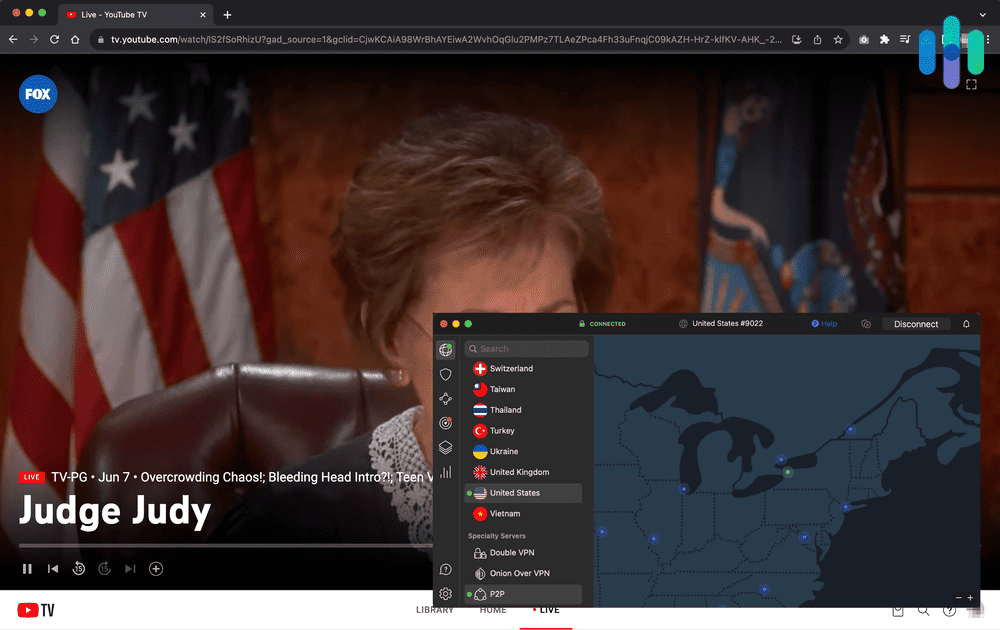
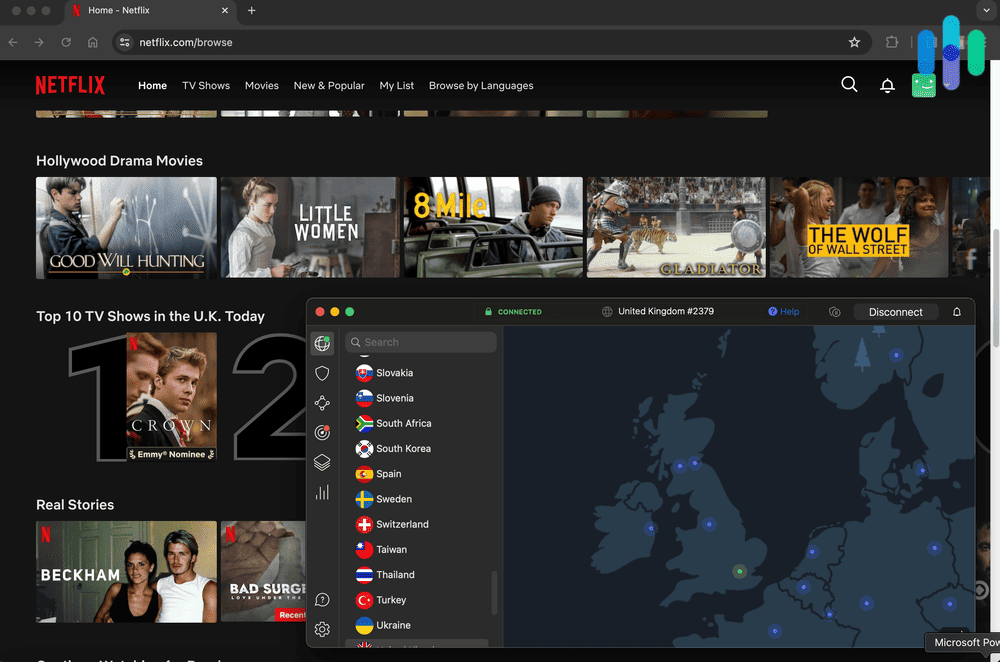
NordVPN doesn’t have streaming-optimized servers like our next pick ExpressVPN, but that didn’t stop it from unblocking geo-restricted content from the top streaming services. We personally tried it for streaming Amazon Prime, Disney+, Max (formerly HBO Go), Fox, and ABC, as well as international Netflix libraries, Paramount Plus, and Peacock TV.
» Learn more: Change Region on Netflix
We know, that’s probably not enough for a hardcore binge-watcher, but NordVPN still offered more options than other VPNs. For example, with Surfshark’s Smart DNS setup, the options are limited to U.S. streaming services.1
Speed
Using a VPN can slow down your internet speed, but NordVPN didn’t slow us down too much. We still enjoyed 4K-capable speeds with NordVPN running, reading around 220 Mbps for downloads. That’s a 10-percent drop compared to our network speed and one of the most consistent options when we tested VPN speeds.
Digging deeper, we think we found out how it retained such speed – NordLynx. NordLynx is a VPN protocol built on WireGuard, which is known for its impressive speed. It’s faster than OpenVPN, currently the gold standard of VPN tunneling. NordVPN adopted WireGuard and gave it a few security upgrades while retaining its speed advantage. It still offers impressive VPN encryption, but thanks to its lightweight architecture, NordLynx can provide near-lossless VPN speeds.
What We Like
- Apple TV app designed for quickly changing IP address location
- Straightforward setup and user-interface
- Maintains fast connections
- Tutorials and video guides specific to setting up NordVPN for Apple TV
What We Don’t Like
- There were instances when Netflix detected our real location
- Difficult to set up as a router VPN (if your Apple TV doesn’t support VPN apps)
- Limit of ten simultaneous connections per account
- Pricier than other options
Being new, NordVPN’s Apple TV app doesn’t actually do a lot. Like we said, it’s barebones. There’s no option to customize your VPN settings, you can’t connect to a multi-hop connection, there’s not even a kill switch in sight. That means if your NordVPN connection drops, Netflix will find your real location and you could get kicked out of the movie you’re watching.
The only real thing you can do with the VPN app is connect to the VPN, and that it does very well. We tried a Japan connection to see if it can really give us a Japan IP address. It worked! Within seconds, we were already browsing the hottest anime Netflix Japan has to offer.
We’re lucky it worked, though, because when connecting to a location, NordVPN doesn’t let you choose a specific server in that country. So if we happened to get a server that’s already blacklisted by Netflix, we would have been stuck with it. So that’s something to keep in mind. With ExpressVPN’s Apple TV app, we were able to select a specific server within a country. That can make streaming a little easier, in our opinion. We’ll dig into ExpressVPN next.

-
2. ExpressVPN - Best Apple TV App
 Get ExpressVPN Links to ExpressVPN
Product Specs
Server locations 105 countries Average Speed Loss 7% download & 24% upload Apps Windows, MacOS, Linux, Android, iOS, Chrome, Firefox, Edge, Android TV, tvOS Best Monthly Rate $2.44/mo with a 2-year plan Money-Back Guarantee 30 days full refund
Apple TV Setup
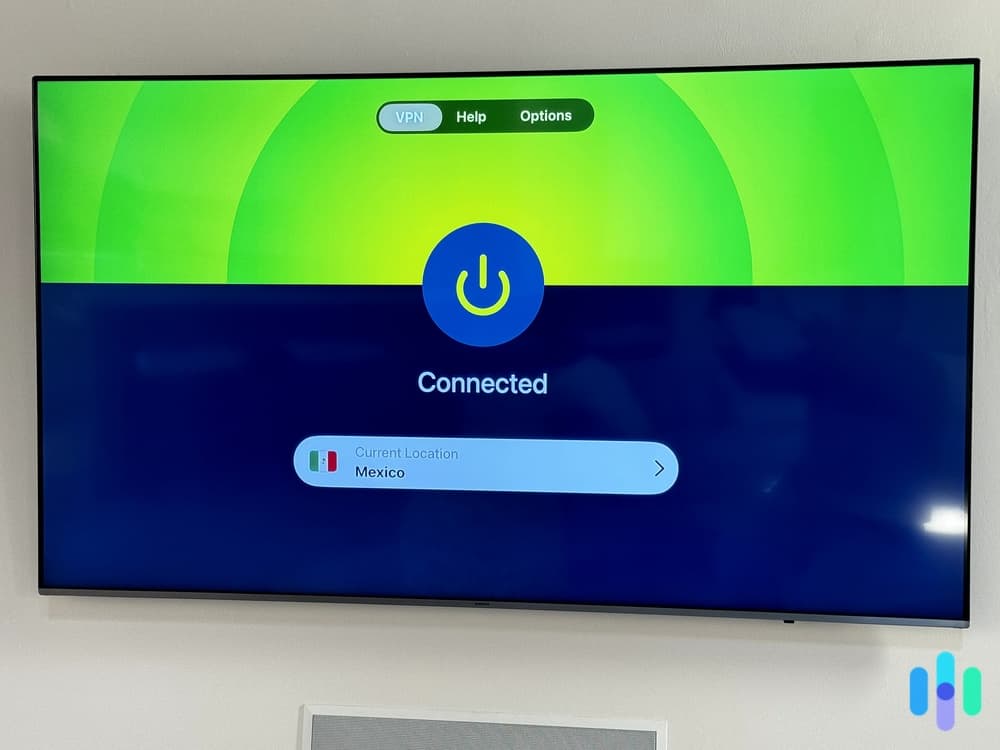
ExpressVPN is another one of the few VPNs that offer an app for Apple TV. It’s exactly what we want from an Apple TV app. It’s user-friendly and simple to use. Besides the app, ExpressVPN is also the best provider of a VPN router. VPN routers are typically the most difficult to set up, but ExpressVPN is an exception. ExpressVPN offers a ready-to-use router VPN called Aircove. The downside? It comes with a hefty price tag of $189, and you still need to maintain an ExpressVPN subscription.

ExpressVPN using the Apple TV app connected to Mexico The upside, though, is that it’s super easy to set up. We managed to get our hands on (borrow) an Aircove router to take for a quick spin. We set it up as a Wi-Fi access point and in under 15 minutes, we were able to connect it to our network, configure our VPN settings, and connect our Apple TV to it.
Streaming Experience
ExpressVPN has tons of server locations – it offers 105 server locations compared to Surfshark (another top pick of ours) with 100 locations. All those locations were available through the ExpressVPN Apple TV app and Aircove.
Moreover, since Aircove is a direct product of ExpressVPN, we were able to manage its VPN connection via our ExpressVPN online dashboard. When we were done watching anime on Netflix Japan, we easily switched over to a U.K. server using only our iPhone to binge Doctor Who. The user experience was on point, something we expected from the best VPN router on the market.
Speed
With the Aircove plugged into our modem via an Ethernet cable, we enjoyed speeds of around 230 Mbps, both for uploads and downloads. It also helped that the Aircove broadcasts Wi-Fi 6 signals, which is significantly faster and more stable than older iterations of the Wi-Fi protocol.2
As for the Apple TV app from ExpressVPN, the speeds were slightly lower speeds, but not slow enough to drop the resolution or cause buffering. Our download speed was around 215 Mbps, which was still more than capable of 4K streaming.
What We Like
- Native app for Apple TV
Aircove router for whole-home VPN access - User-friendly interface
- 105 server locations
What We Don’t Like
- App is fairly new (expect bugs here and there)
- Aircove cannot be controlled using the ExpressVPN mobile or desktop apps
- Limited Wi-Fi signal range for Aircove (best placed near the Apple TV)
- ExpressVPN subscriptions are expensive compared to other providers
Between the app and the router, we’d say go with the app if all you want is to change your Apple TV’s location to a different region or country. We found it easy to navigate through all the features using the Apple remote. If you really want to safeguard your entire household’s internet connection, go with Aircove.
Downloading the ExpressVPN Apple TV app was a breeze. It was like downloading any other app into the Apple TV; we went to the App Store and searched “ExpressVPN,” selected “Get,” and within minutes, we were already signing in. We recommend creating an ExpressVPN account and buying a subscription beforehand, ideally using an iPhone. That way, you can sign in using just the QR code that will flash on your TV screen.
If you’re opting for Aircove, on the other hand, the setup process is going to be a little more difficult, but again, it’s easier to set up than most VPN routers. Once it’s all set up as a Wi-Fi router, you can enjoy a lot of user-friendly features that most VPN routers don’t provide.
For starters, with a typical VPN router, all devices connected to the network use the same VPN tunnel, IP address, and location. With Aircove, we were able to set our Apple TV to connect to a U.K. server and, at the same time, our laptop to a U.S. server. We later learned that it can maintain up to five VPN tunnels leading to different locations at the same time.
- Native app for Apple TV
-
3. Proton VPN - Best Apple TV VPN for Streaming
 View Plans Links to Proton VPN
Product Specs
Server locations 129 countries Average Speed Loss 8% download & 4% upload Apps Windows, MacOS, Linux, Android, iOS, Chrome, Firefox, Android TV, tvOS, Firestick Best Monthly Rate $2.99/mo with a 2-year plan Money-Back Guarantee 30 days
Apple TV Setup

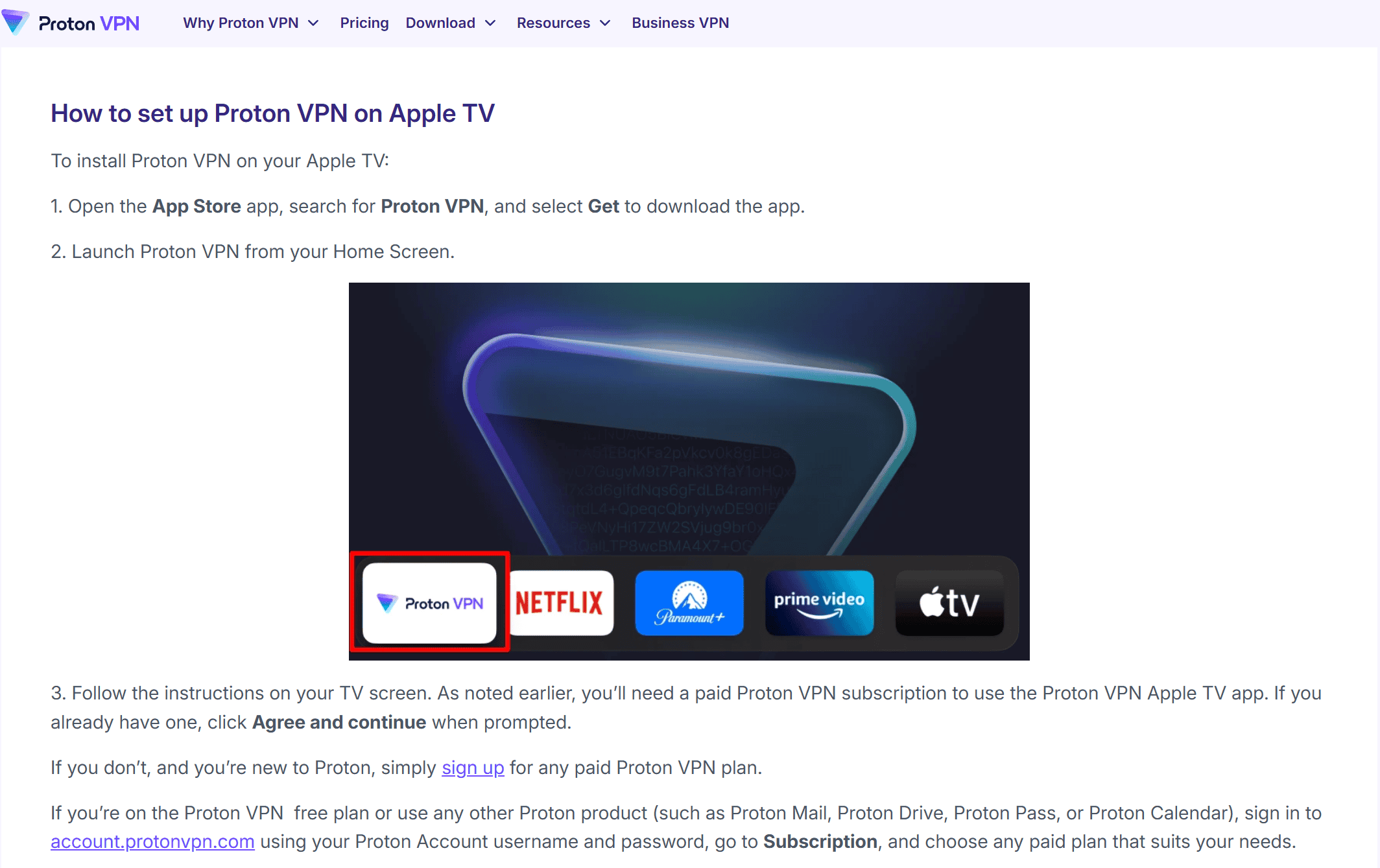
Proton VPN’s Apple TV installation guide is very simple to follow. Proton VPN has a native Apple TV app, so it shouldn’t take you more than two minutes to install it. In our case, we quickly found it on the app store, downloaded it, and waited for the installation process to finish.
If you need help with the installation, Proton VPN offers a step-by-step tutorial for its Apple TV app. We read through it and found it extremely reader-friendly. The guide offers clear instructions on what to do and also includes screenshots.
>> Find Out More: Proton VPN 2026 Review
Streaming Experience

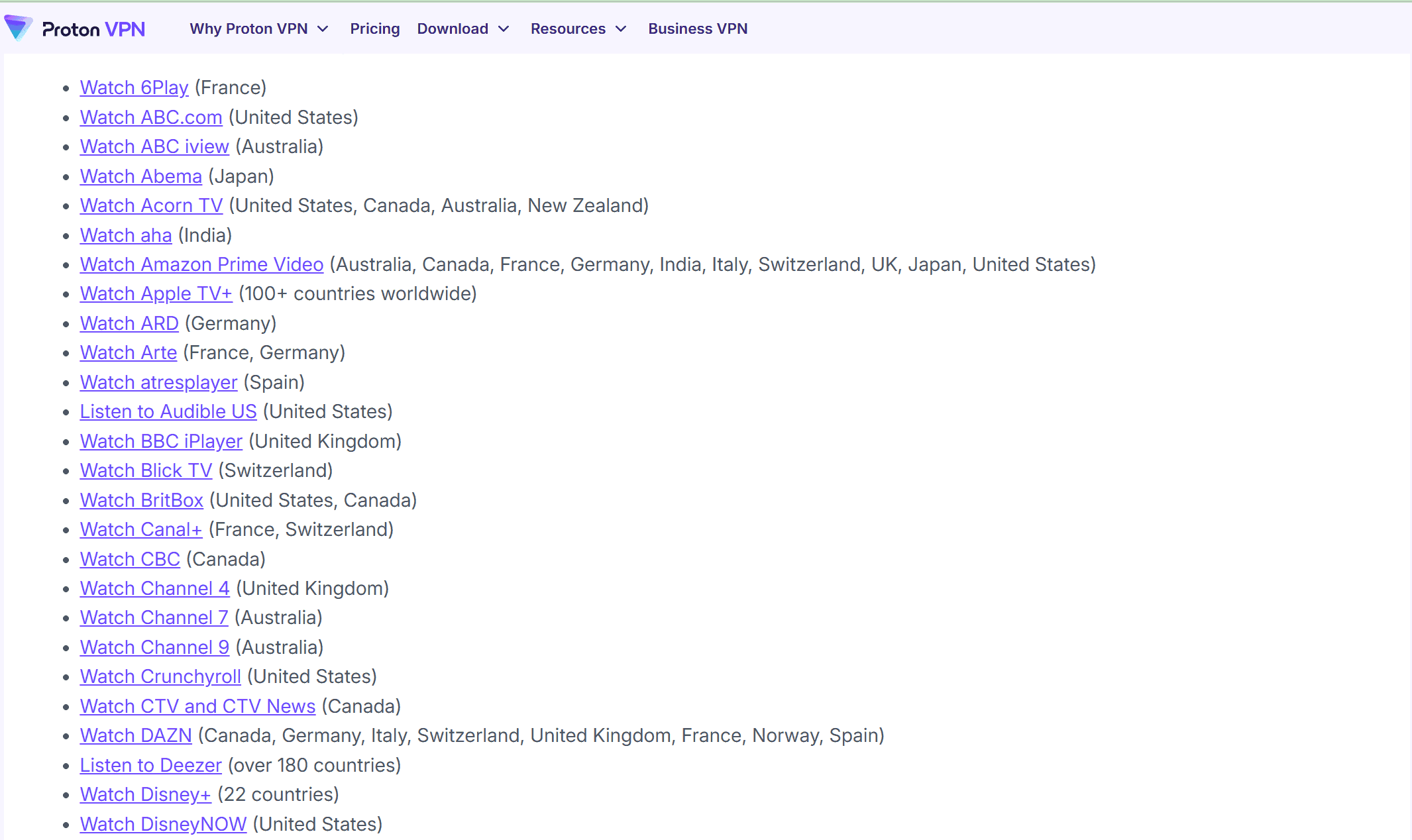
Proton VPN offers support for tons of streaming services. Proton VPN offers excellent streaming support. Our research shows that it’s compatible with over 90 streaming services. We also tested it and can confirm that it’s able to access popular streaming services, including Netflix, Hulu, Disney+, Max, BBC iPlayer, CBC, Paramount+, and ESPN+.
The VPN can also access tons of libraries from popular streaming platforms. For example, it’s compatible with 25 Netflix libraries, including Netflix US, Netflix UK, and Netflix Japan. It also works with 22 Disney+ libraries and 16 Paramount+ libraries.
Speed
Proton VPN maintained very fast speeds in our tests. In fact, it ranks pretty high on our list of the fastest VPNs in 2026. On average, it doesn’t slow down download and upload speeds by more than eight percent.
We used Proton VPN to watch 4K videos over the course of several hours. We never had to wait more than two or three seconds for the videos to fully load. Plus, when we skipped through the videos, we never experienced any buffering.
What We Like
- Compatible with over 90 streaming platforms
- Can access over 20 Netflix libraries
- Offers very fast speeds for streaming
- Has a native Apple TV app that’s very easy to use
What We Don’t Like
- Prices for long-term plans are a bit steep compared to competitors
- Offers a 30-day money-back guarantee, but it’s prorated
- Has a free version, but it doesn’t include access to the Apple TV app
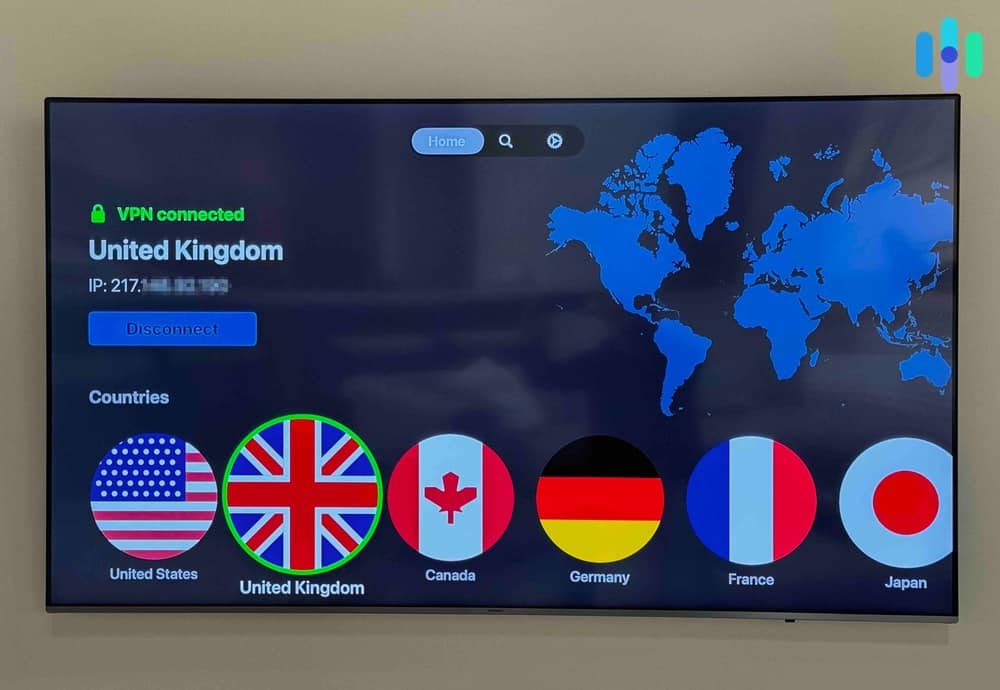
We like how easy it is to watch any streaming content you want with Proton VPN. It’s compatible with over 90 streaming services, and also allows streaming via servers in 117 countries. So, you just need to launch the app, use your remote to connect to your desired server location, and then binge your favorite titles.
We also found Proton VPN’s Apple TV app really intuitive. It’s very easy to navigate the app with a TV remote, and it doesn’t take more than a few seconds to find and connect to a server.
Pro Tip: If you want to watch local content, we recommend selecting the “Fastest country” option on the main connection screen. This will automatically connect you to the fastest server for your location, which should be in your country.
-
4. Surfshark - Best for Virtual Router Setup
 Get Surfshark VPN Links to Surfshark.com
Product Specs
Server locations 100 countries Average Speed Loss 8% download & 50% upload Apps Windows, MacOS, Linux, Android, iOS, Chrome, Firefox, Edge, tvOS, Android TV, Fire TV Best Monthly Rate $1.99/mo with a 2-year plan Money-Back Guarantee 30 days full refund
Apple TV Setup
As the best Windows VPN for changing IP address location, we set up Surfshark on our Windows laptop to use as a virtual Wi-Fi router for our Apple TV. It turned out to be a smart choice because we later found out that if we set up Surfshark via smart DNS, we would have gotten only U.S. locations. Setting up the VPN on our router was also a no-go because our router wasn’t supported. We would have had to “jailbreak” it to install Surfshark, which we don’t recommend doing unless you’re a networking expert.
Streaming Experience
Since we used the Windows Surfshark app to set up a VPN connection, we were able to freely use all 100 locations in Surfshark’s server network. Moreover, Surfshark released a study on which countries have the best Netflix shows and films3, so that’s a good place to start if you’re looking for locations to explore.
Changing IP address location was also easy. We simply clicked a different country from Surfshark’s server menu. We didn’t even have to restart the VPN or reconnect our Apple TV.

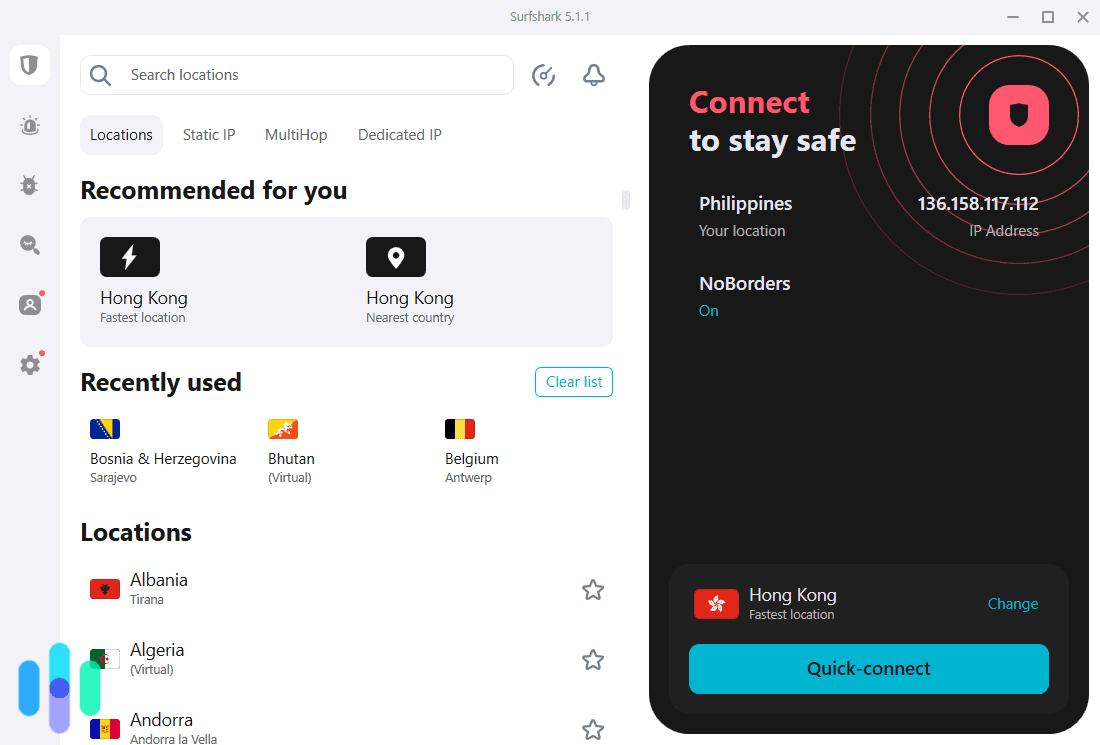
The Surfshark app for Windows Speed
While we noticed that Surfshark’s upload speed tended to be sluggish – it notched a decrease of up to 45-percent compared to our network speed – the downstream speed was above the industry average. Our readings were 218 Mbps on our laptop and 206 Mbps on the Apple TV. While the virtual router configuration was faster than ExpressVPN (197 Mbps), you need to consider whether the extra time to set it all up is worth it.
» Read more: Best VPN of 2026
What We Like
- Smooth user-experience on Windows (used as virtual router)
- Decent download speed for streaming
- Plenty of locations to choose from (100 countries)
- Connect unlimited devices at the same time
What We Don’t Like
- Best used if the laptop or Macbook is connected via an Ethernet cable
- Virtual router configuration is not a permanent setup
- Not ideal for smart DNS configuration (offers only U.S. locations)
- Lacks servers optimized specifically for streaming
While configuring a laptop or Macbook as a virtual router is only a temporary fix for connecting Apple TV to a VPN, it’s a good setup for occasional movie nights. This was especially true with Surfshark, with its healthy selection of servers and easy-to-use PC and Macbook interfaces.
Our one gripe with Surfshark is that it doesn’t have servers optimized specifically for streaming. We see a lot of VPNs, like when we reviewed Hotspot Shield, that have servers configured to better get around the geo-restrictions of certain streaming services. Still, even without specialty servers, Surfshark proved reliable. In the five times we tried to watch Disney+ and Netflix on our Apple TV, Surfshark hid our IP address and real location well.
We also liked that Surfshark offers dedicated IP addresses. This feature comes at a steep price of $3.75 per month on top of your Surfshark subscription, but it’s a surefire way to avoid getting blocked by Netflix. Streaming sites detect VPN users when they see that multiple users are streaming from a shared IP address, which happens when two or more VPN users connect to the same server. With a dedicated IP address, no matter which server you connect to, you’ll always get your own unique IP address.
-
5. Private Internet Access - Best for Accessing U.S. Streaming Content
 View Plans Links to Private Internet Access
Product Specs
Server locations 91 countries Average Speed Loss 5% download & 84% download Apps Windows, MacOS, Linux, Android, iOS, Chrome, Firefox, Android TV, tvOS Best Monthly Rate $2.03/mo with a 3-year plan Money-Back Guarantee 30 days full refund
Apple TV setup
Similar to Surfshark, Private Internet Access was too difficult to set up on a router for us, so we opted to use a virtual router setup. It was quick and easy thanks to PIA’s user-friendly Windows app. Smart DNS was also an option, but we found the VPN’s five DNS locations (Germany, U.K., U.S., Netherlands, Japan) limiting.
Streaming experience
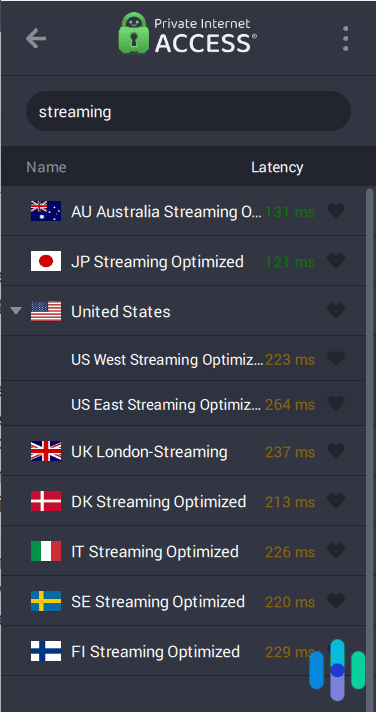
Installed on our laptop, Private Internet Access gave us access to 84 server locations. Not only that, but it had servers optimized specifically for streaming. They were marked ‘Streaming Optimized’ in the server list, or you could simply search ‘streaming’ using the app’s search bar. There are nine servers in total, including two in the U.S. (East and West Coasts), Australia, Japan, Italy, and Denmark.

Private Internet Access streaming optimized servers Speed
We’ve always known that Private Internet Access performs well on Windows, and this time was no different. Although the latency (ping) of the streaming optimized servers were quite high (over 200 ms), it didn’t stop us from streaming 4K movies on our Apple TV buffering-free. Our speed test readings on the Apple TV ranged from 212 (lowest) to 227 (highest) Mbps, so while there were fluctuations, Private Internet Access was fast overall.
What We Like
- Viable for both smart DNS and virtual router setup
- Has servers optimized for streaming
- Has servers in each of the 50 U.S. states
- Reliable speed and connections
What We Don’t Like
- Only five smart DNS locations
- Specialty (optimized) servers are often high-load
- Other servers work for streaming, but can be unreliable
- Feature-rich Windows app tends to run slow
We found Private Internet Access to be the best choice if you want to access U.S. streaming content, whether you’re vacationing with the Apple TV in tow or living outside the U.S. That’s because Private Internet Access, which is based in Denver, has at least one server in each U.S. state. No other VPN we tested had a network as focused to the U.S. as Private Internet Access.
Granted, not all those servers are optimized for streaming. There were a couple of times when Netflix detected that we were using a VPN and blocked us. However, six of the nine servers we used worked, and we think that’s a pretty good reliability rate.
We also appreciated the fact that Private Internet Access has two U.S. servers optimized for streaming – East and West. We live on the East Coast, so we get the East Coast programming of YouTube TV. Connecting our laptop, and hence our Apple TV, to PIA’s U.S. West server was an easy way for us to change our YouTube TV location and access the West Coast programming of ESPN.
What The Best Apple TV VPNs Have in Common
Now that we’ve given you the “what” of the best Apple TV VPNs, let’s talk about the “why.” As you can probably tell, we didn’t just randomly select these VPNs. Our recommendations are based on weeks of testing and researching possible options. In the end, we noticed that the best VPNs to use with Apple TV share a few things in common.
- Compatibility: Of course, they all have to be compatible with Apple TV, but we selected the VPNs that support all three setup methods in case you want to experiment and find the setup that works best for you.
- Ease of setup and use: Naturally, each VPN is easier to use with different setups, but overall, the six VPN we recommended are all easy to use. You won’t need to be a tech whiz to use any of them.
- Server network: Since streaming is probably the most common use case scenario for Apple TV VPNs, we chose only the VPNs with a sizable server network, especially pertaining to the location of the servers. You won’t use all those locations (probably!), but it’s best to have options.
- Speed: This is another crucial factor. We wouldn’t recommend VPNs with abysmal speeds, especially since they’ll mostly be used for streaming.
- Security: This may not be a top priority for most who are looking for an Apple TV VPN, but it is to us. While we did focus our tests on the streaming and overall user experience, we still selected only VPNs capable of protecting your data and more importantly, those that will not log and sell your browsing activity.
Do Apple TVs Really Need a VPN?
We strongly recommend using a VPN on all gadgets, from smartphones to computers, but that may not be the case for Apple TVs. Connecting your Apple TV to a VPN is not an absolute must. There’s no native browser for the Apple TV, so there’s no need to use a VPN to hide your browsing activity.
That being said, there are unique benefits to connecting your Apple TV to a VPN. One we’ve repeatedly mentioned in this review is that it can give you access to geo-restricted content. In addition to that, though, using a VPN can help keep your activity more private, even if that activity is just watching shows.
Let’s take Netflix, for example. According to the service’s privacy policy4, it collects a ton of data, including which shows you watch, which titles you preview, your search queries, and more. It also collects unique identifiers like device IDs, but not just of the device you’re using but also your router and other devices connected to the same network.
None of that’s particularly concerning IF Netflix uses it only to improve its services; unfortunately, Netflix shares information with third parties, including advertising partners and service providers. There’s no telling what those parties do with your data.
While data about one’s streaming activity may be benign, there may be underlying data collection practices we don’t know about. Using Apple TV with a VPN is completely optional, but a good idea.
Step-by-Step Guide: Setting Up Apple TV VPNs
The easiest way to set up an Apple TV VPN is by downloading a VPN app, but since native VPN support is new to Apple TVs and tvOS versions older than 17 aren’t compatible,5 we’ll outline the other ways you can set up a VPN on your Apple TV without a VPN app.
Method 1: Native App (tvOS 17+)
Difficulty: Easy | Setup Time: 2–5 minutes | Works With: NordVPN, ExpressVPN, Proton VPN, Surfshark, PIA
The native app method is the fastest and most reliable way to use a VPN on Apple TV. Since tvOS 17 launched in September 2023, five of our top six recommended VPNs now offer dedicated Apple TV apps — no extra hardware or network configuration required. We consistently got up and running in under five minutes across all five providers.
Before you start: Make sure you already have an active VPN subscription. We recommend setting up your account on a phone or computer first, since signing in on Apple TV is much easier with a QR code than typing credentials with the remote.
- On your Apple TV, open the App Store.
- Search for your VPN by name (e.g., “NordVPN,” “ExpressVPN”).
- Select Get and wait for the download to complete. App sizes are small — downloads took us under 30 seconds on a typical home connection.
- Open the app. A QR code will appear on screen.
- On your iPhone or computer, scan the QR code or visit the URL shown to authenticate your account.
- Once verified, your Apple TV app will log in automatically.
- Select a server location and tap Connect.
That’s it. From app store to connected, our fastest run was 2 minutes and 14 seconds with NordVPN. The slowest was just under 5 minutes with PIA, mostly due to the account verification step.
Pro Tip: If you’re planning to watch Netflix from another region, connect to your VPN server before opening the Netflix app. Netflix locks region detection at launch, so connecting mid-session won’t switch your library.
Method 2: Smart DNS
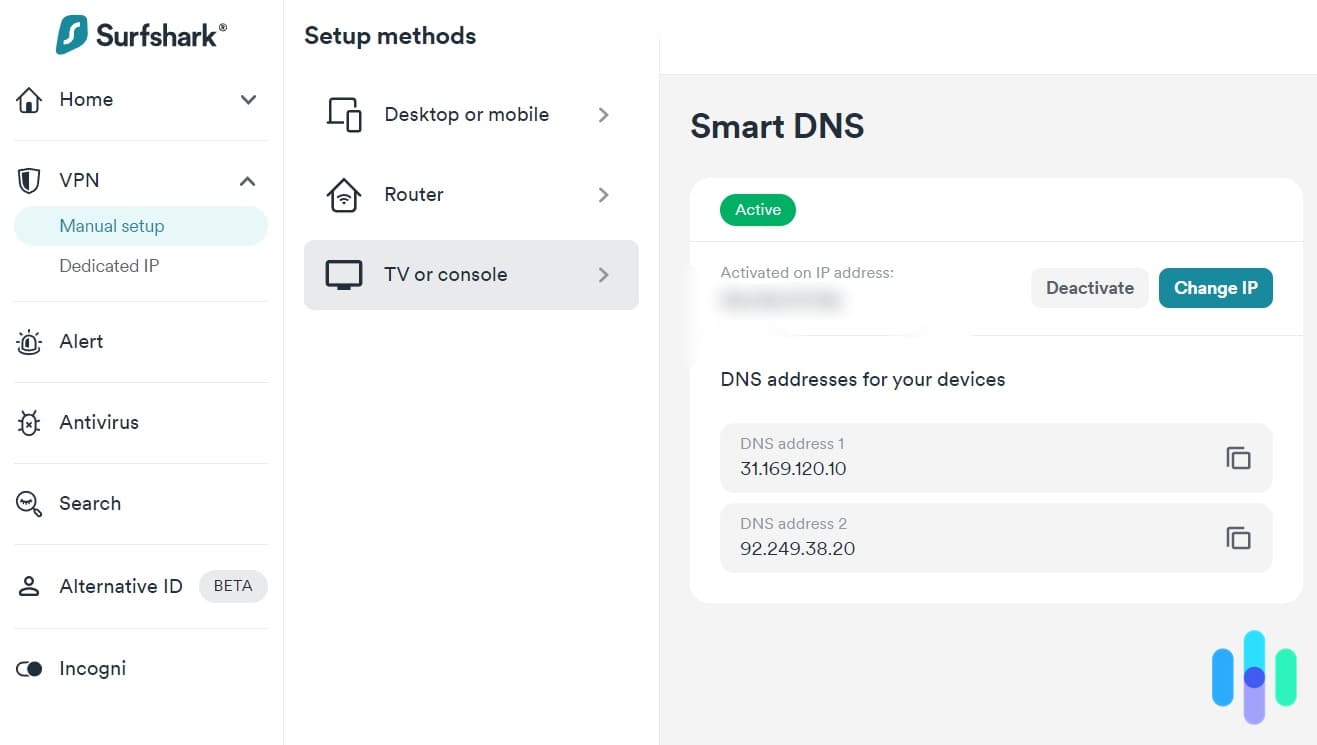
Difficulty: Medium | Setup Time: 10–20 minutes | Works With: NordVPN, ExpressVPN, Surfshark, PIA, CyberGhost
Smart DNS is the go-to method for older Apple TVs that don’t support native VPN apps, and it works on every Apple TV model regardless of tvOS version. It’s faster than a virtual router setup and doesn’t require any extra hardware, but the tradeoff is that it doesn’t encrypt your traffic, so it’s purely for bypassing geo-restrictions and not for privacy.
Before you start, know that Smart DNS addresses are tied to your IP address. You’ll need to register your home IP with your VPN provider’s dashboard before the DNS addresses will work. If your IP address changes (common with most ISPs), you’ll need to re-register.
- Log into your VPN provider’s online dashboard on a phone or computer.
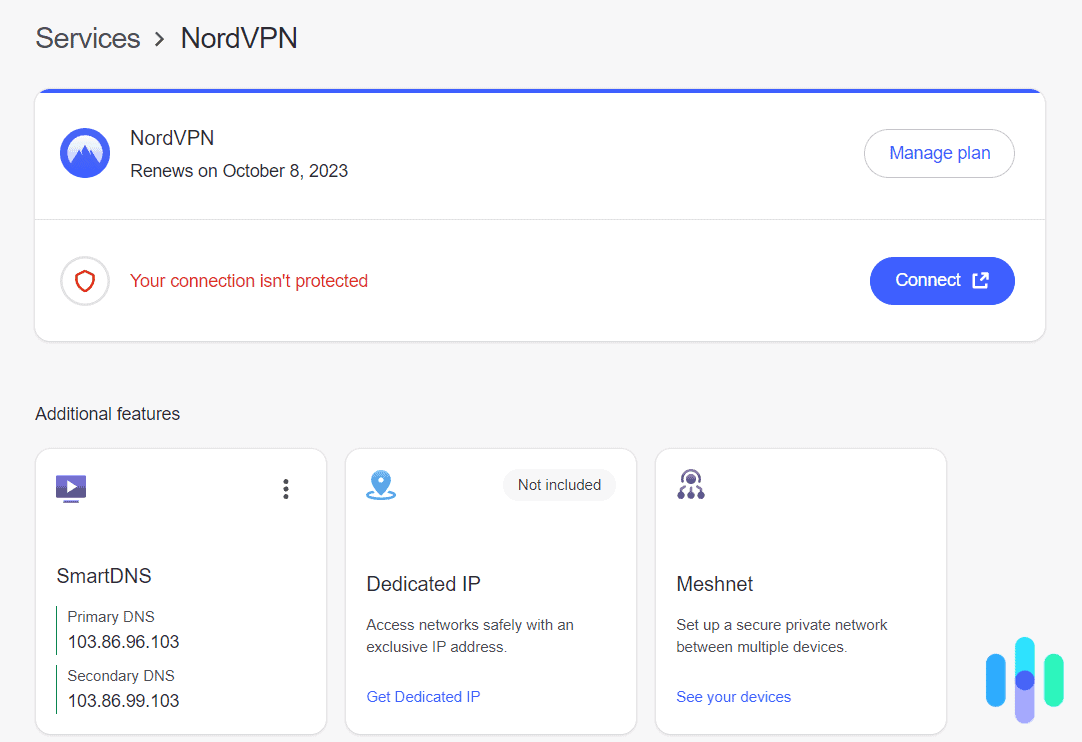
- Find the Smart DNS section. In NordVPN, it’s under Services > NordVPN > DNS Settings. Other providers have similar menu locations.
- Enable Smart DNS and note the two DNS server addresses provided.
- On your Apple TV, go to Settings > Network > Wi-Fi (or Ethernet if wired).
- Select your network, then scroll down and tap Configure DNS.
- Change the setting from Automatic to Manual.
- Enter the primary DNS address from your VPN dashboard. Add the secondary address in the second field if prompted.
- Exit settings and restart your Apple TV (Settings > System > Restart). This step is easy to skip but critical — we had inconsistent results until we restarted.
- Reopen a streaming app to verify the geo-restriction is lifted.
We averaged about 12 minutes for a full Smart DNS setup across providers, with most of that time spent finding the right dashboard menu. CyberGhost’s dashboard was the most straightforward; NordVPN required one extra click to activate Smart DNS before the addresses appeared.
Method 3: Virtual Router (Windows PC)
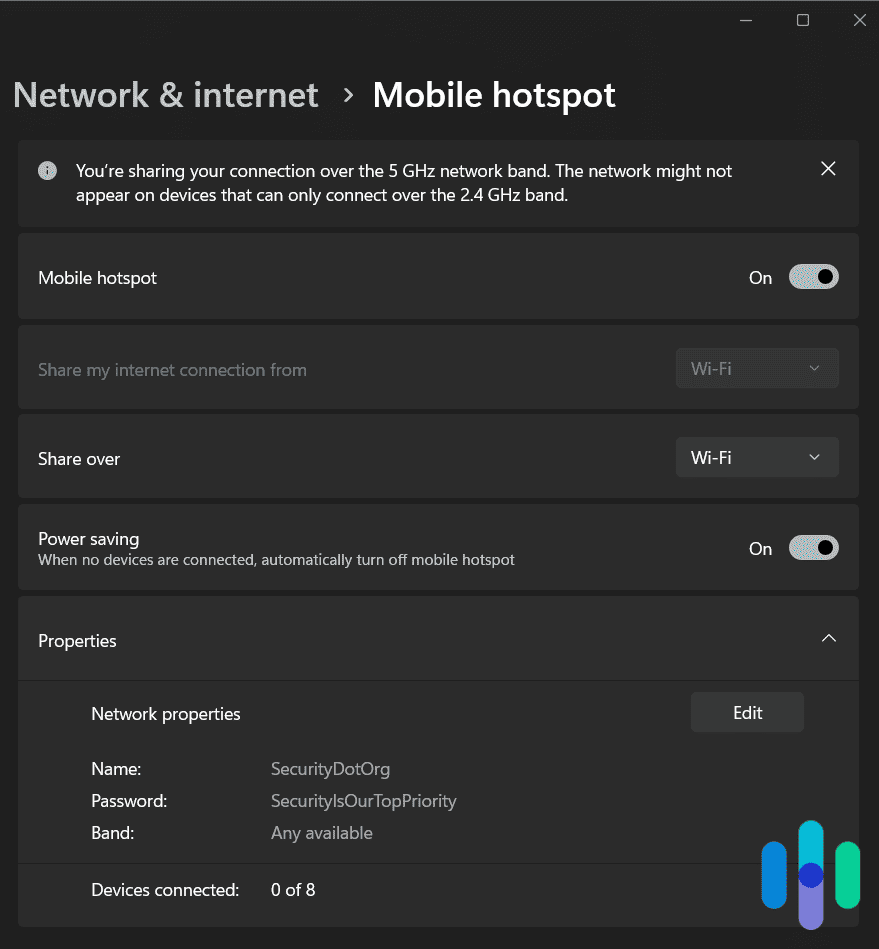
A virtual router turns your Windows PC into a Wi-Fi hotspot that routes traffic through your VPN. Your Apple TV connects to that hotspot instead of your regular Wi-Fi, so all of its traffic passes through the VPN tunnel with full encryption. This method works on any Apple TV model and any tvOS version.
The downside is that your PC must stay on and connected to the VPN the entire time you’re streaming. It also requires your PC to have a Wi-Fi adapter (most laptops do; many desktops don’t). This was our most error-prone setup method, as we ran into issues on about one in three attempts, usually related to firewall settings or Windows dropping the hotspot after a sleep cycle.
To start, make sure your VPN app is installed and running on your PC.
- On your PC, open Settings > Network & Internet > Mobile Hotspot.
- Turn on Share my Internet Connection From and select your Ethernet adapter from the dropdown.
- Note the hotspot Network name (SSID) and Password displayed on screen.
- Open your VPN app on the PC and connect to your desired server location.
- On your Apple TV, go to Settings > Network > Wi-Fi.
- Select your PC’s hotspot network from the list and enter the password.
- Your Apple TV is now routing traffic through your VPN.
Our average setup time was 18 minutes on the first attempt. Subsequent setups were faster (around 8 minutes) once we knew where every setting lived. The biggest time sink was Windows Firewall blocking the shared connection — if your Apple TV connects to the hotspot but shows no internet, go to Control Panel > Windows Defender Firewall > Allow an app through and make sure your VPN app is permitted.
Important: Windows sometimes turns off your mobile hotspot when the PC goes to sleep. We recommend going to Settings > Power & Sleep and setting “When plugged in, PC goes to sleep after” to Never while streaming.
Method 4: VPN Router
Difficulty: Hard | Setup Time: 30–60+ minutes | Works With: NordVPN, ExpressVPN, Proton VPN, Surfshark, PIA, CyberGhost
A dedicated VPN router protects every device on your network at once — including your Apple TV — without any per-device configuration. It’s the most reliable long-term setup since there’s no PC to keep awake and no app to manage on the TV itself. The tradeoff is cost and complexity: you’ll either need to flash existing router firmware (advanced, not recommended for most users) or buy a pre-configured VPN router.
ExpressVPN’s Aircove is the most Apple TV-friendly option we’ve tested. At $189 plus an ExpressVPN subscription, it’s expensive, but setup took us under 15 minutes and it supports multiple simultaneous VPN tunnels — so your Apple TV can connect through a UK server while your laptop uses a US server at the same time.
For a standard third-party VPN router using OpenWRT or DD-WRT firmware, setup time varies widely depending on your router model and technical comfort level. We won’t walk through full firmware flashing here, as the steps differ substantially by device. Your VPN provider’s support site is the best place to start — NordVPN and ExpressVPN both maintain detailed router-specific guides.
Who this is for: Anyone who wants set-it-and-forget-it VPN protection across their whole home. Not recommended as a first-time VPN setup method.
>> Also See: The Best Routers for VPNs
Methodology: How we Chose the Best VPN for Apple TV
Testing the Best VPNs for Apple TV
Not all VPNs have great integration with Apple TV. Our VPN experts knew the best brands for the job and installed them on their own Apple TVs. They used each service for months to see how compatible it actually was, how well it streamed local and regional content, and what the daily experience was like. Once the results were in, they ranked our top picks accordingly to a specific seat of criteria we’ve outlined below.
Ranking the Best VPNs for Apple TV
Ranking the best VPNs for Apple TV meant giving top priority to user experience. Because if set-up and daily use are a hassle, that’s usually a dealbreaker. Here’s what we looked for specifically in our top VPNs:
- User experience (40%): We only recommended VPNs that the average user could set up without chat support or help from YouTube. VPNs with stand-out apps that made daily streaming easy — like NordVPN and Surfshark — were also a consideration.
- Server network (30%): We chose VPNs with plenty of servers and smart DNS locations spread out over many regions, to avoid bottlenecks. We also looked for VPNs with streaming-optimized servers. That helps if you want to watch Netflix with a VPN, for example. Streaming-optimized servers are also usually stealthy, which lets you unblock content from other regions.
- Streaming quality (30%): The VPNs we recommend on this list had to be fast in order to work with Apple TV 4K. Apple doesn’t list a minimum streaming speed, but with Netflix, you’ll need at least 15 Mbps to load 4K videos without buffering.6
>> Read more: The Best VPNs for Netflix
Conclusion
The Apple TV already offers endless options for streaming content, but with a VPN, you can expand those possibilities even further. Moreover, VPNs offer a great way to increase your online privacy, not just for your Apple TV but your other devices as well.
Fortunately, in most cases, you’ll need only one subscription to install a VPN on your mobile devices, computers, and other gadgets. So make the most of it – for more information, read how to set up a VPN on a Mac and how to install a VPN on an iPhone.
FAQs
Millions of people have read and watched our reviews of the best VPNs, and with those views come a ton of questions. We’ve narrowed down the questions we get most frequently about the best VPNs for Apple TV.
-
Which Apple TV models support VPN apps?
Native VPN apps require an Apple TV 4K (any generation) or Apple TV HD running tvOS 17 or later. Older models — including the Apple TV HD (3rd generation) and anything before it — can’t run VPN apps and never will, since Apple stopped issuing software updates for them. If you’re on older hardware, Smart DNS or a virtual router are your only options. To check your model, go to Settings > System > About.
-
What tvOS version do I need for a VPN app?
tvOS 17 or later. Apple introduced native VPN app support with tvOS 17 in September 2023 — before that, no VPN app could be installed directly on Apple TV regardless of provider. To check your version, go to Settings > System > Software Updates. If you’re eligible to upgrade, do it — the native app method is far easier than Smart DNS or virtual router setup.
-
Can I use a free VPN on Apple TV?
Technically yes, but it’s rarely worth it. Most free VPNs have data caps a single streaming session would exhaust, limited server pools that Netflix and Disney+ have already blacklisted, and speeds too slow for reliable 4K playback. Proton VPN is the only free option we’d trust, but its free tier doesn’t include an Apple TV app, so you’d still need a virtual router setup. Paid plans from our top picks start around $2/month — for streaming, that’s the practical minimum for a setup that actually works.
-
Why is Netflix blocking my VPN on Apple TV?
Netflix maintains an active blocklist of known VPN server IP addresses and updates it constantly. When your VPN server’s IP gets flagged, you’ll see a proxy error instead of your regional library. The fix: try a different server in the same country. NordVPN and ExpressVPN rotate IP addresses frequently to stay ahead of detection. If switching servers doesn’t help, disconnect, clear the Netflix app cache, reconnect to a fresh server, and relaunch. Always connect your VPN before opening Netflix — it locks in your region at launch.
-
Is a VPN legal to use on Apple TV?
In most countries, yes. VPNs are legal in the US, Canada, the UK, Australia, and most of Europe. A handful of countries — including China, Russia, and the UAE — restrict or ban VPN use, so check local laws when traveling. One distinction worth knowing: using a VPN is legal, but bypassing geo-restrictions technically violates most streaming platforms’ terms of service. In practice, account bans solely for VPN use are extremely rare, and the legal risk for users with active subscriptions is minimal.
-
Will a VPN slow down my Apple TV?
Some slowdown is unavoidable, but with a quality VPN on a decent connection, you won’t notice it. In our testing, NordVPN caused only a 6% speed drop; ExpressVPN dropped 37% but still delivered well above the 25 Mbps needed for 4K HDR streaming. If your base speed is 100 Mbps or higher, buffering shouldn’t be an issue. To minimize slowdown, connect to the geographically closest server that still unlocks the content you want — routing US traffic through an Australian server will always cost you speed.
-
Surfshark. (2023). How to activate Surfshark Smart DNS?
support.surfshark.com/hc/en-us/articles/360018689853-How-to-activate-Surfshark-Smart-DNS- -
Intel. What Is Wi-Fi 6?
intel.com/content/www/us/en/gaming/resources/wifi-6.html -
Surfshark. Which Countries Get the Best-rated TV Shows & Films on Netflix?
surfshark.com/best-rated-netflix-shows-and-movies -
Netflix. Privacy Statement.
help.netflix.com/legal/privacy -
Apple. (2023, Jun 3). tvOS 17 brings FaceTime and video conferencing to the biggest screen in the home.
apple.com/si/newsroom/2023/06/tvos-17-brings-facetime-and-video-conferencing-to-apple-tv-4k/
-
Netflix. Internet connection speed recommendations.
help.netflix.com/en/node/306