



Editor’s Note: Amazon’s newest operating system for Fire TV products — called Vega OS — is a Linux-based OS. Unlike Fire OS, which is based on Android, Vega OS offers fewer VPN apps. That said, our top pick, NordVPN, is one of the first VPN providers to offer a Vega OS-compatible app that you can install from the Amazon App Store.
The Amazon Fire TV Stick puts Netflix, Prime Video, Hulu, Disney+, and dozens more streaming services on any TV with an HDMI port. While that’s convenient, streaming without a VPN leaves your viewing habits, credentials, and personal data exposed to your ISP, advertisers, and anyone else on your network. A VPN encrypts your internet traffic and lets you access content libraries from around the world. Even better, you can install one on your Fire TV Stick in under five minutes.
In this guide, we’ll show you how to pick the best VPN for your specific needs. Then, we cover the five best VPNs for streaming on a Fire TV Stick based on our hands-on tests of over 50 providers to help you narrow down your choices. Finally, we’ll show you how to install them (via the Amazon App Store, APK sideload, or your router), and everything else you need to know to stream securely.
» Further reading: A 2026 Guide to Personal Digital Security & Online Safety
How We Tested VPNs for Fire Stick
Our cybersecurity team downloaded and tested more than 50 VPNs directly on Amazon Fire TV Sticks to build this guide. We assessed each VPN across three general factors — security (encryption standards, privacy policy, audit history, jurisdiction), speed (download/upload loss and latency on both Windows and Mac), and price (monthly, annual, and multi-year plans). We also assessed two Firestick-specific factors: Fire TV Stick compatibility (native app quality, remote navigation, full feature availability) and global streaming access (ability to unblock major services across multiple country libraries).
In total, we spent approximately six months on these tests and performed 300+ speed tests. Then, six third-party data privacy experts verified our results. Our top five recommendations for Fire TV Stick best met our full criteria.
What to Look for in a Firestick VPN
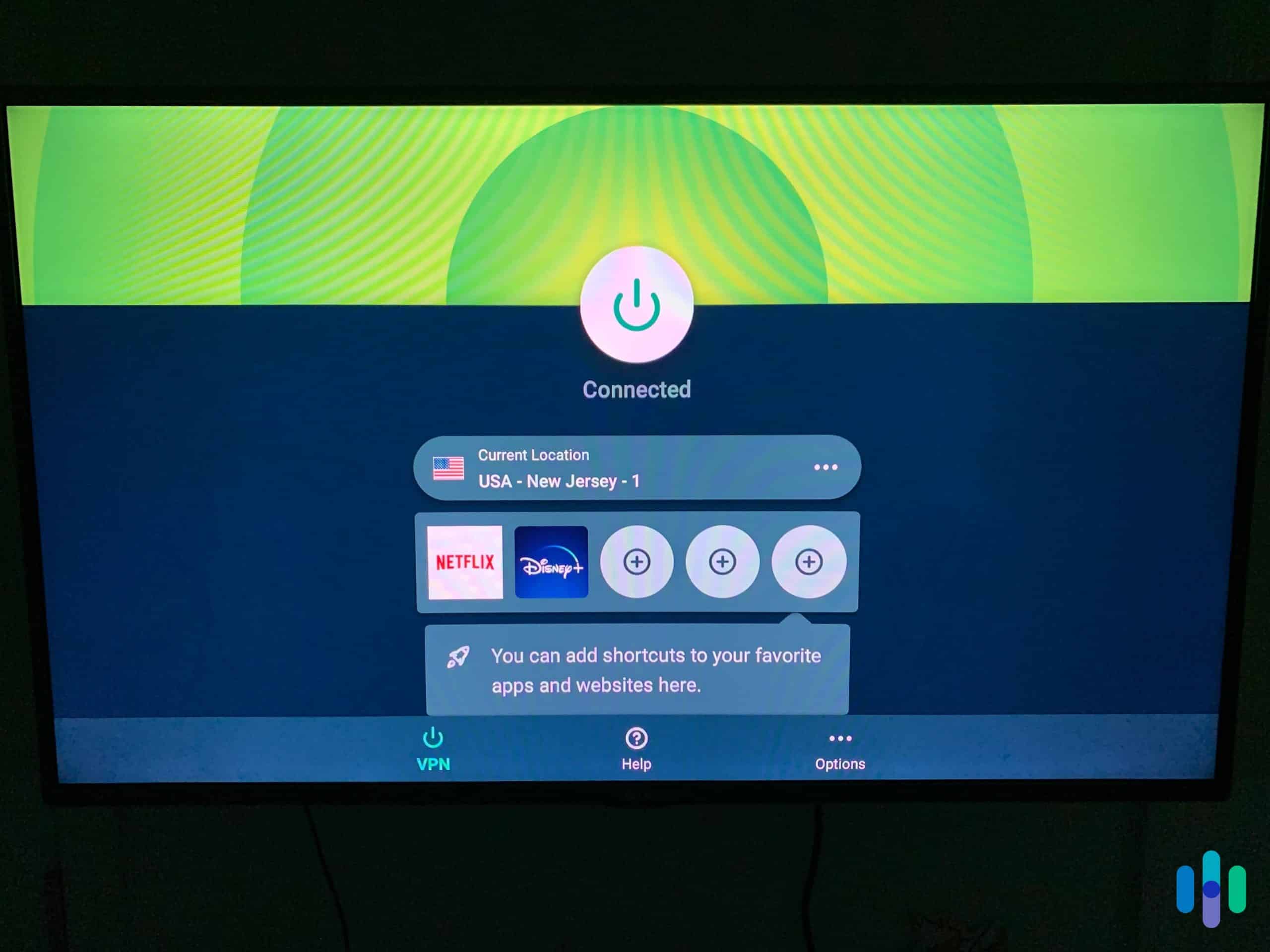
Not every VPN works with the Fire TV Stick, and among those that do there are real differences in speed, security, and streaming reliability. Here’s what to prioritize.
- Fire TV compatibility first. Your VPN must have a native Fire TV app in the Amazon App Store, or at minimum support APK installation on Fire OS. VPN apps built specifically for Fire TV use remote-friendly interfaces — a significant advantage over apps designed for touchscreens.
- Encryption and security. To keep your account credentials safe, look for AES-256 encryption paired with a modern VPN protocol — WireGuard or OpenVPN are the gold standards. A VPN kill switch is essential; it cuts your internet if the VPN drops unexpectedly, preventing unencrypted data from leaking. Obfuscated servers can help if you’re in a region that restricts VPN use.
- Streaming compatibility. Major platforms like Netflix, Hulu, and Disney+ actively block known VPN IP addresses. The best Fire Stick VPNs stay ahead of these blocks through large server pools and obfuscation. If you stream from specific services, check our platform-specific guides: Netflix VPNs, Prime Video VPNs, YouTube TV VPNs, and ESPN+ VPNs.
- Speed. For stable 4K you need at least 25 Mbps with the VPN active; HD requires 10 Mbps for streaming without buffering. NordVPN and Proton VPN are our fastest picks at just six to eight percent download loss. If you’re unsure, use a VPN’s free trial to test the VPN’s speed before committing.
- Server coverage. More servers means less congestion and more international libraries. NordVPN covers 130 countries (9,000+ servers); Surfshark covers 100 countries (4,500+ servers); Proton VPN covers 129 countries (18,000+ servers). If unlocking international content is your main goal, this matters.
- Privacy jurisdiction. We prefer VPNs based outside the Five Eyes, Nine Eyes, and 14 Eyes surveillance alliances — countries that can be legally compelled to share user data. NordVPN (Panama), Proton VPN (Switzerland), ExpressVPN (British Virgin Islands), and CyberGhost (Romania) all qualify. While Surfshark (Netherlands) is in the Nine Eyes, they maintain strict no-logs standards to ensure they never have any of your data to turn over.
- Price. Month-to-month plans run $10 to $15; two-year plans drop to $2 to $5 per month. Free VPNs usually cap data or throttle speeds — and some monetize your data, which defeats the purpose entirely. That’s why we always recommend premium options. See our VPN pricing guide, most affordable VPNs, and current deals for a full breakdown.
As we go through the top five VPNs for the Fire TV Stick, keep these criteria in mind and weigh them according to your preferences. That way, you can choose the best option for your specific circumstances instead of just the best option overall.
Did You Know: Unlike Roku, which requires router workarounds or Smart DNS because it has no native VPN app support, Fire TV Stick supports VPN apps directly from the Amazon App Store. All five VPNs we recommend can be downloaded, installed, and running in under five minutes directly on your device.
How to Install a VPN on Fire TV Stick
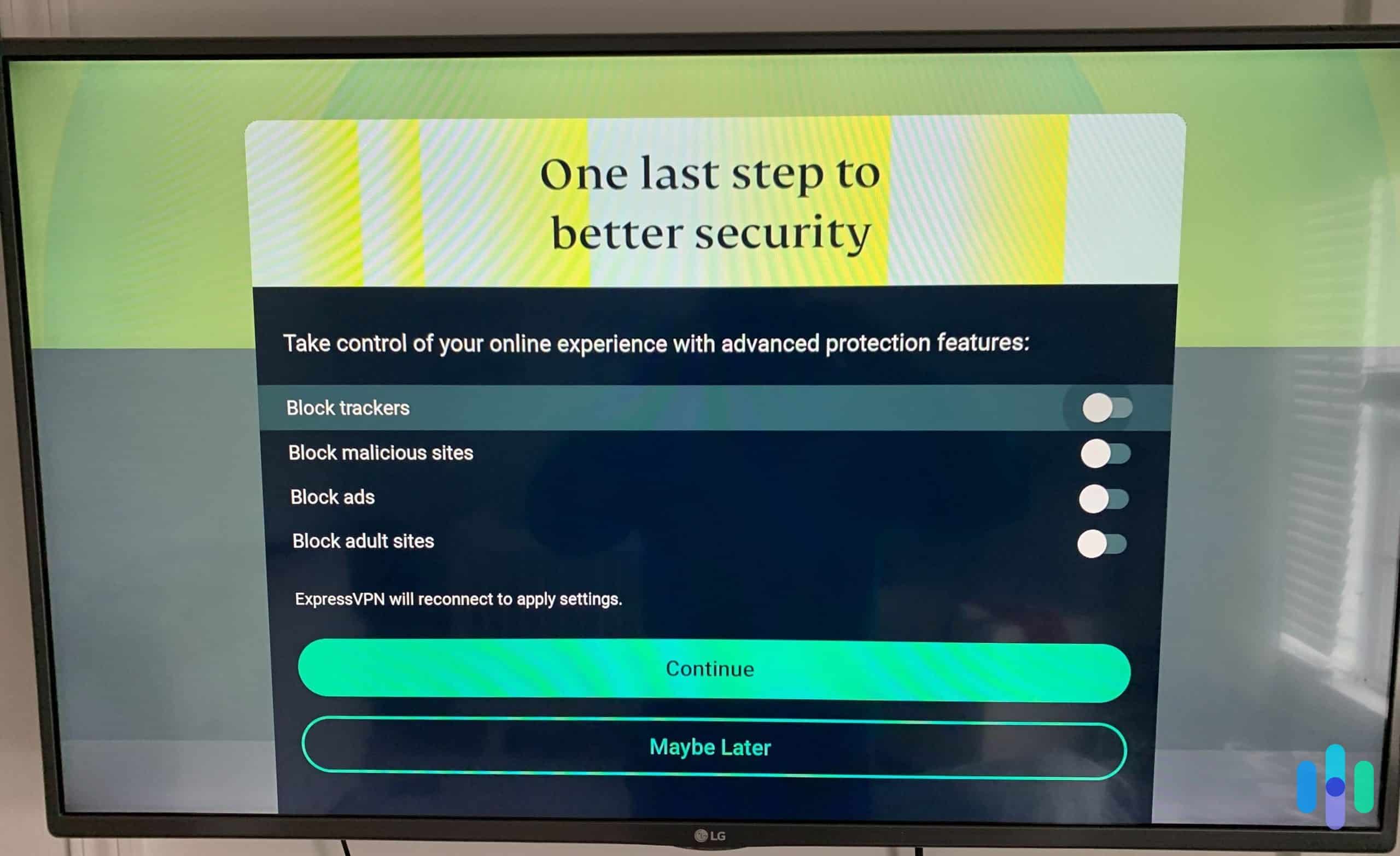
Getting a VPN up and running on your Fire TV Stick is straightforward, as long as your model supports VPN apps. Fire OS devices from the 2nd generation onward can all run VPN apps through the Amazon App Store. You have three installation methods to choose from.
Check Your Fire TV Version: These Fire TV models support Amazon App Store downloads and Android APK installation: Fire TV Stick (2nd Generation), Fire TV Cube (1st & 2nd Generation), Fire TV (3rd Generation Pendant Design), Fire TV Stick 4K. Newer devices running Vega OS have limited VPN support — check with your provider.
VPNs Compatible With Fire TV Stick
We confirmed that the following VPNs are compatible with the Fire TV Stick running Fire OS and can be installed via the Amazon App Store or APK sideload:
- CyberGhost
- ExpressVPN
- Hotspot Shield
- IPVanish
- Ivacy VPN
- KeepSolid VPN Unlimited
- NordVPN
- Perfect Privacy
- Private Internet Access
- PureVPN
- StrongVPN
- Surfshark
- VyprVPN
- Windscribe
Once you pick a compatible VPN, here are three methods to use it with your Fire TV Stick, starting with the easiest option:
Method 1: Amazon App Store (Easiest)
This is the recommended method for the five VPNs above. Every app is optimized for Fire TV remote navigation.
- On your Fire TV Stick, navigate to the search bar and search for your VPN by name (e.g., “NordVPN”).
- Select the app from results and click Download or Get.
- Once downloaded, open the app from your home screen.
- Log in with your VPN credentials, connect to a server, and you’re set.
Method 2: APK Sideload
If your VPN isn’t in the Amazon App Store, you can likely install it via Android APK. This requires enabling developer options and using the Downloader app. It also requires that the VPN offers an APK file, although most major providers do. Here are the steps to set up a VPN on your Fire TV Stick by sideloading an APK:
- Download the VPN APK file from the provider’s official website onto your phone or computer.
- On your Fire TV Stick, go to Settings → My Fire TV → Developer Options.
- Enable ADB Debugging and Apps from Unknown Sources.
- Search for and install the Downloader app from the Amazon App Store.
- Open Downloader, allow access, and enter the URL of the APK installer.
- Click Go → Install and follow the prompts.
- Sign in to the VPN app and connect to a server.
Method 3: Router
If your Fire TV doesn’t support the App Store or APK methods above, a VPN-configured router is the most reliable path to protected streaming. This method protects every device on your network simultaneously. Once set up, your Fire TV Stick connects to the VPN automatically just by being on that Wi-Fi network. However, it’s also the most complicated option.
Setup varies by router model and VPN provider — see our VPN router setup guide and general VPN setup guide for detailed instructions.
Pro Tip: Setting up your VPN on a router is also a workaround for newer Fire TV devices running Vega OS. This new Linux-based operating system has limited native VPN app support considering they only released the developer tools at the end of 2025.2
Not sure which method to use? If your VPN is on our list above, go with Method 1 (App Store) — it’s the fastest and the apps are designed specifically for Fire TV remote navigation. Method 2 (APK) is worth the extra steps only if your preferred VPN isn’t in the App Store. We only recommend Method 3 if it’s the only option to use a VPN with your Fire TV Stick.
How to Verify Your VPN Is Working
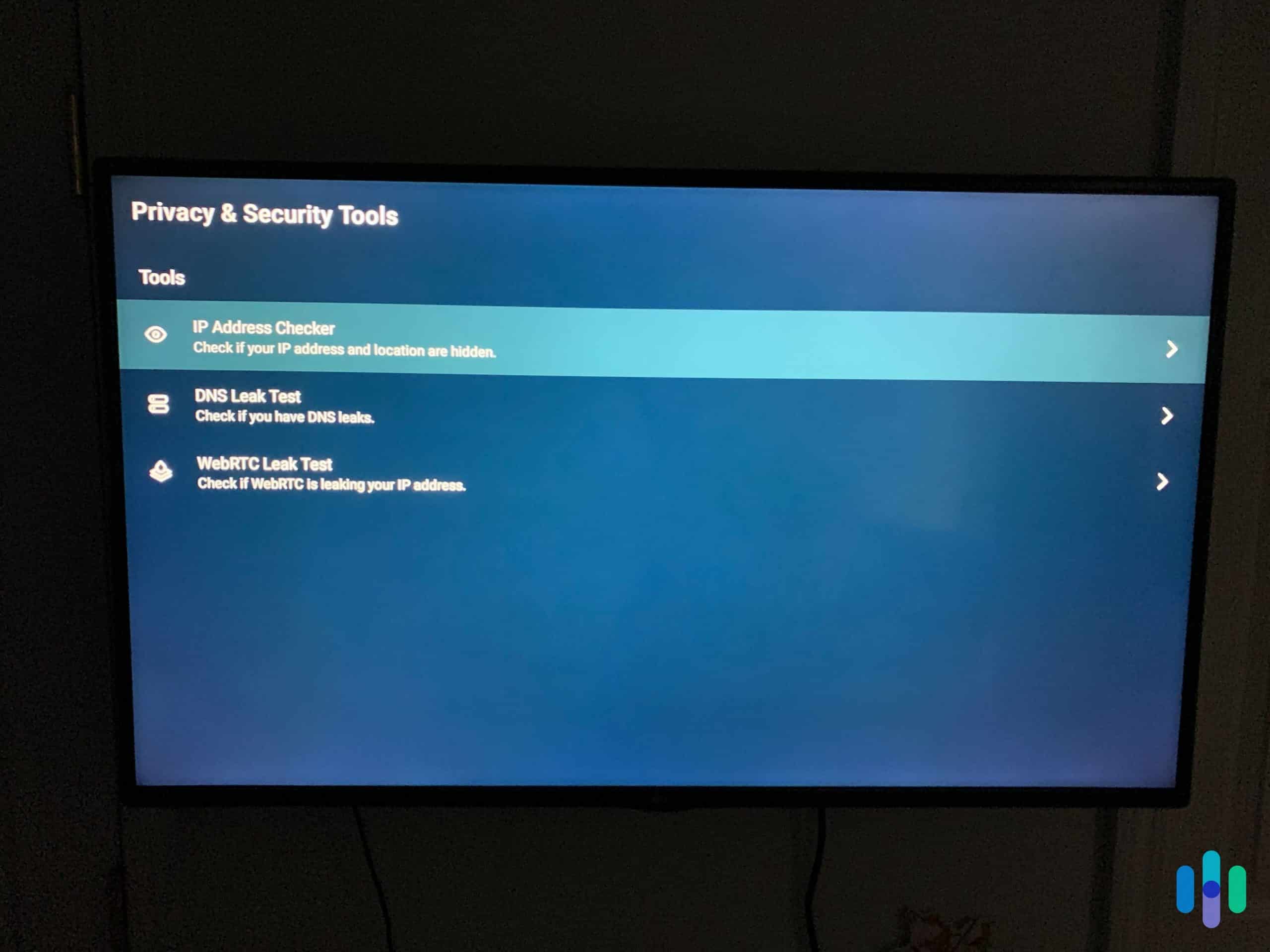
After installation, confirm your VPN is active before streaming:
- Open the Downloader app on your Fire TV Stick.
- In the address bar, enter https://whatismyip.com and click Go.
- If the location associated with your IP address as shown on What Is My IP matches your VPN server’s location instead of your location, the VPN is connected and working properly.
As long as your IP address changed, you’re good to go. Your check on What Is My IP should also show the location of the VPN server you’re connected through instead of your actual location.
How to Change Your Region on Fire TV Stick
Using a VPN with your Fire TV Stick lets you access streaming libraries from countries all over the world. But to watch content from another country’s library, your Amazon Prime account region needs to match the VPN server you’re connected to. Here’s how to change it:
How to Change Your Region on Fire TV Stick
- Sign in to your Amazon account on a browser (not the Fire TV).
- Scroll down to the footer of Amazon’s website and click Manage Your Content and Devices.
- Click the Preferences tab.
- Under the Country/Region Settings, click Change next to your current region and select your target country.
- Restart your Fire TV Stick and re-register it if prompted.
- Before accessing content, ensure your VPN is connected to a server in the same country as your Prime account setting.
If you forget to change your Country/Region Settings, Prime Video will show you the library for whichever country your account is set to, regardless of your VPN location. It’s not too late to fix it. Just follow the steps above as though you had done so initially.
Region-Specific VPNs: Already know which region you want to access through a VPN? Check out our Japan VPNs, Canada VPNs, or South Korea VPNs guides for help finding a provider that offers a strong server infrastructure in your target region.
Best VPNs for Fire TV Stick: Comparison Table
| VPN | NordVPN | Surfshark | Proton VPN | ExpressVPN | CyberGhost VPN |
|---|---|---|---|---|---|
| Ranking | 1st | 2nd | 3rd | 4th | 5th |
| Ratings | 9.7/10 | 9.5/10 | 9.3/10 | 9.1/10 | 8.9/10 |
| Fire OS app? | Yes | Yes | Yes | Yes | Yes |
| Vega OS app? | Yes | No | No | No | No |
| Server locations | 130 countries | 100 countries | 129 countries | 105 countries | 100 countries |
| Lowest price | $3.39 per month | $1.99 per month | $2.99 per month | $2.44 per month | $2.19 per month |
| Read review | NordVPN Review | Surfshark Review | Proton VPN Review | ExpressVPN Review | CyberGhost VPN Review |
A Closer Look at the Best VPNs for Fire TV Stick

- NordVPN – Best Fire Stick App
- Surfshark – Best for Families
- Proton VPN – Best for Obscure Streaming Sites
- ExpressVPN – Best Rotating IPs
- CyberGhost – Best Customer Service
1. NordVPN — Best Fire Stick App
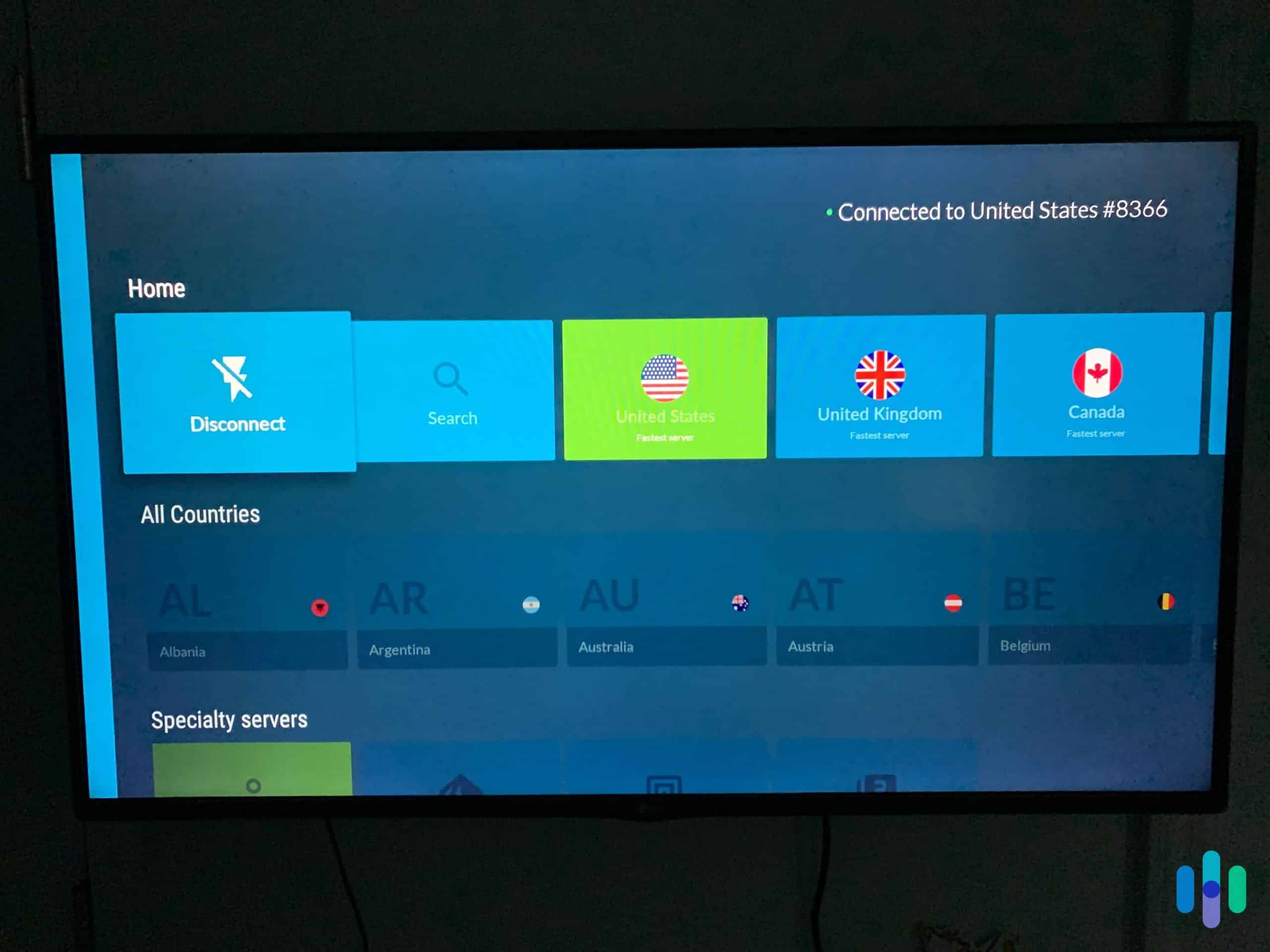
NordVPN tops our Fire TV Stick list because it offers the easiest to use Fire Stick app. The Fire OS app is easy to navigate using just a remote. The interface makes all of NordVPN’s features readily accessible, including quick switches between its servers in 130 countries. Plus, it’s one of only a few VPNs to offer an app for Vega OS, the operating system for the latest Fire TV Stick models released in 2026.
What We Like
- Fire Stick apps for Fire OS and Vega OS with remote-friendly UI
- Fast speeds with under six percent download speed loss
- SmartPlay feature helps bypass VPN blockers
- AES-256 encryption and an independently audited privacy policy
What We Don’t Like
- Cap of 10 simultaneous connections
- No phone customer support
- Higher prices than most competitors
- No dedicated streaming servers
Its proprietary NordLynx protocol (built on WireGuard) only lowered our download speed by 5.78 percent. That’s among the best speeds we recorded during our VPN speed tests. It’s plenty of headroom for 4K streaming on any modern internet connection.
The standout streaming feature from NordVPN is SmartPlay. It helps you get around VPN blockers by better aligning your device’s location data with the location of the server you’re connected to. That makes it one of the best VPNs for Hulu, a streaming service with notoriously strict VPN blockers.
Beyond that unique feature, NordVPN has servers in 130 countries. That gives you broad access to geo-restricted content from almost anywhere in the world. They also boast over 9,000 servers in total, allowing them to handle massive amounts of traffic without ever slowing down your connection.
Expert Insight: If you’re looking for a VPN with a bigger server infrastructure and complete coverage in all 50 U.S. states, check out our Private Internet Access review. They maintain over 35,000 servers worldwide with an emphasis on U.S.-based servers. We typically recommend it for streaming local sports, however, we found their Fire TV Stick app lackluster.
Although NordVPN costs the most out of all the VPNs on this list, we think the premium price is justified since they also have the most server locations, as mentioned above. They’re also the only one to offer an app for the latest Fire TV Stick with Vega OS. Plus, it’s not that expensive with prices starting at $3.39 per month. Here’s an overview of NordVPN’s pricing:
| NordVPN Plan | Basic | Plus | Complete | Prime |
|---|---|---|---|---|
| One month | $12.99 | $15.29 | $18.69 | $25.29 |
| One year | $4.99 per month | $5.49 per month | $6.99 per month | $8.99 per month |
| Two years | $3.39 per month | $3.89 per month | $5.39 per month | $7.39 per month |
2. Surfshark — Best for Families
Surfshark’s defining feature is unlimited simultaneous connections on a single subscription. That means you can protect multiple Fire TV Sticks, phones, laptops, desktops, and tablets all for $1.99 per month. Despite the low price, they still offer a clean and intuitive Fire TV app with a full feature set including a kill switch, split tunneling, and multi-hop.
What We Like
- Unlimited simultaneous device connections
- Full feature set on Fire TV app (kill switch, split tunneling, multi-hop)
- Camouflage Mode activates automatically
- NoBorders mode bypasses VPN restrictions
- Ad blocker included
What We Don’t Like
- Headquartered in the Netherlands (Nine Eyes member)
- Fewer server locations
- High per month prices starting at $15.45
- No phone support
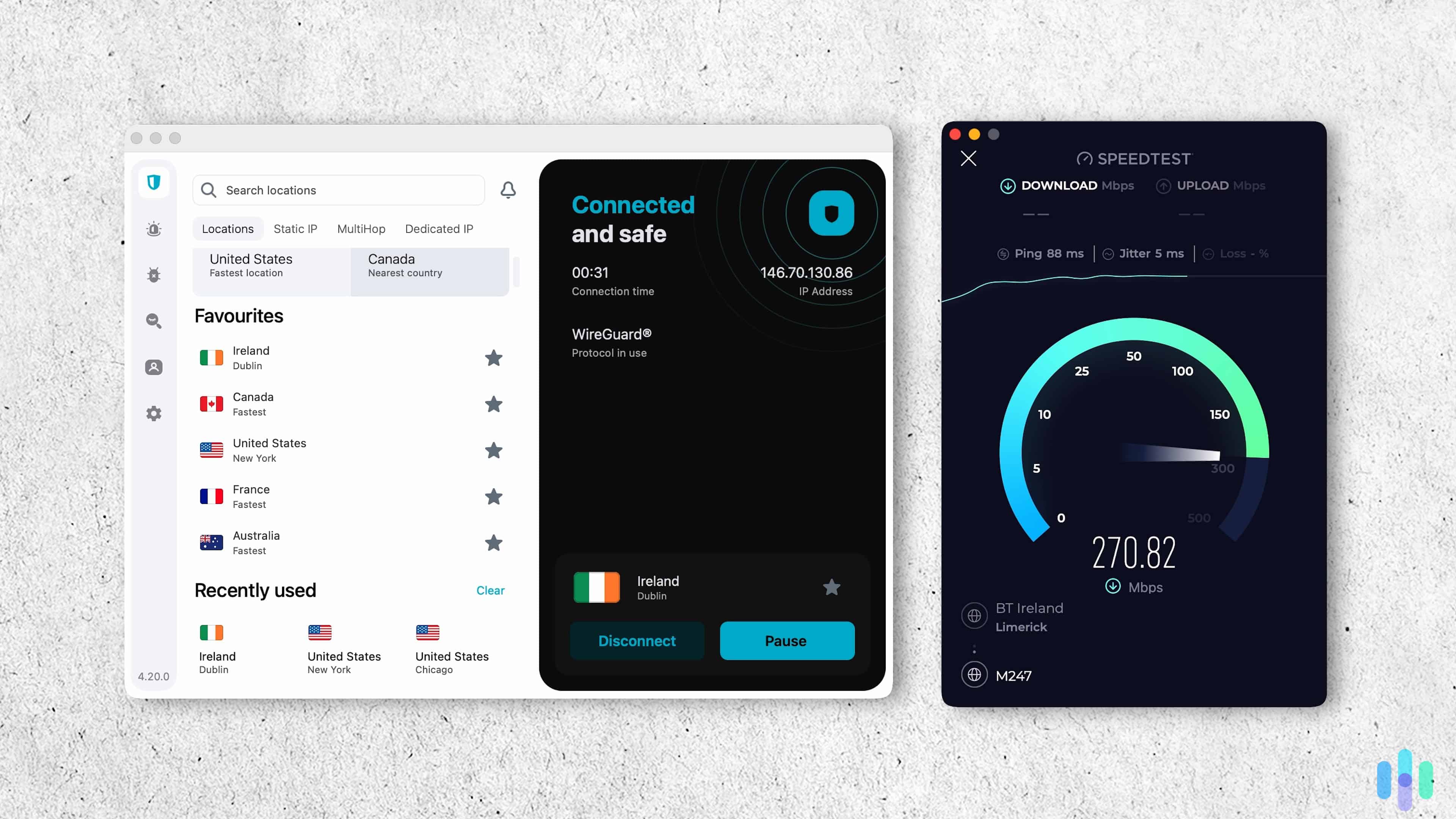
Unlike NordVPN, Surfshark does not have a proprietary protocol to improve its speed. However, it supports both OpenVPN and WireGuard, so the speeds were still impressive. Across 46 speed checks, Surfshark only lowered our download speeds by 7.76 percent. That’s slightly slower than NordVPN’s 5.78 percent, but we could still easily stream in 4K without buffering on our 300 Mbps connection. Check out our Surfshark vs NordVPN comparison for more details.
If you’re trying to access streaming content from a site with strict VPN blockers, Surfshark can help. While most VPN blockers only block based on your IP address, some detect VPN traffic based on your browsing data. Surfshark’s Camouflage Mode makes your VPN connection look like normal traffic to get you past these VPN blockers. To use it, all you need to do is switch to the OpenVPN protocol and it automatically turns on. With the help of Camouflage Mode and Surfshark’s regularly refreshed IP addresses, we successfully accessed Netflix while connected through their servers 87 percent of the time.
As long as you’re ready to pay for at least a year upfront, Surfshark offers some of the best value in the industry with prices starting at just $1.99 per month. If you also want digital and identity protections, their Surfshark One and One+ bundles offer even better value with an antivirus, identity protections, and other digital safety tools. Here’s a breakdown of Surfshark’s pricing:
| Surfshark Plan | Starter | One | One+ |
|---|---|---|---|
| One month | $15.45 | $17.95 | $20.85 |
| One year | $3.19 per month | $3.39 per month | $6.29 per month |
| Two years | $1.99 per month | $2.49 per month | $4.19 per month |
Heads Up: Surfshark is headquartered in the Netherlands, a Nine Eyes member country. However, they’re a top no-logs VPN, as the policy has been independently audited several times showing their commitment to user privacy. It’s such a strong policy that we don’t have a problem recommending it as a VPN for China, where simply using a VPN can cause legal troubles.1 Of course, it’s also a great Netherlands VPN considering it’s based there.
3. Proton VPN — Best for Obscure Streaming Sites
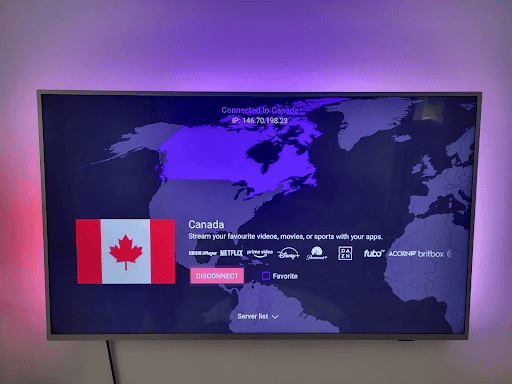
Proton VPN earns its “Best for Obscure Streaming Sites” label because it officially supports 89 streaming sites. It also works with a huge list of regional libraries for popular streaming sites including over 20 Netflix libraries. Of course, they also offer a high-quality Fire TV app, otherwise they wouldn’t be on this list at all. While using our remote, we could always find a server in the region we wanted in less than 10 seconds.
What We Like
- Works with about 90 streaming platforms
- Annual third-party privacy audits ensure security
- Over 18,000 servers across 129 countries
- Based in Switzerland, a strong privacy jurisdiction
- Split tunneling on Fire TV app
What We Don’t Like
- Free plan only offers servers in 10 randomly chosen countries
- More expensive than Surfshark, ExpressVPN and CyberGhost VPN
- Paid plan limits you to 10 simultaneous connections
- Live chat is only available for paying customers
Proton VPN delivers fast streaming speeds that are about as fast as Surfshark. Throughout our 62 speed checks, we averaged a download speed loss of 8.18 percent while using the WireGuard protocol. When connecting through the OpenVPN protocol, speeds slowed slightly more, but either way, we could still stream 4K content on our 300 Mbps internet without any buffering or preloading.
FYI: Instead of using RAM-based servers, like NordVPN and Surfshark, that can’t store data after being restarted, Proton VPN uses Full-Disk Encryption (FDE) across all servers. It still provides comparable data protection as all data remains secure from a breach. That’s why Proton VPN is still one of the best VPNs for anonymity.
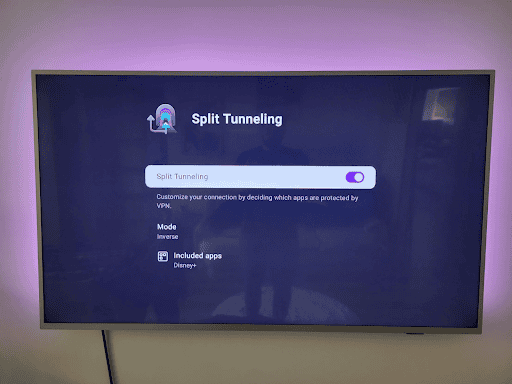
To improve streaming performance, Proton VPN offers a unique VPN Accelerator feature. While it still can’t keep up with NordVPN’s proprietary protocol, it keeps Proton VPN’s speeds competitive. Basically, they optimize the open-source protocols they support to improve their efficiency with Proton VPN’s servers. Take a look at our Proton VPN vs NordVPN comparison for more details on the benefits of NordLynx compared to Proton VPN’s Accelerator.
On top of those improved speeds, we also like Proton VPN’s broad support for streaming sites and regional libraries. Like we mentioned, Proton VPN supports 89 streaming sites. That means they’ve tested each one of them with their servers to confirm you’ll be able to get through their VPN blockers. During our testing, we were able to consistently get into Netflix, Hulu, Prime Video, ESPN+, and Disney+ with a success rate of about 78 percent. Any time we were blocked, switching servers always resolved the issue.
While Proton VPN offers a free plan, we found it lackluster for streaming. They only grant you access to servers in 10 randomly assigned countries. In our case, we couldn’t even access Netflix in any of them since it’s not supported in the 10 countries we were given. Thankfully, Proton VPN’s pricing dropped at the end of 2025 and now starts at just $2.99 per month. It used to cost at least $4.49 per month. Here’s the breakdown of their current pricing:
| Proton VPN Plan | VPN Plus | Proton Unlimited |
|---|---|---|
| One month | $9.99 | $12.99 |
| One year | $3.99 per month | $7.99 per month |
| Two years | $2.99 per month | $5.99 per month |
>> Read About: Surfshark Vs. Proton VPN: Which is Better?
4. ExpressVPN — Best Rotating IPs
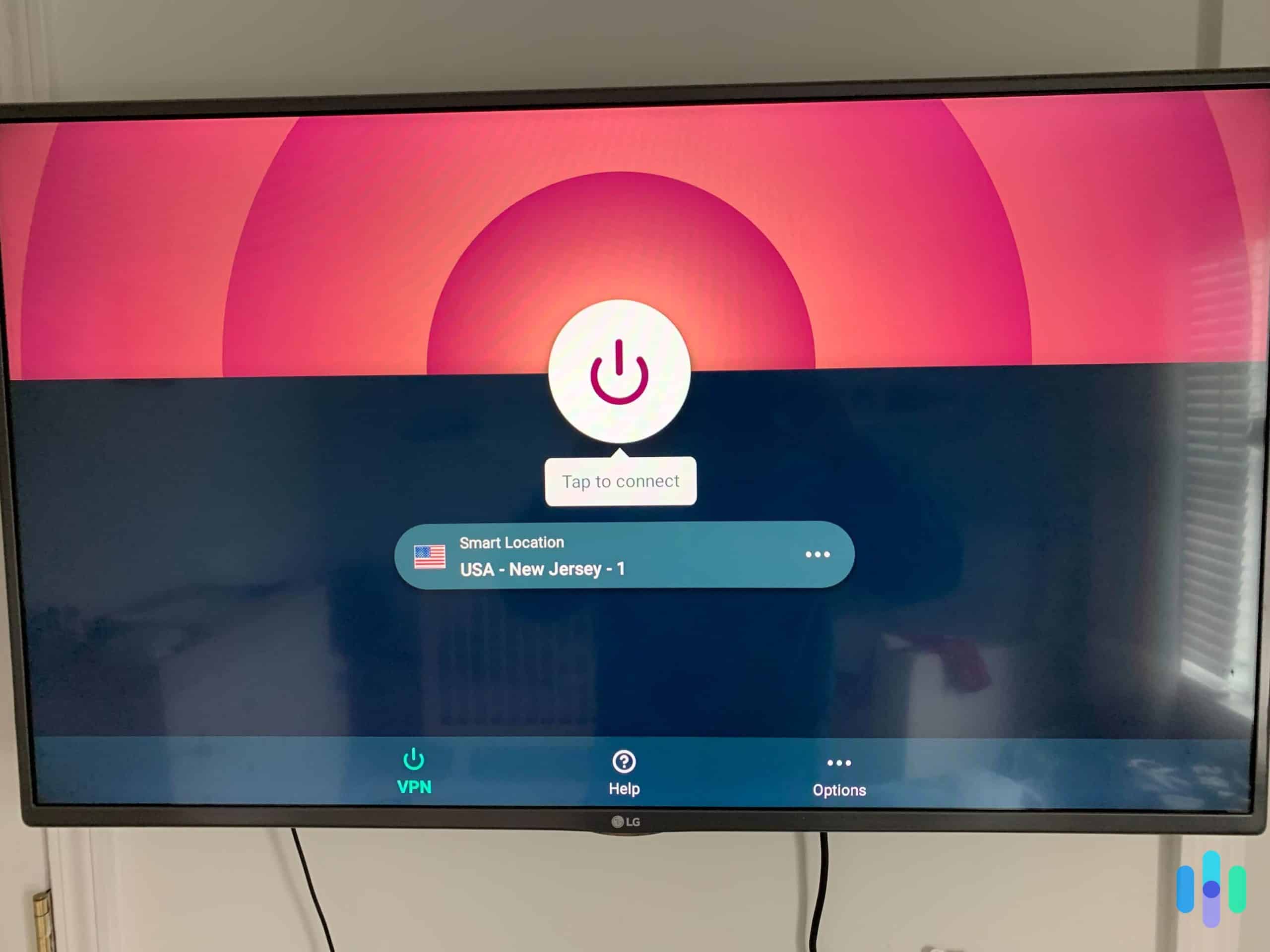
Even though Surfshark also offers rotating IP addresses, ExpressVPN automatically rotates your IP address every time you visit a new site. That means each time you pull up your favorite streaming service, you’ll get a new IP address from the one you were using before. This makes it harder for streaming sites to identify ExpressVPN’s IP addresses as ones they should block for VPN activities.
What We Like
- Changes IP address every time you visit a site
- Lightway protocol offers premium performance
- Easy-to-use Fire TV Stick app
- Based in British Virgin Islands (non-surveillance jurisdiction)
- Offers VPN routers with ExpressVPN preinstalled
What We Don’t Like
- More than 10 simultaneous connections require a higher tier plan
- Slower speeds than NordVPN
- Large price increase at renewal
- No phone support
Once again, comparing ExpressVPN to NordVPN makes it seem slow. When we connected to ExpressVPN’s servers, our speed dropped by 7.57 percent, just slightly faster than Surfshark and Proton VPN. We credit that to ExpressVPN’s proprietary Lightway protocol. It was built from the ground up to optimize efficiency for ExpressVPN’s servers and app. However, going by the numbers, it seems NordVPN took the better approach by building their NordLynx protocol off of WireGuard.
As mentioned, the two main features that ExpressVPN offers for streaming is their IP rotator called ShuffleIP and the Lightway protocol. The IP rotator helps the IP addresses of their servers stay off the IP ban lists that streaming services use to block VPN connections. Most of these lists identify VPN IP addresses based on activity levels and types. By constantly changing which devices are connected to a given IP address, that identification becomes much more difficult.
Just like Proton VPN, ExpressVPN also lowered its prices significantly at the end of 2025, with another drop at the beginning of 2026. Their prices used to be too high to consider them an affordable VPN, but now they only cost slightly more than Surfshark with rates starting at $2.44 per month. Let’s take a look at ExpressVPN’s pricing for all three tiers of service:
| ExpressVPN Plan | Basic | Advanced | Pro |
|---|---|---|---|
| One month | $12.99 | $13.99 | $19.99 |
| One year | $3.49 per month | $4.19 per month | $6.29 per month |
| Two years | $2.44 per month | $3.14 per month | $5.24 per month |
>> Check Out: Best VPN Services for Disney+ Streaming in 2026
5. CyberGhost VPN — Best Customer Service
CyberGhost VPN doesn’t do anything flashy. It doesn’t have the fastest speeds or the lowest price. What it does deliver is a consistently solid, dependable VPN experience with the best customer support of any service on this list. Its 24/7 live chat is genuinely responsive, and its knowledge base is one of the most comprehensive in the industry. For first-time VPN users setting up a Fire TV Stick, that accessibility matters.
What We Like
- 24/7 responsive live chat support
- 11,500+ servers in 100 countries
- Based in Romania (outside all surveillance alliances)
- Easy app store installation on Fire TV
- 45-day money-back guarantee on 2-year and 6-month plans
What We Don’t Like
- No obfuscation/camouflage mode
- No multi-hop servers
- Only one tier of service
- Expensive unless you commit for two years
You can find a server optimized for just about anything through CyberGhost VPN. They even offer servers optimized for specific streaming sites. During our tests, we found that picking the right server pays dividends for your speeds. In fact, CyberGhost VPN is the only one to beat NordVPN’s speeds on this list. Our download speeds only decreased by 5.32 percent across 53 speed checks, putting it ahead of NordVPN’s speed loss of 5.78 percent. Find out why we still prefer NordVPN in our CyberGhost VPN vs NordVPN comparison.
Like we mentioned, CyberGhost VPN’s features are pretty barebones. They don’t offer a Camouflage Mode like Surfshark or a VPN Accelerator Proton VPN. However, it’s easy to use on the Fire TV Stick with dedicated servers. We had no trouble accessing Netflix, Hulu, Disney+, or Max as long as we picked the servers labeled for the streaming site of our choice. We’ll help you decide if premium features are worth it in our Surfshark vs. CyberGhost VPN comparison.
With only one tier of service to choose from, CyberGhost keeps their pricing simple, too. However, they oddly offer a six-month plan in place of the usual one-year plan. It’s significantly more expensive per month than comparable one-year plans, so we’re not big fans. Anyways, here’s a breakdown of CyberGhost’s pricing:
| CyberGhost VPN Plan Length | Price Per Month |
|---|---|
| One year | $12.99 |
| Six months | $6.99 |
| Two years | $2.19 |
>> Learn More: CyberGhost VPN Vs. ExpressVPN
What You Need to Know About VPN Speed
All VPNs slow your connection to some degree — it’s unavoidable when you’re adding an encryption layer to every packet as well as routing your connection through another server. The goal is to find a VPN that provides protection without slowing things down enough to impact your streaming experience. There are three speed metrics that matter:
- Download speed determines how quickly your Fire TV Stick receives data — the most relevant metric for streaming. Higher numbers are better (measured in Mbps). For reference, you need around 25 Mbps for stable 4K and 5 Mbps for HD content.
- Upload speed affects how quickly you send data — less critical for streaming but important for video calls or gaming.
- Latency (ping) measures how fast your signal bounces back. Lower is better, and it matters most for gaming and live video chat, since high latency causes lag and buffering. Our VPN speed tests check all three on both Windows and Mac devices.
In our testing, all five of our recommendations only caused a five to eight percent reduction in our download speeds. See our full list of the fastest VPNs for a detailed comparison across more providers. If you’re also using your VPN for gaming, see our best VPNs for gaming guide for latency-focused rankings. One more useful data point: VPN’s slightly increase your data usage — worth knowing if you’re on a capped data plan.
Troubleshooting & Updating Your VPN
Whenever taking on technical tasks, things can go wrong and setting up a VPN for your Fire TV Stick is no different. Thankfully, most issues are easy to fix with a few common troubleshooting steps. We’ll also show you how to update your VPN app.
Common Troubleshooting Fixes
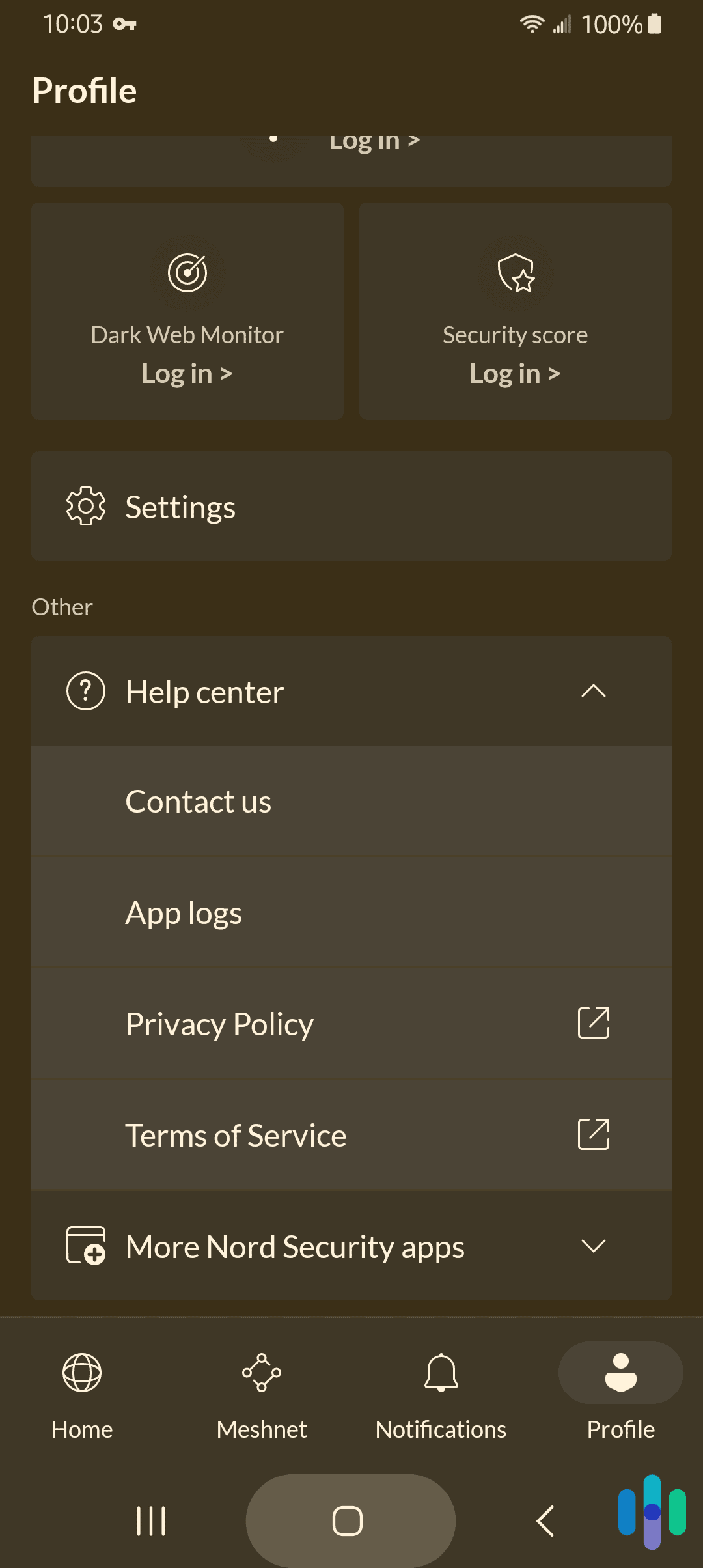
Most Fire TV VPN problems have straightforward solutions. Regardless of the issue you experience, always try these common fixes first:
- Clear cache and data: Go to Settings → Applications → Manage Installed Applications, select your VPN app, and click Force Stop, then Clear Data and Clear Cache. Restart your device and try reconnecting.
- Change your network: Choose a Wi-Fi network in the same room as your router, or connect your Fire TV Stick to the router via Ethernet adapter for the most stable connection. Avoid connecting on a congested network.
- Restart everything: Go to Settings → My Fire TV → Restart, then unplug your modem and router, wait 30 seconds, and plug them back in.
- Switch protocols: In your VPN app’s settings, try switching between protocols (e.g., toggle TCP on, then switch to UDP). If your VPN supports it, try WireGuard instead of OpenVPN for faster speeds — see our VPN protocols guide for an explanation of the differences.
- Reinstall the app: Uninstall the VPN app (see steps above), restart your Fire TV Stick, reinstall from the App Store, and reconnect.
These troubleshooting steps fix well over 90 percent of the common issues with setting up a VPN on a Fire TV Stick.
How to Update Your VPN App
Keeping your VPN app updated ensures you receive the latest security patches and streaming compatibility improvements:
- On your Fire TV home screen, find the VPN app and press Menu (the three-line button on your remote).
- Select More Info to open the app’s detail page.
- If an update is available, an Update button will appear.
- Click Update and wait for the installation to complete.
We recommend checking for updates on a weekly basis. It takes less than a minute, so it’s easy enough to do before you start streaming your favorite shows on Saturday night.
Risks of Not Using a VPN on Fire TV Stick
Streaming without a VPN can expose you in ways you might not have considered. Here’s what you’re risking when your Fire TV isn’t VPN-protected:
- ISP visibility: Without a VPN, your internet service provider can see exactly what you’re watching, when, and for how long. That data can be sold to advertisers or shared with third parties.
- Public Wi-Fi exposure: On any public or shared network, unencrypted streaming traffic is visible to anyone monitoring that connection. Hackers can intercept login credentials for your streaming accounts. If you use the same credentials for other, more sensitive accounts, this can cause major issues.
- Targeted advertising: Google and other advertising platforms use your viewing and browsing behavior to build ad profiles. A VPN masks your activity, reducing this tracking.
- Geographic and workplace restrictions: If you’re in a country or office that restricts streaming, using a VPN adds a layer of protection and access.
- Unencrypted VoIP calls: If you use VoIP calling through any Fire TV app, an unencrypted connection leaves those calls exposed.
For a full overview of why digital security matters on streaming devices, see our digital safety guide. And if you’re managing your browsing history and privacy across devices beyond just Firestick, a VPN is one of the simplest, most effective tools available.
Recap
Setting up a VPN on your Fire TV Stick is one of the easiest ways to improve your streaming experience — both in terms of privacy and content access. Unlike Roku, which has no native VPN support and requires router workarounds, Fire TV Stick lets you download and run a VPN app directly. You can get one set up in under five minutes through the Amazon App Store.
Our top overall pick is NordVPN for its polished Fire TV app and support for Vega OS on the latest Fire Stick models. For families looking to protect multiple devices on a single subscription, Surfshark’s unlimited device connections are hard to beat at $1.99 per month. If streaming breadth is your priority, Proton VPN is the strongest performer with support for 89 streaming sites and over 20 regional Netflix libraries. Finally, ExpressVPN’s IP rotator keeps their servers off VPN block lists while CyberGhost’s quality customer service makes setup easy with quality support offering personal help.
FAQs
-
Can you use a VPN on FireStick?
Yes — VPNs work seamlessly with Fire TV Stick devices from the second generation onward. Most can be installed directly from the Amazon App Store in under five minutes. We recommend NordVPN, Surfshark, Proton VPN, ExpressVPN, and CyberGhost — all have native Fire TV apps optimized for remote navigation. Note that newer devices running Amazon’s Vega OS have limited VPN compatibility; this guide applies to Fire OS devices. However, our top pick, NordVPN, recently released an app for Amazon’s Vega OS.
-
Which VPN works best with Fire TV Stick?
NordVPN is our top overall pick for Fire TV Stick — it offers the best combination of security, speed, and a polished native Fire TV app. For families or households with many devices, Surfshark’s unlimited simultaneous connections make it the better choice. If content access is your priority, Proton VPN supports 89 streaming services and over 20 Netflix libraries.
-
Is there a free VPN for Fire TV Stick?
Yes, though with significant caveats. Hotspot Shield is our top pick as a free VPN for Fire TV Stick. However, it still caps speeds for free users at two Mbps. That’s not enough to even stream in 1080p. Plus, after hitting their 500 MB data daily cap, you’ll need to start watching ads for more access. Since that’s the best there is for free VPNs, we always recommend a premium plan from NordVPN, Surfshark, or Proton VPN. A paid subscription of $1.99 to $3.39 per month is far more practical than fighting through free-tier restrictions.
-
How do I install a VPN on the Amazon Fire Stick?
The simplest method is through the Amazon App Store. On your Fire TV Stick, search for your VPN by name (e.g., “NordVPN”), download it, and log in.
-
How do I know if my VPN is working on my Fire TV Stick?
Open the Downloader app on your Fire TV Stick, enter https://whatismyip.com in the address bar, and click Go. Compare the IP address shown to your device’s real IP address. If they’re different, your VPN is connected and working. Your VPN app itself will also show a “connected” status and the server location you’re currently routed through.